Adding Category-Based Stock & Price Limit
 ChatGPT
 Claude.ai
---
With ConnectProf, you can add category-based price and stock restrictions to the products transferred to the marketplace.
To add category-based price and stock restrictions, click on the Administrator Panel > Catalog Settings button.
The category management page will open. For detailed information about the category management page, click [here](link).
On the opened page, select the category for which you want to set price and stock restrictions in the "Category List" section.
NOTE: The category for which you want to add stock and price restrictions must be a mapped category on the marketplace. Restrictions cannot be added to unmapped categories.
For detailed information about category mapping, you can refer to the "Category Mapping" article by clicking [here](link).
After making the selection, choose which marketplace you want to add restrictions to in the "Mappings" section.
Clicking on the mapped category for the marketplace will open a detailed view.
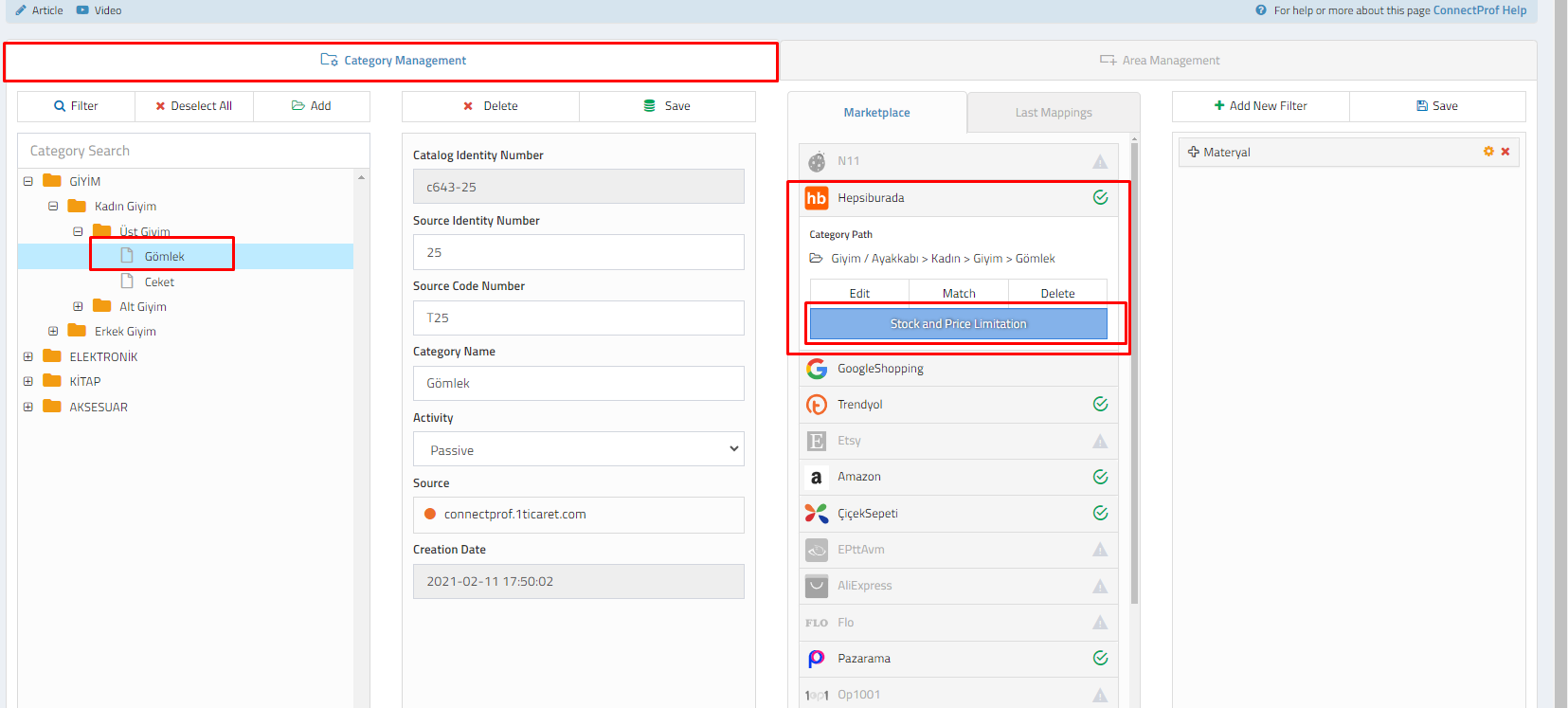
Click on the "Stock and Price Limitation" button.
In the opened window, you can add stock, list price, and discounted price limits for the category.
For example; if you want to transfer products with a minimum of 5 and a maximum of 100 stocks for the selected category, activate the Stock Limitation and enter 5 in the min. quantity field and 100 in the max. quantity field.
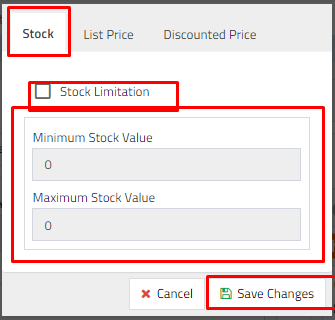
The same applies to price restrictions.
For price restriction, for instance; if you want to transfer products belonging to the selected category with a minimum price of 100 TL, after activating the list price limitation, enter 100 in the min. price value field, and a figure like "9999999999" that cannot be reached in the max. price value field.

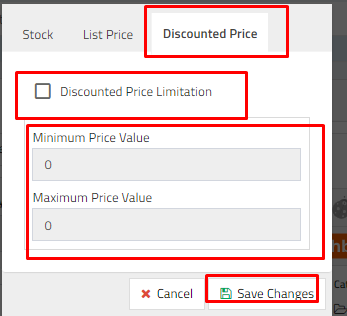
NOTE: After completing all the steps, click on the "Save Changes" button. If you do not save, the changes will not be applied.
