Adding Marketplace-Based Commission with ConnectProf Integration
 ChatGPT
 Claude.ai
---
You can add commissions based on price, brand, model, or category from the "Add Commission Condition" section. If you wish, you can also add commissions for specific brands or categories by filtering.
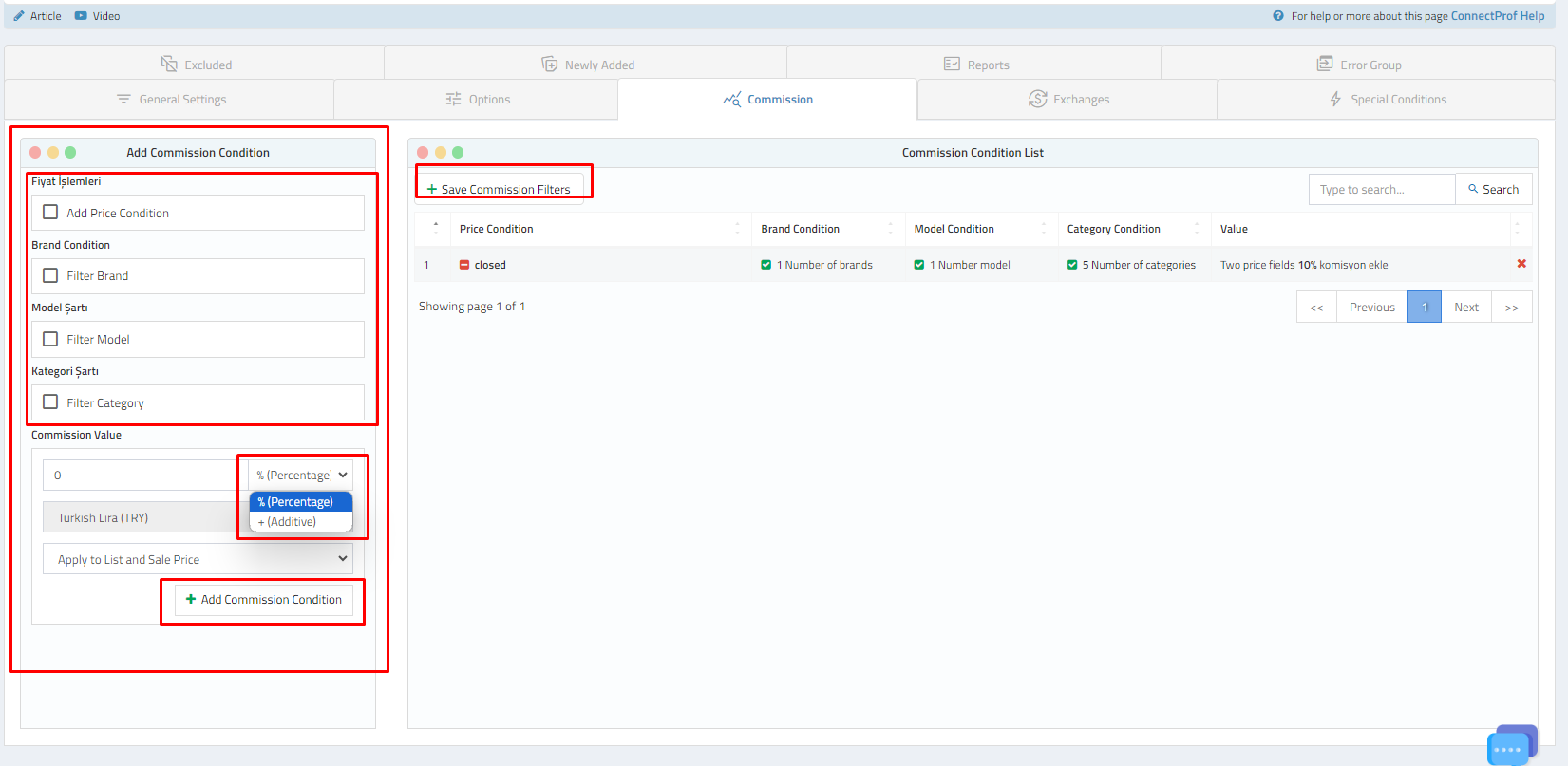
To add commission rates based on certain conditions, you can use the options on the left side of the page to add conditions.
Adding a Price Condition:
The price field to be included in commission rates:
The conditional price field can be managed under General Settings > Field Selection > Price Field Selection and Options > Price Field Customization settings.
- The price field used in general settings is considered in price conditions.
- The price column selected in Options > Price Field Customization is taken into account in calculations.
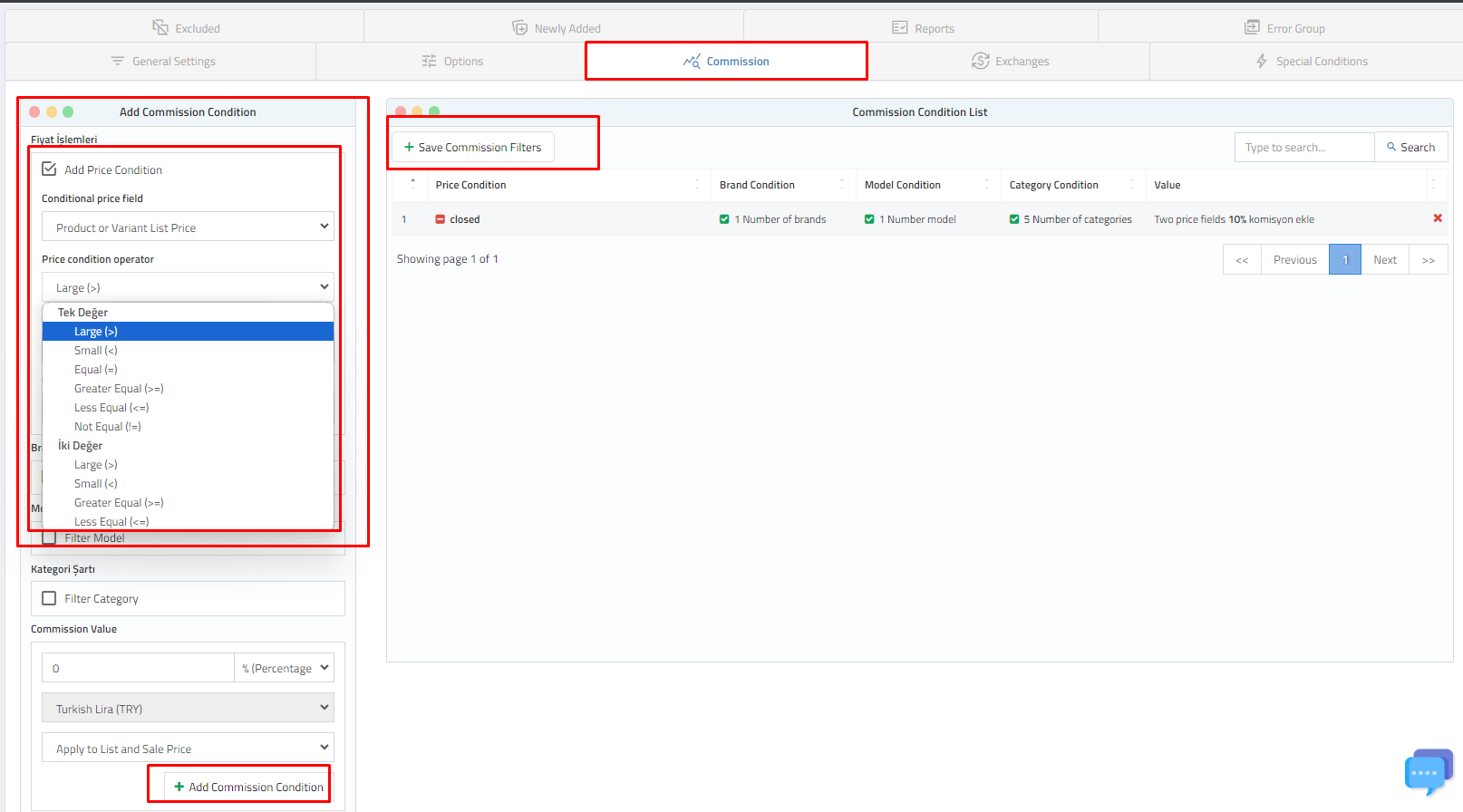
The price field selected in general settings and the price column on the options page are linked. The price field that will be considered as a condition when adding a commission is determined according to your settings on the General Settings and Options pages.
If there is a conflict between the conditional price field indicated in the visual and the price field customization on the Options page, the commission addition process will fail.
To correctly add commissions, the price field chosen as a condition must match the price field customization setting on the Options page.
If the default setting is used on the Options page, the choice in the conditional price field on the commission page is taken into account.
Price Operations:
Price Condition Operator:
With the price condition operator, you can limit the price on the selected price field.
For example:
1-) Add a commission to products with a list price below $70.
2-) Add a commission to products with a list price greater than $10 and less than $50.
3-) Add a commission to products with a discounted price greater than $10 and less than $200.
Mathematical symbols on the price condition operator allow for logical commission addition based on the selected price field.
Price conditions are calculated as the inclusive VAT amount of the price field selected in general settings, and each commission is added based on this price.
The commissions you add will be applied sequentially and logically if the conditions are met.
A product with a list price of $30 will be affected by the 1st and 2nd commissions, and the commission addition process will be carried out sequentially if the conditions are met.
Brand, Model, and Category Condition:
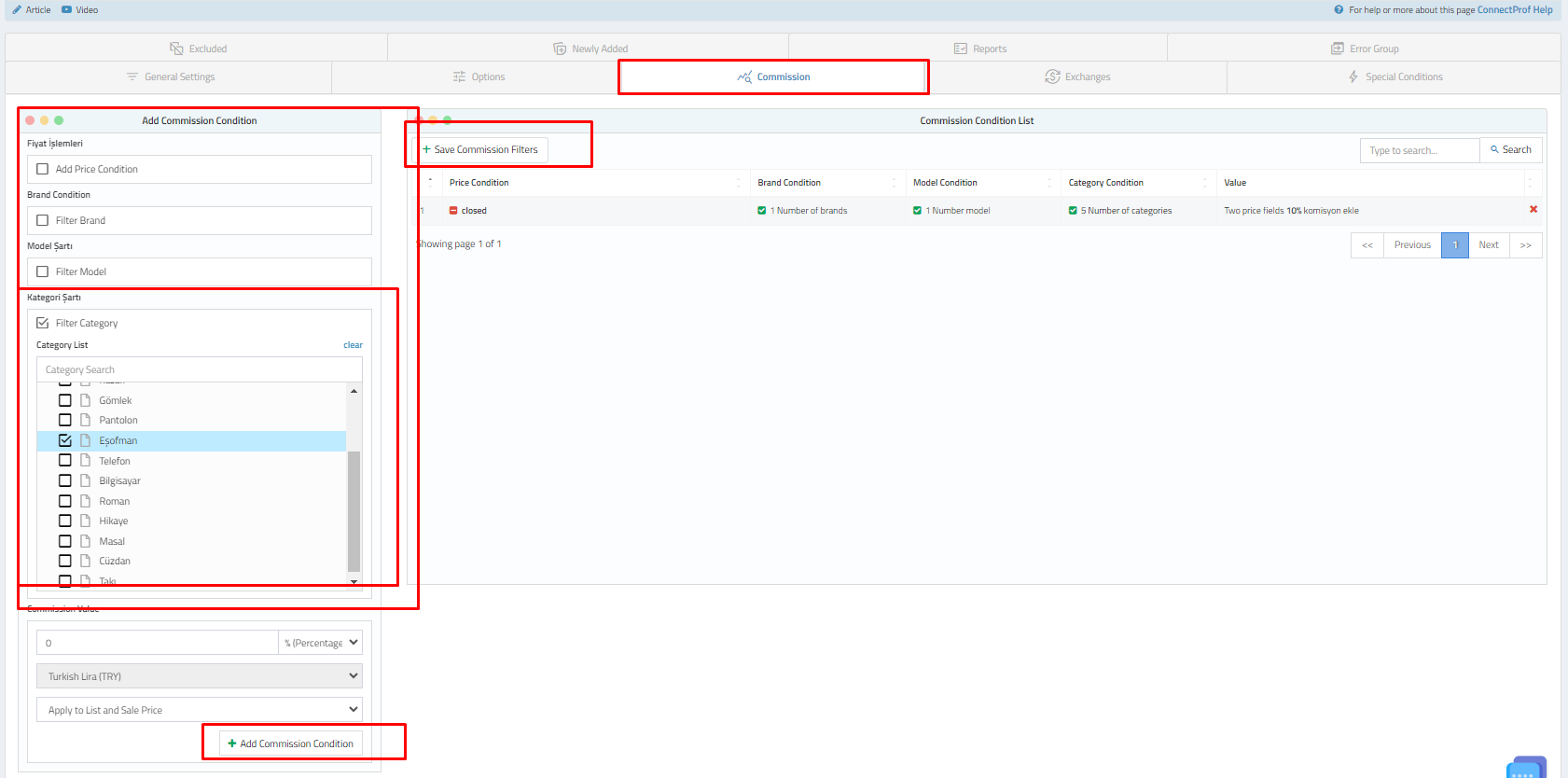
If you have brands, models, and categories for which you want to add commissions, you can make selections and add commissions accordingly.
Commission Value:
You need to enter the commission value you want to add.
Commission values can be added as percentages or totals.
- In percentage-based commissions, the currency cannot be selected.
- In total-based commissions, you can select the currency in which your products are.
You need to choose which field of the product price the commission you specify will affect.
Your selection must be consistent with the options field on the options page.
If there is a discrepancy between the settings in the options page and the price field on the commission page, the commission will not be added.
If the default setting is used on the Options page, the commission will be added to the selected field on the commission page.
NOTE: If you want to apply a discount instead of a commission, you can perform the same process by adding the "- " expression to the commission value field.
After specifying the conditions and values, you should click the "Add Commission Condition" button.
Your commission will be saved and listed in the commission condition list.
If you are sure about the accuracy of your transaction, you can click the "Save Commission Filters" button to save your settings.
