Bulk Category Matching
 ChatGPT
 Claude.ai
If you only have products within a single category, you can easily map categories with ConnectProf.
For example, if your e-commerce site only sells novels and you have differentiated each novel by its genre, you don't need to individually map each novel category to the marketplace.
If your category structure on the marketplace is based on novels, with just a click, you can transfer all categories of novels on your e-commerce site under the novel category to the marketplace.
To perform bulk category mapping, go to the Admin Panel > Catalog Settings > Category Management page.
Select the lowest subcategory of the main category you want to map.
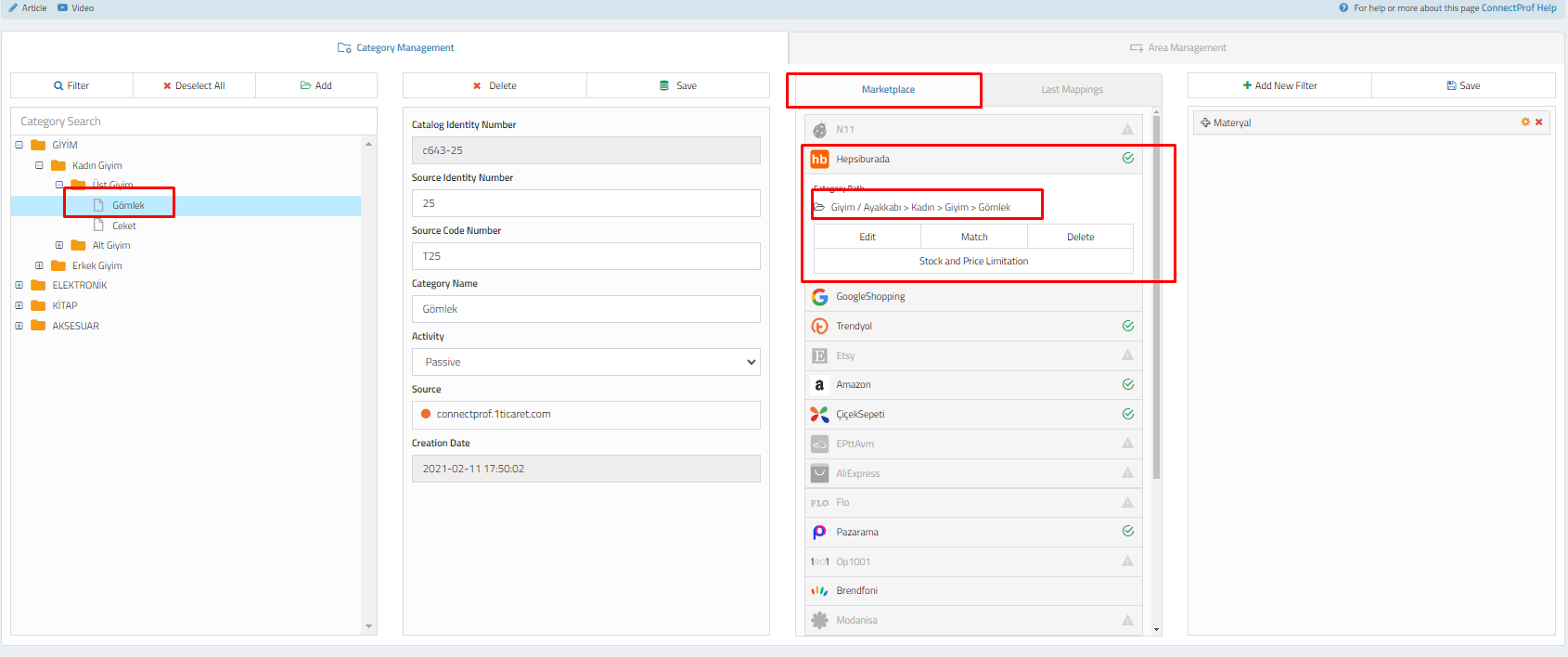
For detailed information on category mapping, you can refer to the "Category Mapping" article.
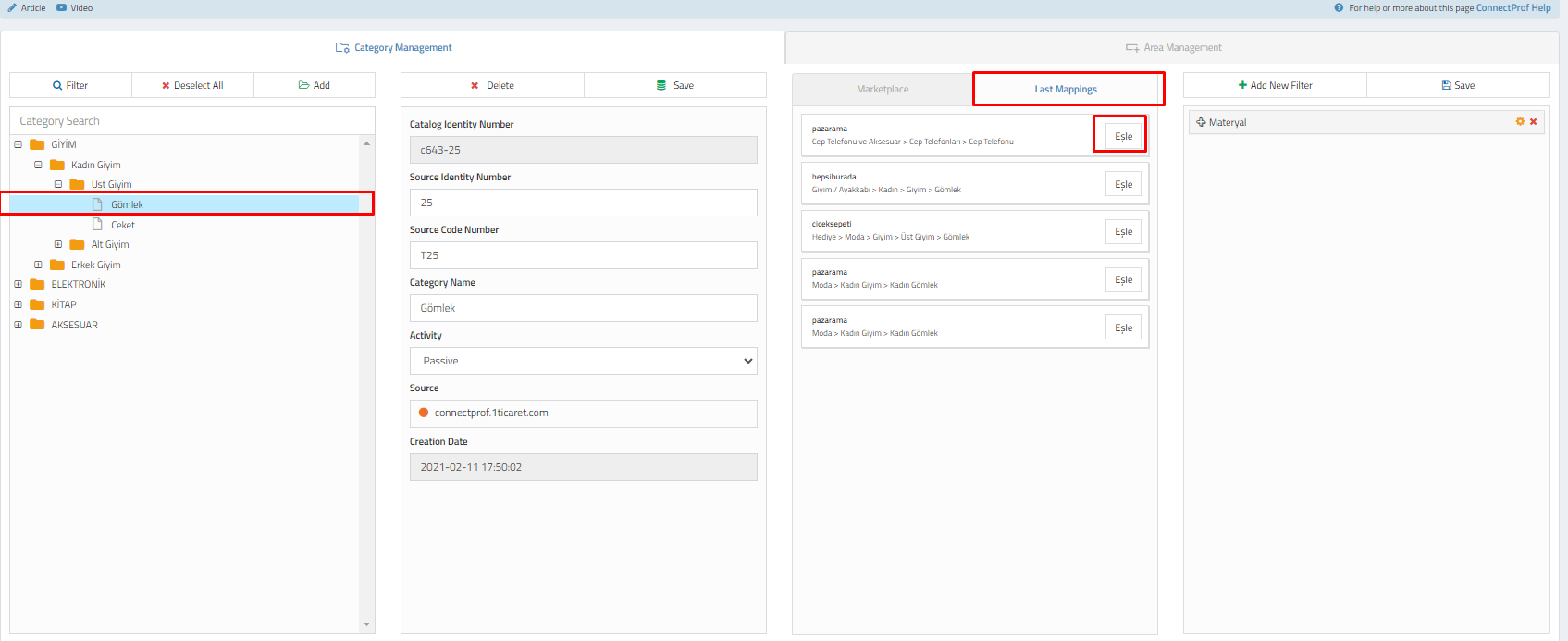
After category mapping, click the "Last Mappings" button under the "Mappings" section.
Your recently mapped categories will be listed here.
Select the category you want to merge and map it under a single category by clicking the "Map" button.
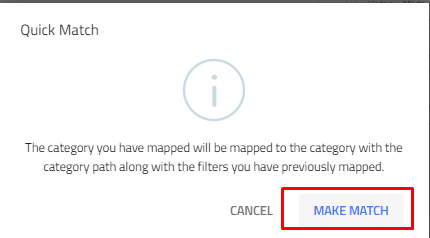
A warning pop-up will appear. After reading the warning, click "Map."
Your categories will be mapped under a single category.
For example, if you have categories such as Book > Novel, Book > Story, Book > Fairy Tale, and you want them all to appear under the "E-Books" category, after mapping one of the lowest subcategories, when you click the "Map" button under the last mappings section, all your categories under the main category "Book" with genres like novel, story, fairy tale will be transferred to the marketplace under the "E-Books" category.
