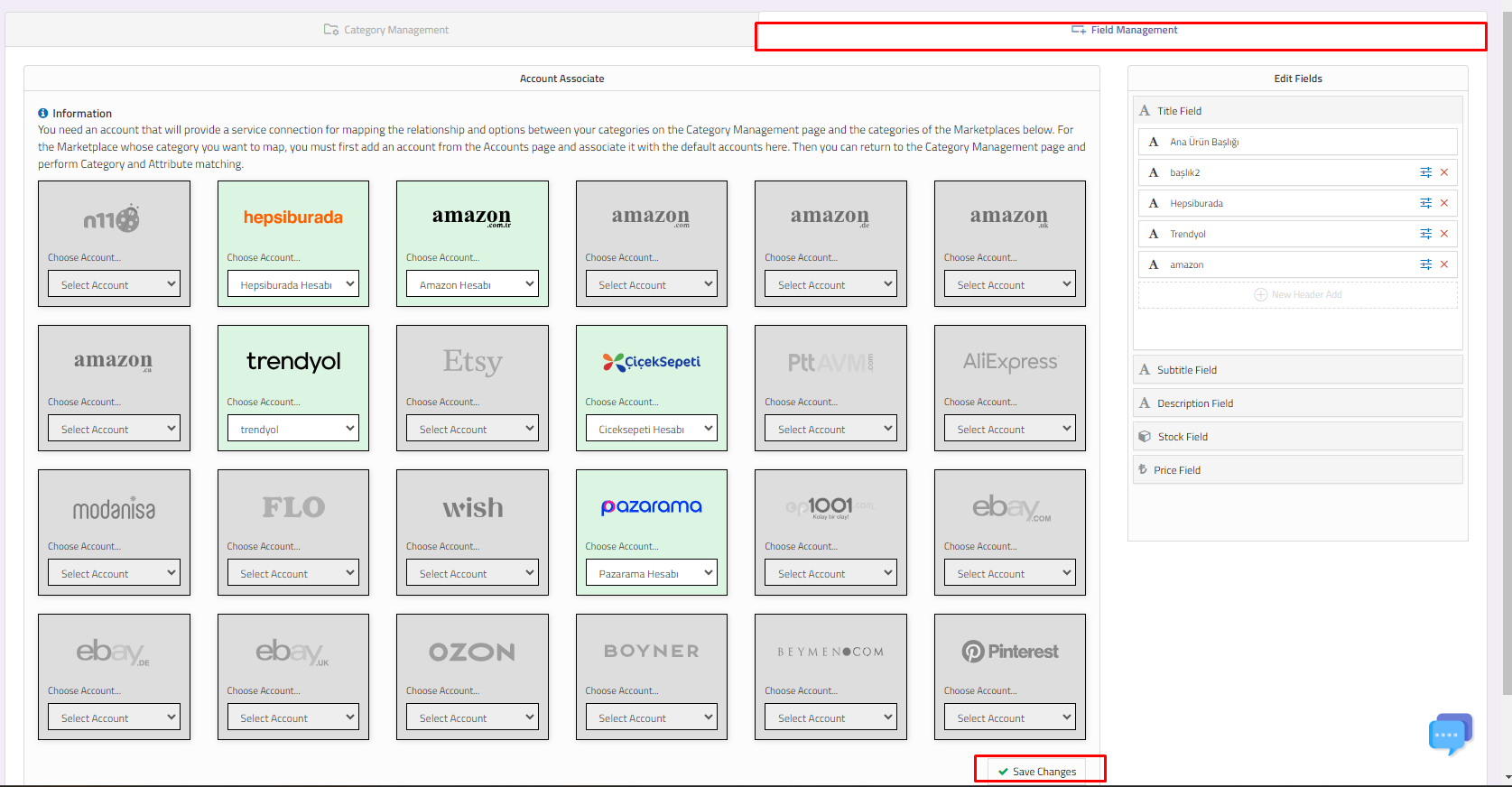
Catalogue Settings - Account Association
 ChatGPT
 Claude.ai
You need an account that will provide a service connection for mapping the relationship and options between your categories on the Category Management page and the categories of the marketplaces in the account association area.
For the marketplaces whose categories you want to map, you must first add an account from the "Accounts" page.
For detailed information about adding an account, you can review the article "How to add a ConnectPtof account?". Click here to access the article.
Account Linking
After adding an account, you need to associate an account. Click on Products > Menu > Catalogue Settings > Account association tab.
Marketplaces will be listed in the window that opens.
If your account is not attached on the "My Accounts" page in the management panel, all of them will be passive and will not allow transactions.
If your account is added, click on "Select Account".
Accounts that you can connect will be listed in the options that open.
Select from the accounts and click the "Save Changes" button.
After this process, your account will be associated.