ConnectProf Account Information Add Change
 ChatGPT
 Claude.ai
You need to add account information to create a support request in the ConnectProf panel and to make it easier for the support people to reach you.
When account information is not added, a support request cannot be created because the user is not created.
There are actions to be taken to add account information;
Click on the edit window next to your name in the ConnectProf admin panel.

From the page that opens, there are fields for account details, password change, theme selection, external account linking, google authenticator (Two-Factor (2FA) Authentication) and mail authentication (mail verification).
You can add one of the two-factor (2FA) Authentication methods.
1.Account Details
You can add your user information from the account details area.
You can add e-mail address, name-surname, trade name, country, city, date of birth and telephone number.
In the e-mail address field, you must write the e-mail address you are actively using.
After adding your information, you can lose your information by clicking the "Save Changes" button.
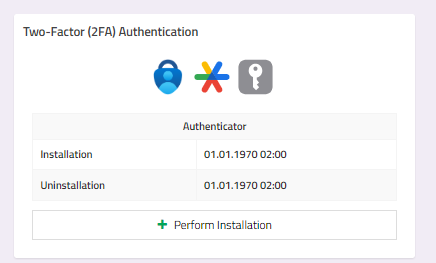
2.Google Authenticator (Two-Factor (2FA) Authentication)
Open the Google Authenticator application on your mobile device and click the + button in the lower right corner.
When you click the Scan QR code button, you should scan the QR code with your device's camera. You can complete the installation by typing the codes in the boxes in the Google Authenticator area.
After scanning the QR code, you need to add and verify the code in Google Authenticator before it expires.
After verification, you will need to add the Google Authenticator code every time you log in to the panel.
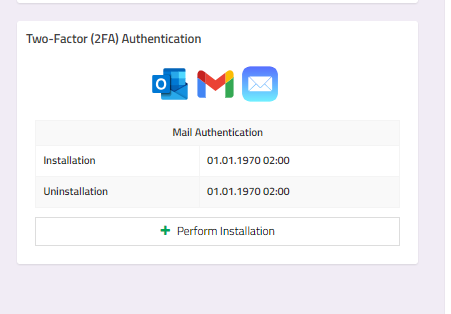
3. Mail Authentication
To add Mail Authenticator verification in ConnectProf login processes, you must add the code that comes to your mail to the fields below.
4.Password Change
You can change your panel login password from the password change area.
There are 3 buttons as old password, new password and new password again.
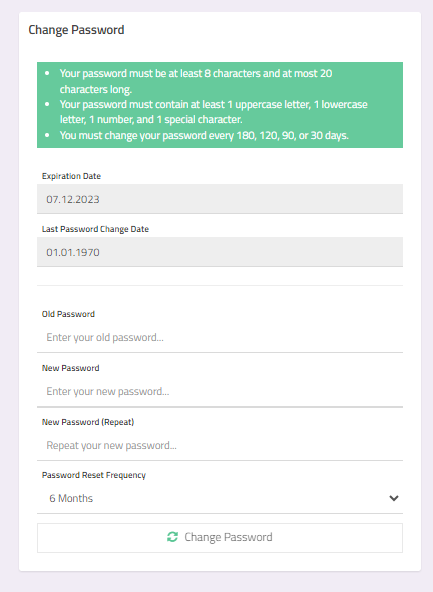
4.1. Old Password : In this field, you must enter the password you are currently using actively.
4.2. New Password : You must write the new password you have set in this field.
4.3. New Password (again) : You must write the same password as the last password you set.
Important Information :
Your password must consist of at least 8 and at most 20 characters.
It must contain at least 1 upper case letter, 1 lower case letter, 1 number and 1 special character.
You must renew your password every 90 days.
After adding your information, you can complete the password change process by clicking the "Change Password" button.
