Connectprof Catalog Settings - Category Management
 ChatGPT
 Claude.ai
In order to send products to ConnectProf panel marketplaces, you need to map the categories of the marketplace with the categories of the products you want to send. For detailed information about category mapping, you can review the "Category Mapping" article. Click here to access the article.
If you wish, you can also perform bulk category mapping with ConnectProf. Click here for detailed information about bulk category mapping.
Category Management
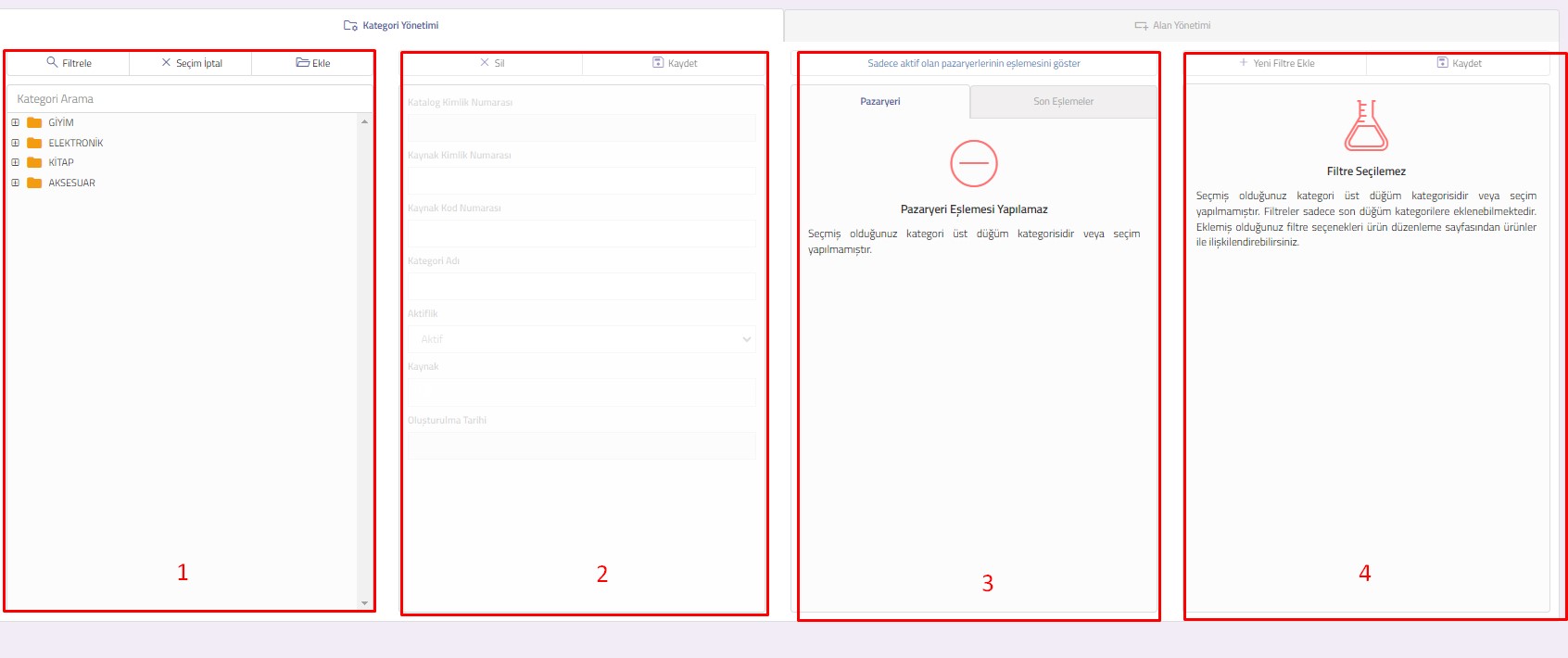
Category Management includes category list, category editing, field management and account association fields.
1. Category List : The categories on your e-commerce site are listed in this area. You can select the category you want to transfer to the marketplace. If you wish, you can also filter between categories and add categories manually.
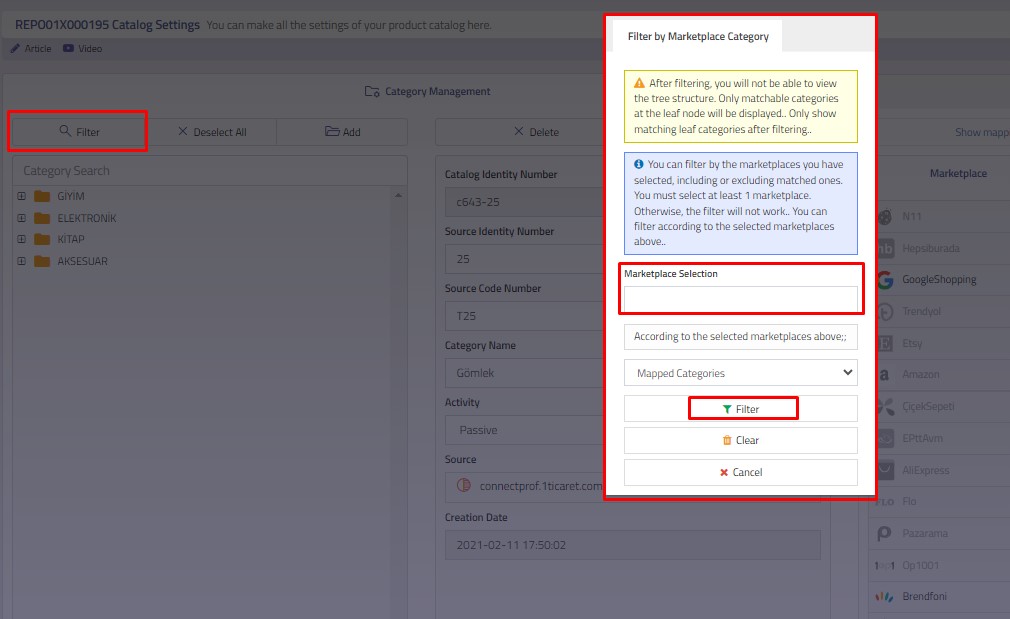
Click the "Filter" button to filter between categories. You can filter by choosing between paired and unpaired categories according to the marketplaces you have selected. You must select at least 1 marketplace. If no selection is made, the filter will not work. After filtering, only the mappable categories in the end node will be displayed, not the tree structure.
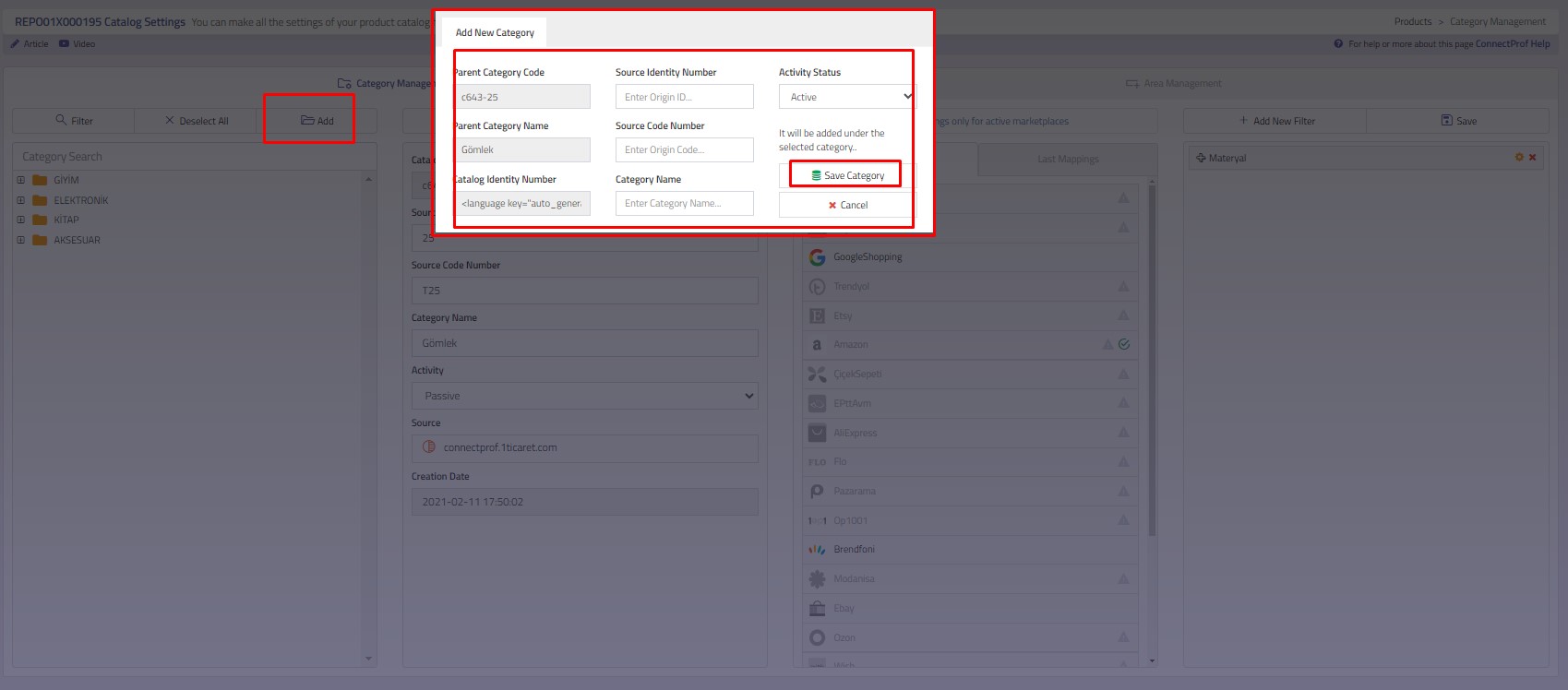
Add button is used for manual category addition. The category you added will be added under the category you selected. In the parent category code, parent category name and catalog ID number fields, the category you have selected will be displayed.
2. Category Editing : The category information you select from the Category List is displayed. Catalog ID number, source and creation date are not changed. The information added when the category was first created is in this field. You can make changes to the source ID number, source code number, category name, and activation status. You can request an update to reflect the change you have made to the system.
3. Mappings : You can map the category you have selected from the category list to the categories in the marketplace. Click here for detailed information about category mapping.
4. Filters : Your filters on your site will come to this field. If you have a filter structure on your site but your filters are not coming, you can request an update. If you do not have a filter structure on your site or if you want to add a different filter, you can add a filter from the filters area. To add a filter, select the category you want to add a filter and click the "Add New Filter" button. In the window that opens, there are options to add a ready-made filter, add a custom filter or copy from another category. You can add a filter by selecting the one that suits you.
Click here for detailed information about adding ready-made filters.
Click here for detailed information about adding custom filters.
Click here to get information about copying from another category.
NOTE : When mapping categories, the marketplaces you use should not be mapped.