Connectprof End-to-End Integration Setup
 ChatGPT
 Claude.ai
With ConnectProf, you can manage your stores in the marketplace from a single panel, you can perform product transfer and order integration to the marketplace in just a few steps.
You can create a demo to examine the panel interface. For detailed information about creating a demo, you can review the article "How to open a demo account?". Click here to access the article.
This process is done depending on the licence. Each marketplace and plugins have different fees. You can contact your sales representative for licences and marketplaces.
If you have licences, you can request activation by creating a support request.
For information about creating a support request, you can review the article "How to create a support request?". Click here to access the article.
There are procedures to be done for the installation of ConnectProf integration.
1. The first process is the installation of ConnectProf integration. If you are using T-soft infrastructure, you can download "ConnectProf" application from Departments > Application Market page. For application installation, you can review the article "ConnectProf for Tsoft customer". Click here to access the article.
If you do not have a site in Tsoft infrastructure, you can create a demo in connectprof at "https://connectprof.com/tr/demo" and set up an admin panel for yourself.
For detailed information about creating a demo, you can review the article "How to open a demo account?". Click here to reach the article.

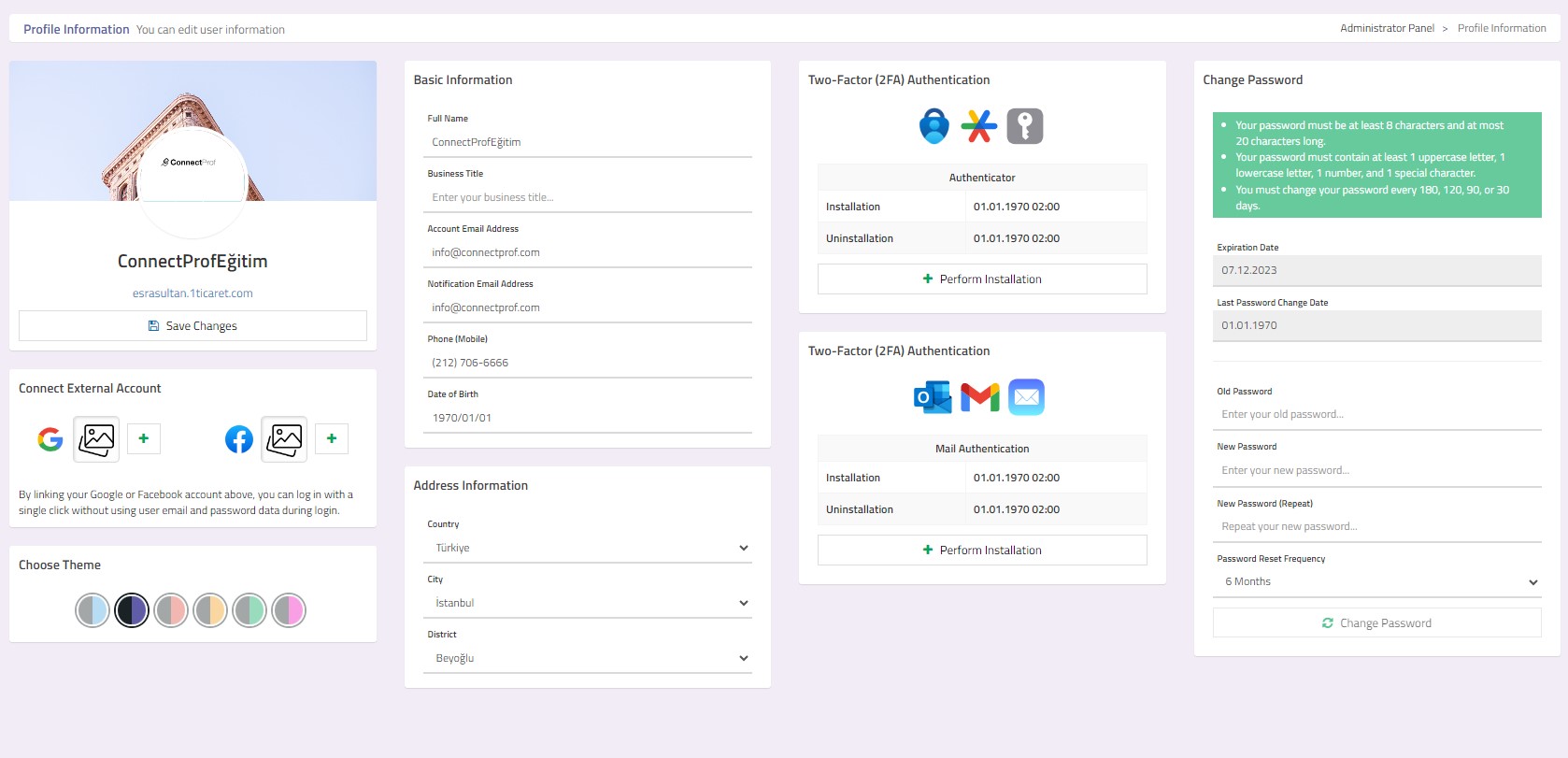
2. After creating the admin panel, account information should be added from Settings > Edit My Account. For detailed information about adding account information, you can review the "Adding Account Information" article. Click here to access the article.
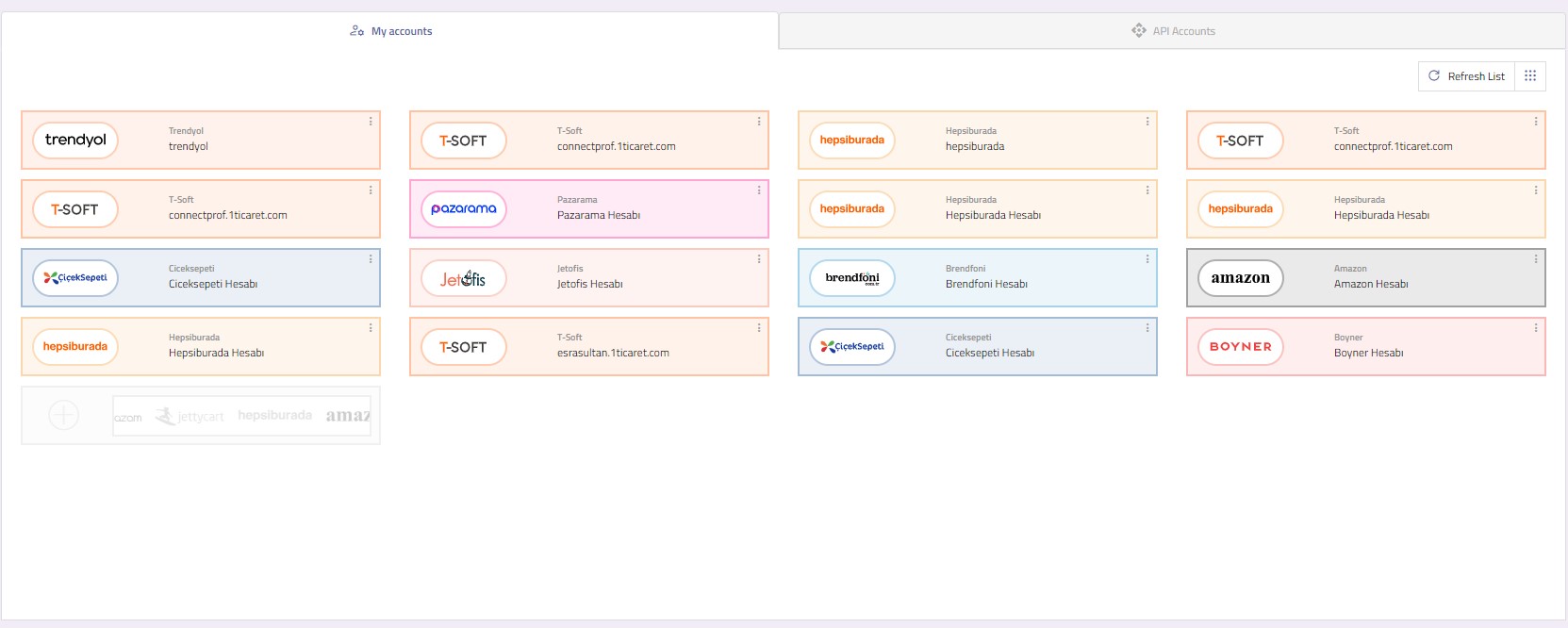
3. Account link must be added in order to connect with the marketplace. You can get your marketplace information from the marketplace support team. You can add your API information you have received from the "My Accounts" page.
For detailed information about adding an account, you can review the article "How to add a ConnectPtof account?". Click here to reach the article.
4. After the marketplace account is added, you can make account association. You can make account association from Admin Panel > Catalogue Settings > Account Association.
For detailed information about account association, you can review the article "Catalogue Settings - Account Association". Click here to access the article.

5. The product must be added to the admin panel.
You can create a support request for product additions. For detailed information about creating a support request, you can review the article "How to create a support request?". Click here to access the article.
If you want to add a product with API management, you can review the article "How to add an API product?". Click here to access the article.
If the product will be added via XML method, you should have the sales representative view your XML before the marketplace is purchased. After checking XML compatibility, XML product transfer is performed by us.
If product transfer will be made from Trendyol with ConnectProfa reverse integration, you can review the article "Withdrawing Products from Trendyol". Click here to access the article.
If the product will be added manually, you can review the article "Adding Manual Product to ConnectProf Panel". Click here to access the article.
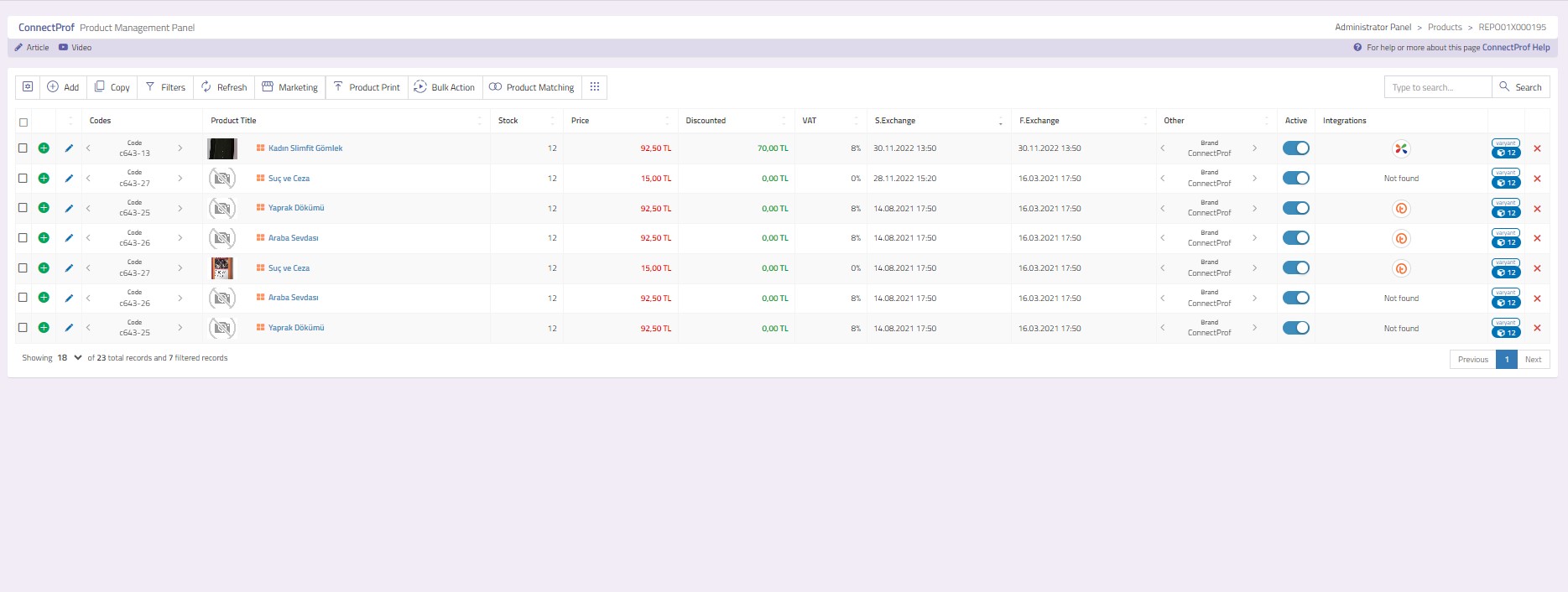
6. When transferring products to the admin panel, categories will be transferred in the same way. In your site or XML, how your categories and products are, they will come in the same way when transferred to the ConnectPtof panel. In order for the products coming to the panel to be transferred to the marketplace, your categories must be mapped to the categories in the marketplace. You can map your categories from Admin Panel > Catalogue Settings > Category Management.
For detailed information about category mapping, you can review the "Category Mapping" article. Click here to access the article.
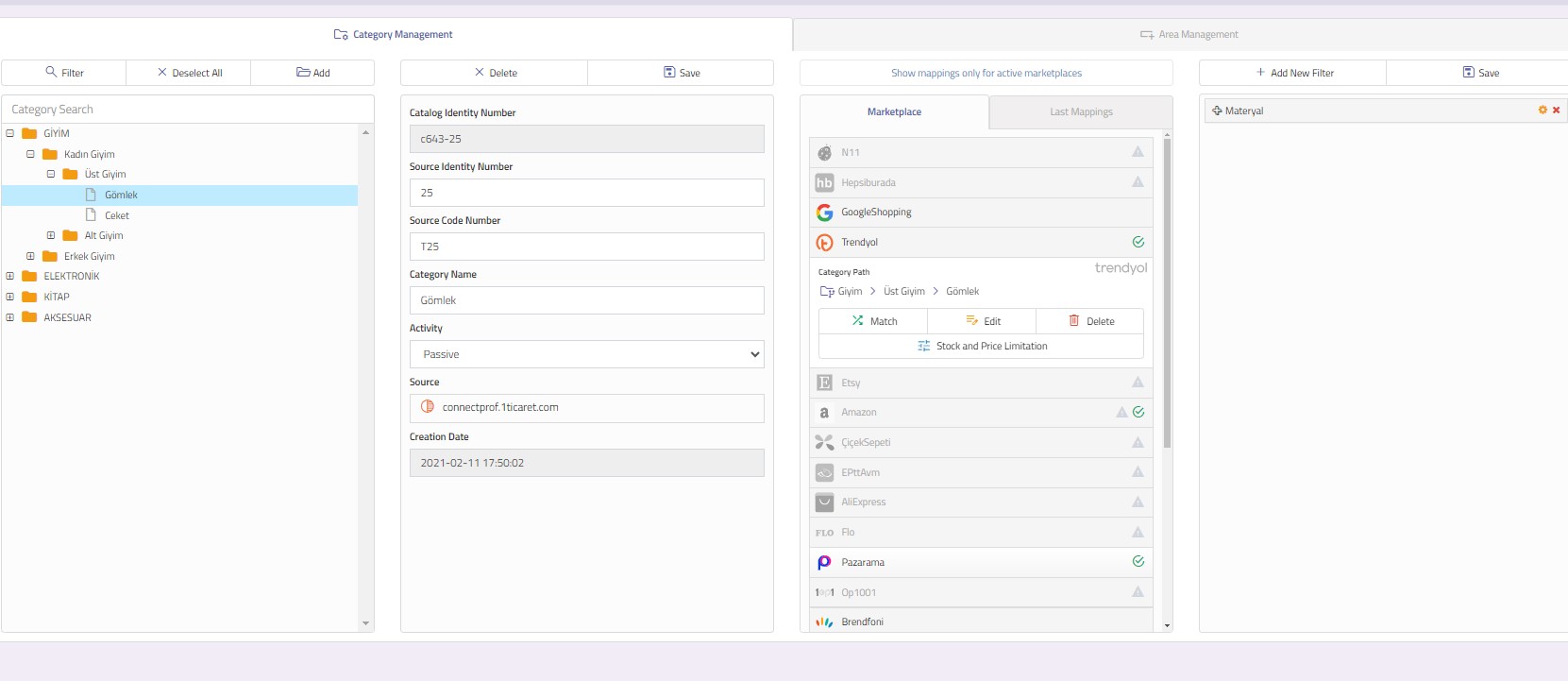
7. In order to transfer your products to the marketplace, export integration setup and settings must be made. You can make your integration setup and settings from Admin Panel > Export page.
NOTE : The settings added in the export integration will affect all your products. Make sure that the settings are correct.
You can find detailed information about the installation of export integration from the article "Creating Export Integration". Click here to access the article.

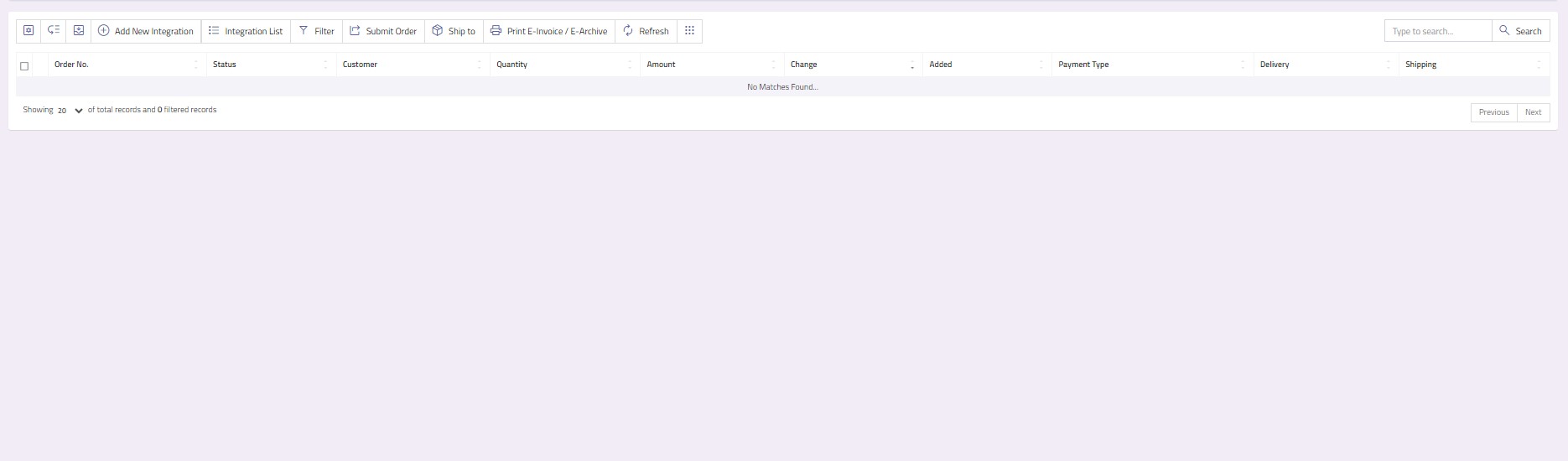
8. The last stage is the installation and settings of order integration. After the order integration setup is done, your orders from the marketplace will automatically come to ConnectProf > My Orders. You can use Admin Panel > Orders page for order integration setup and settings.
For detailed information about creating an order integration, you can review the article "Orders - Creating a New Integration". Click here to access the article.
NOTE : Order integration must be created separately for each marketplace.