Connetcprof Orders
 ChatGPT
 Claude.ai
With ConnectProf, you can collect and manage all your orders from the marketplace on just one panel.
With ConnectProf's bidirectional integration, you can transfer orders from the marketplace to the admin panel, transfer them to your e-commerce site or perform other operations such as shipping.
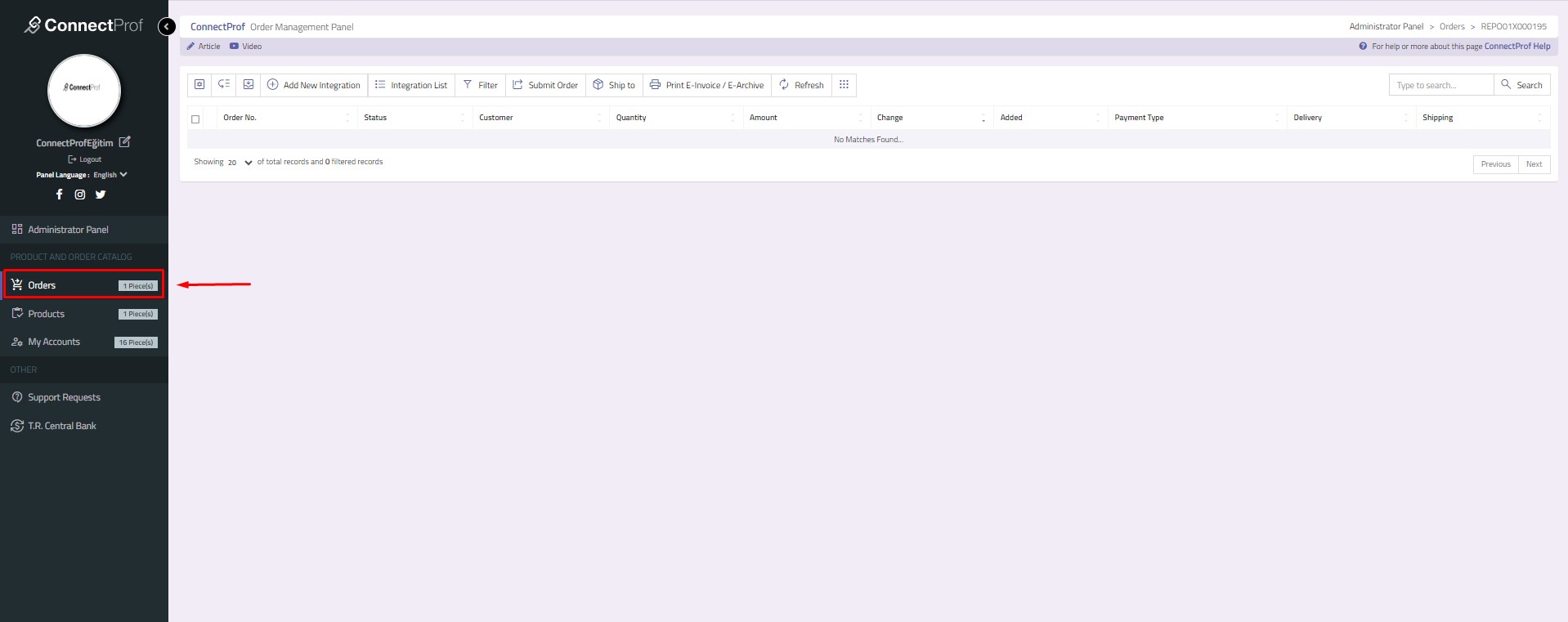
To review the orders page, click on Admin Panel > Orders button.
Orders page will open.
Orders Page Button Functions
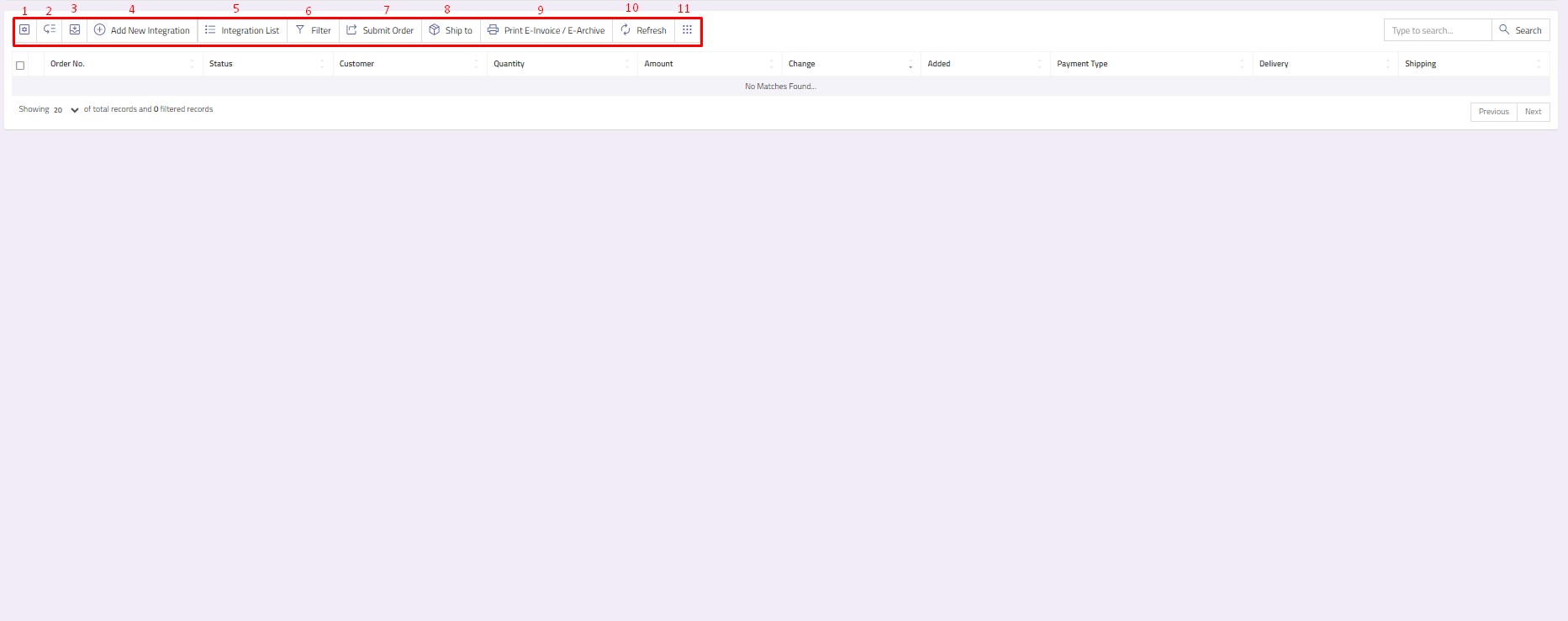
1. Setting : You can tick the fields you want to be displayed on the orders page or uncheck the fields you do not want to be displayed.
2. Hide Column : Allows you to create a new order integration. Click here for detailed information about creating a new integration.
3. Archived Orders : The created order integrations are listed in the integration list. You can edit and update the information by selecting the integration. Click here to get detailed information about the integration list.
4.Add New Integration : Allows you to create a new order integration. Click here to get detailed information about creating a new integration.
5.Integration List : Created order integrations are listed in the integration list. You can edit and update the information by selecting the integration. Click here to get detailed information about integration list.
6. Filter : It allows you to filter the orders page. You can provide general, address, product and date based filtering. Click for detailed information about filtering on the orders page.
7. Send Order : It is used to transfer your orders from ConnectProf panel to your e-commerce site. You can use this button if more than one order will be transferred. It provides ease of use to users with bulk order transfer. Click here for detailed information about the send order structure.
8.Ship : You can ship all your orders in bulk or selectively.
9.E-Invoice / E-Archive : You can provide e-invoice or e-archive transactions of your orders.
10. Refresh : Refreshes the orders page.
11. Menu : It provides quick access to other pages. When you click on it, you can switch to product catalogue, orders, catalogue settings, import, export, special output list, my accounts and support requests pages.