Connectprof Products Navigation Menu
 ChatGPT
 Claude.ai
With the navigation menu, you can easily access the features of Connectprof. To explore the navigation menu, click on the Products page. Click on the menu from the Products page. When the menu area opens, frequently used sections will be listed.
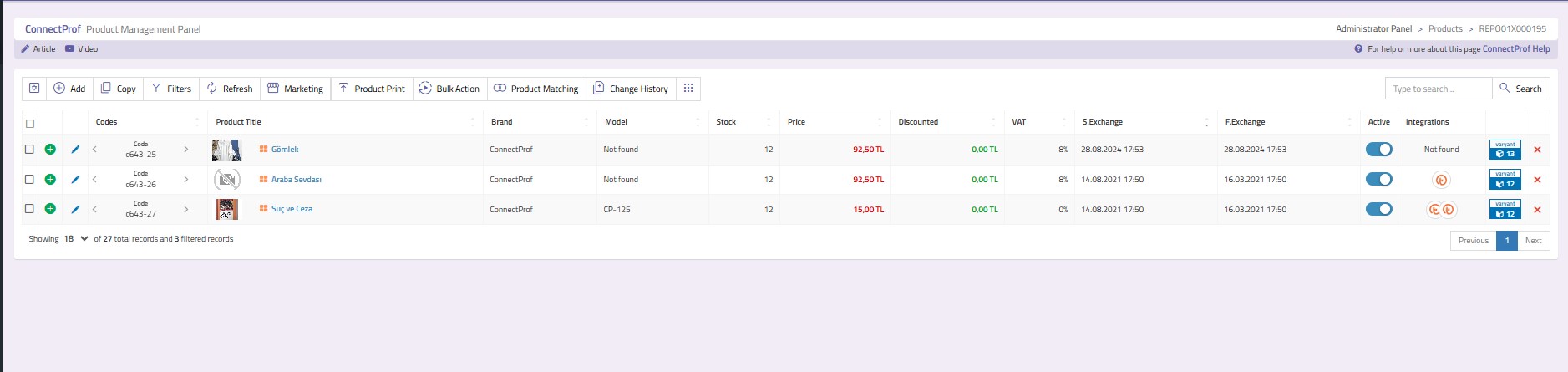
Product List : When clicked, you will be directed to the product catalog you are currently in. If you click on the All Catalogs area, you can access your catalog information if you have multiple catalogs. To get detailed information about the Product Catalog, you can review the 'Products' article. Click here to access the article
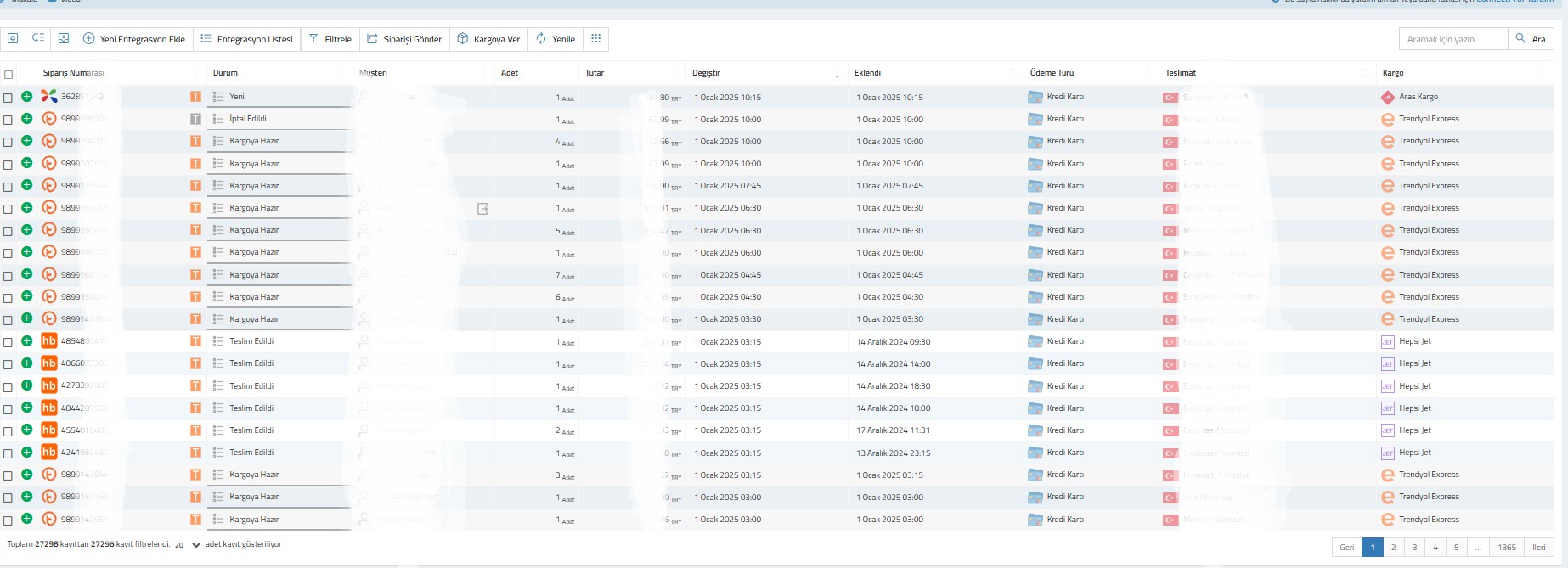
Orders : You can navigate to the 'My Orders' page. You can view your current orders and their statuses from this area. To get detailed information about Orders, you can review the 'Orders' article. Click here to access the article.
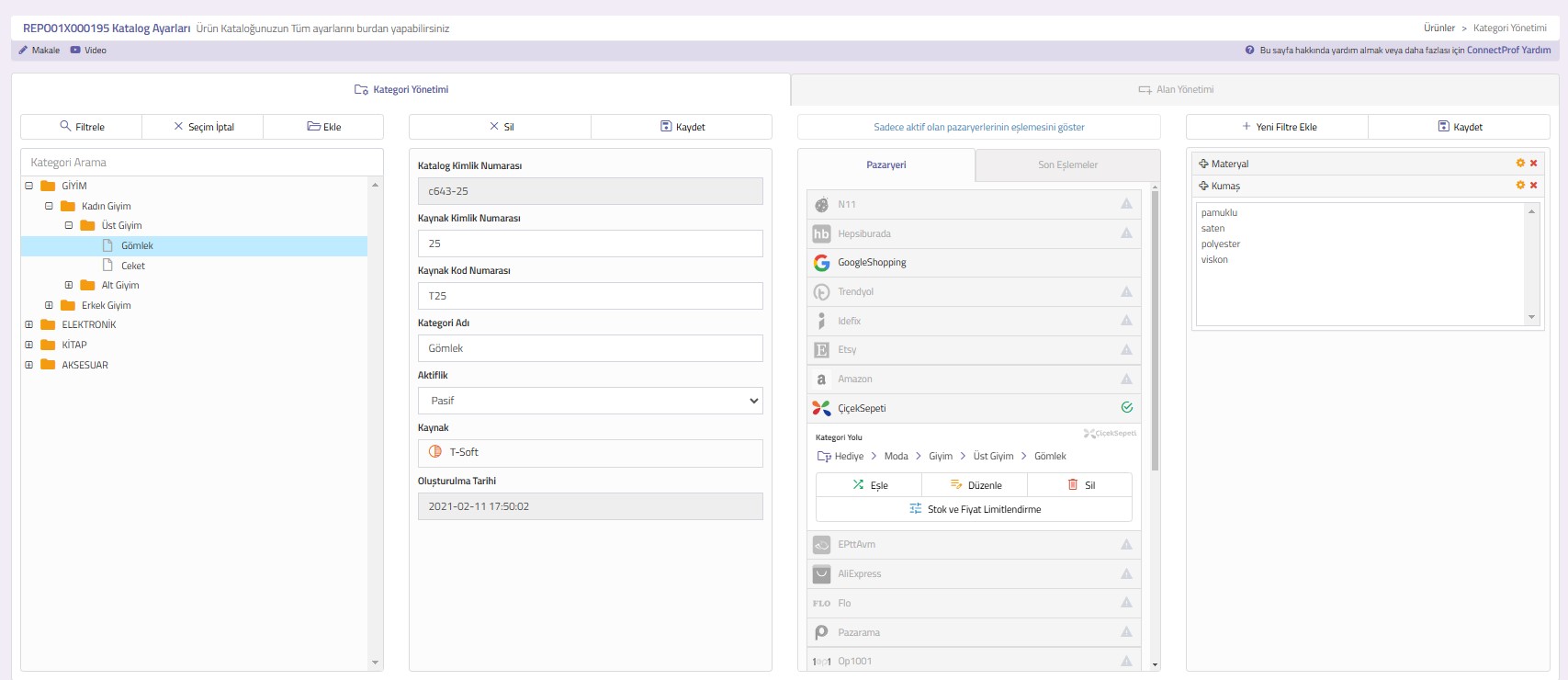
Catalog Settings : This will redirect you to the Catalog Settings page. You can view the Category Mapping, Field Management, and Account Association areas. You can perform actions such as account linking and category mapping from this area. To get detailed information about Catalog Settings, you can review the 'Catalog Settings' article. Click here to access the article.
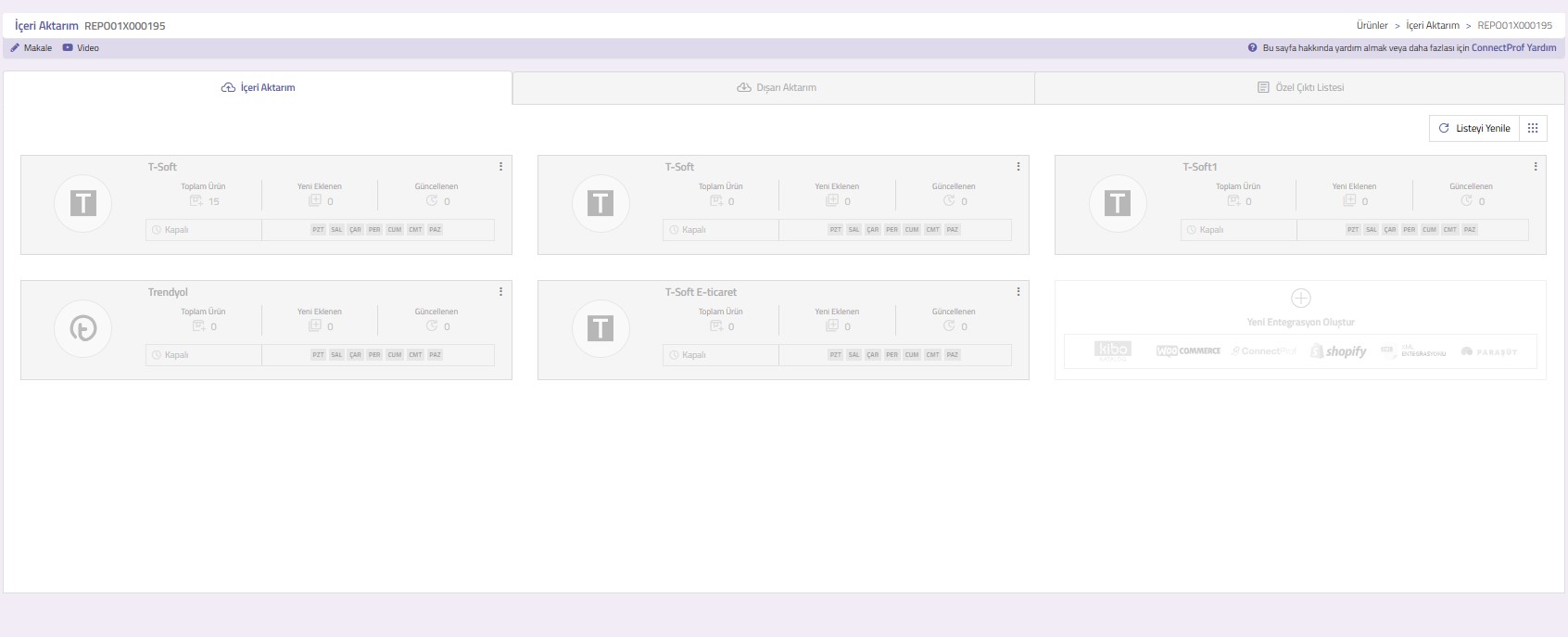
Import : This will redirect you to the Import page. You can check for updates from the incoming source data for your products. You can select the fields you want to update and track the update reports.
To get detailed information about Import, you can review the 'Import' article. Click here to access the article
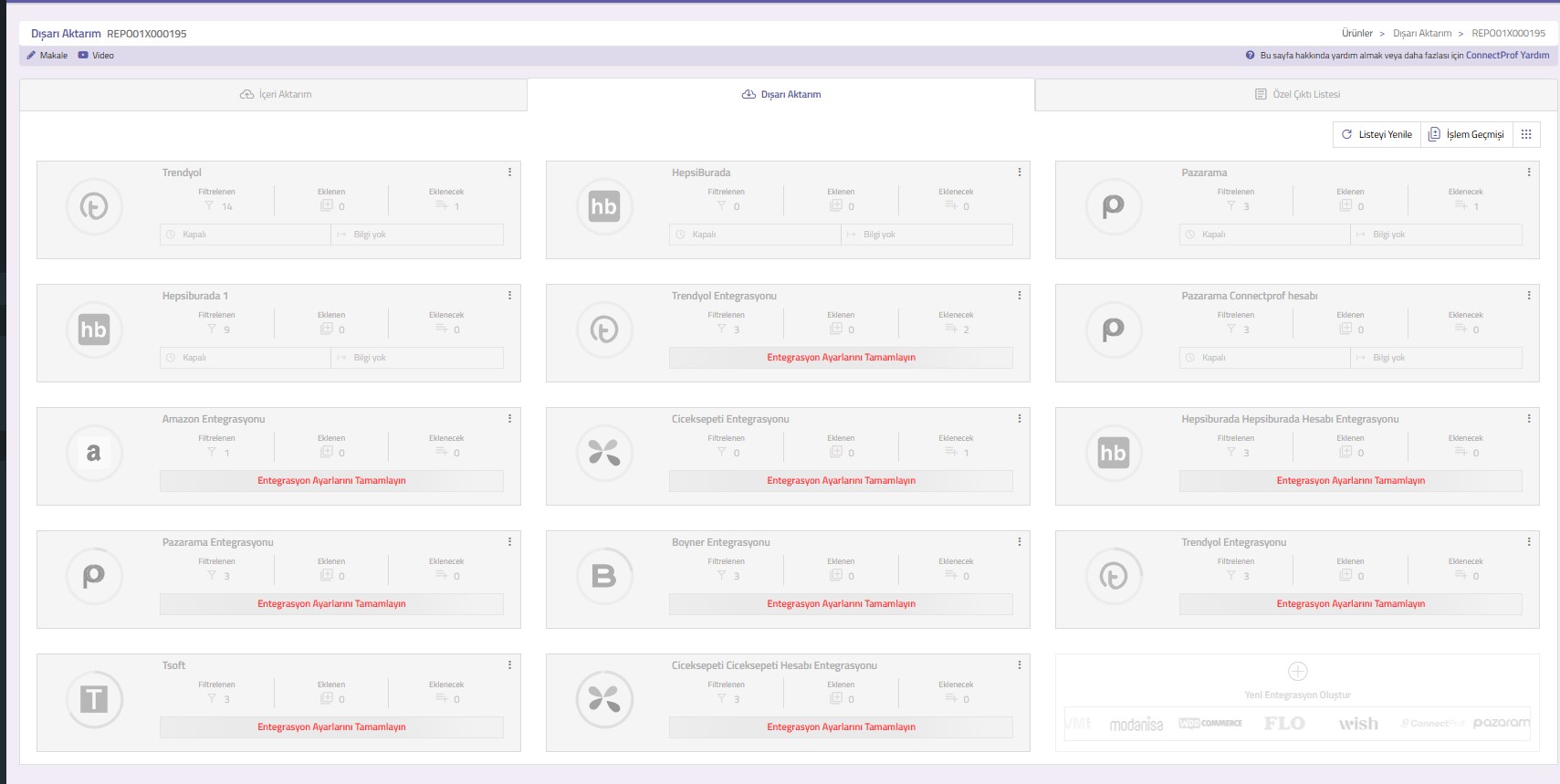
Export : This will redirect you to the Export page. The marketplace integrations you use to export your products are listed here. From the menu of each marketplace in this area, you can view your settings and other information for the respective marketplace.
To get detailed information about Export, you can review the 'Export' article. Click here to access the article.
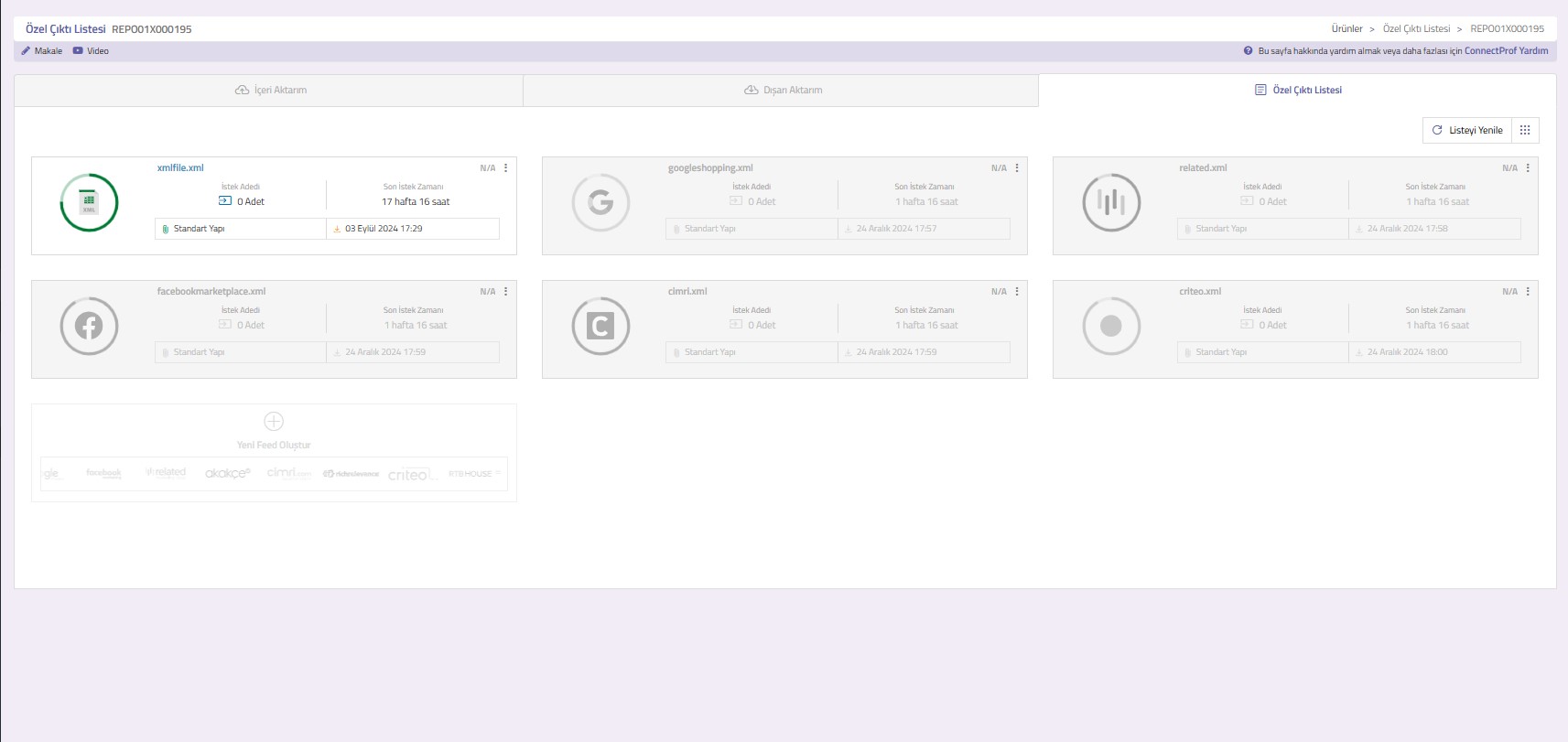
Custom Output List : This will redirect you to the Custom Output List page. By applying the desired filters on the Products page, you can view the custom XML outputs you have created for advertising, comparison sites, and dealerships.
To get detailed information about the Custom Output List, you can review the 'Custom Output List' article. Click here to access the article
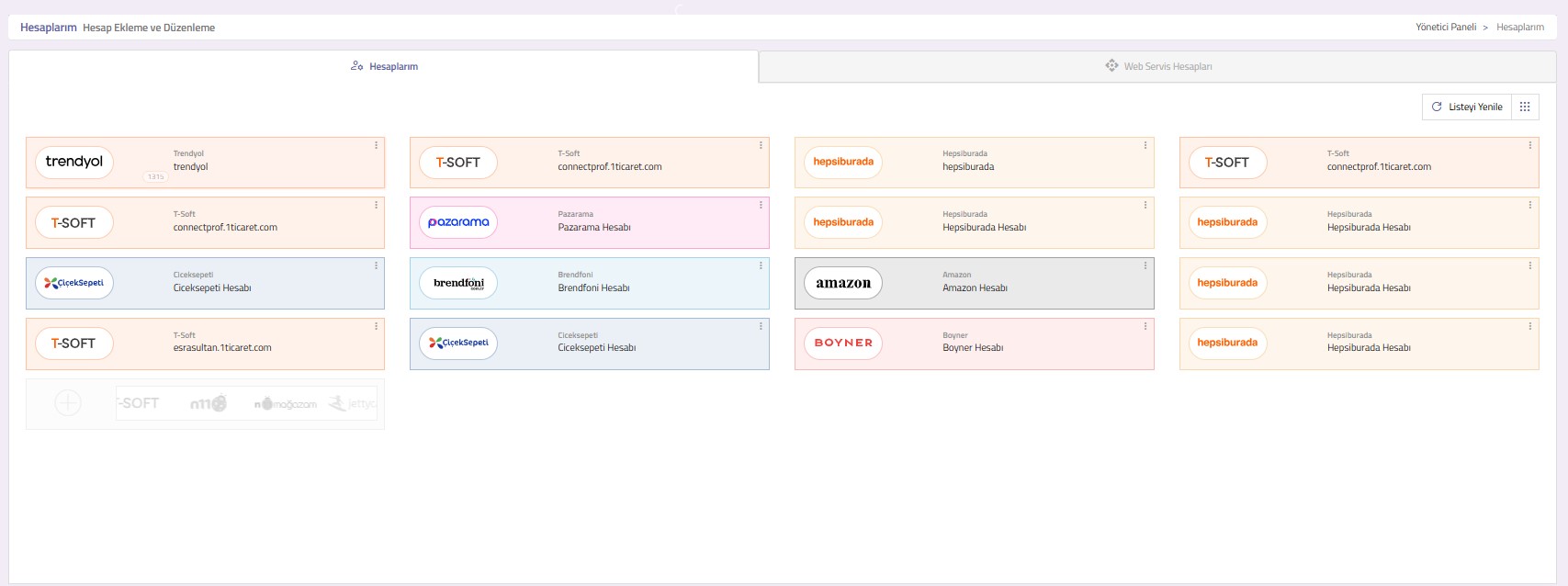
My Accounts : This will redirect you to the My Accounts page. This area lists the marketplace integrations you use. You can make new API connections and update your connection settings.
To get detailed information about My Accounts, you can review the 'My Accounts' article. Click here to access the article.
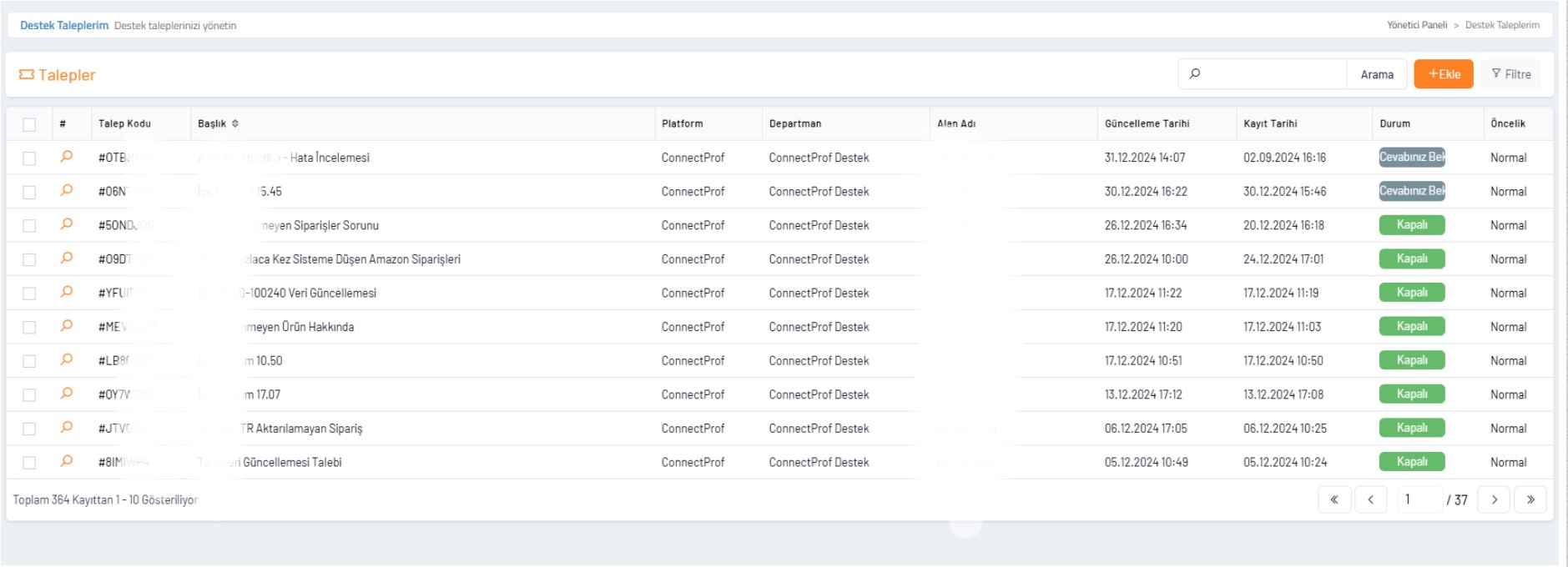
My Support Requests : This will redirect you to the Support Requests page. You can contact us by creating a support request whenever you encounter an issue. Our experts will respond to your requests as quickly as possible.
To get detailed information about My Support Requests, you can review the 'My Support Requests' article. Click here to access the article.