Criteo Structure
 ChatGPT
 Claude.ai
Criteo is a marketing tool that provides digital advertising and retargeting solutions that help companies effectively engage with customers.
With dynamic remarketing, customers are encouraged to purchase products that they have browsed on e-commerce sites or added to their carts but have not purchased.
The aim of Criteo is to increase the number of conversions / sales of companies by prioritizing visual advertising with personalized retargeting.
Criteo works in partnership with almost all the media you can think of such as Ligatus, Facebook, Google, Appnexus, leaving almost no area where the customer is not reached.
ConnectProf is your assistant in this field. With its advanced product panel, it allows you to deliver your products to your customers by outputting Criteo XML in the criteria you want.
NOTE : Criteo XML output works depending on the license. If you have a license, you can create a support request to activate it. If you do not have a license, you can get detailed information from the sales representative on the subject.
To create Criteo XML output, click "Products" from the admin panel.
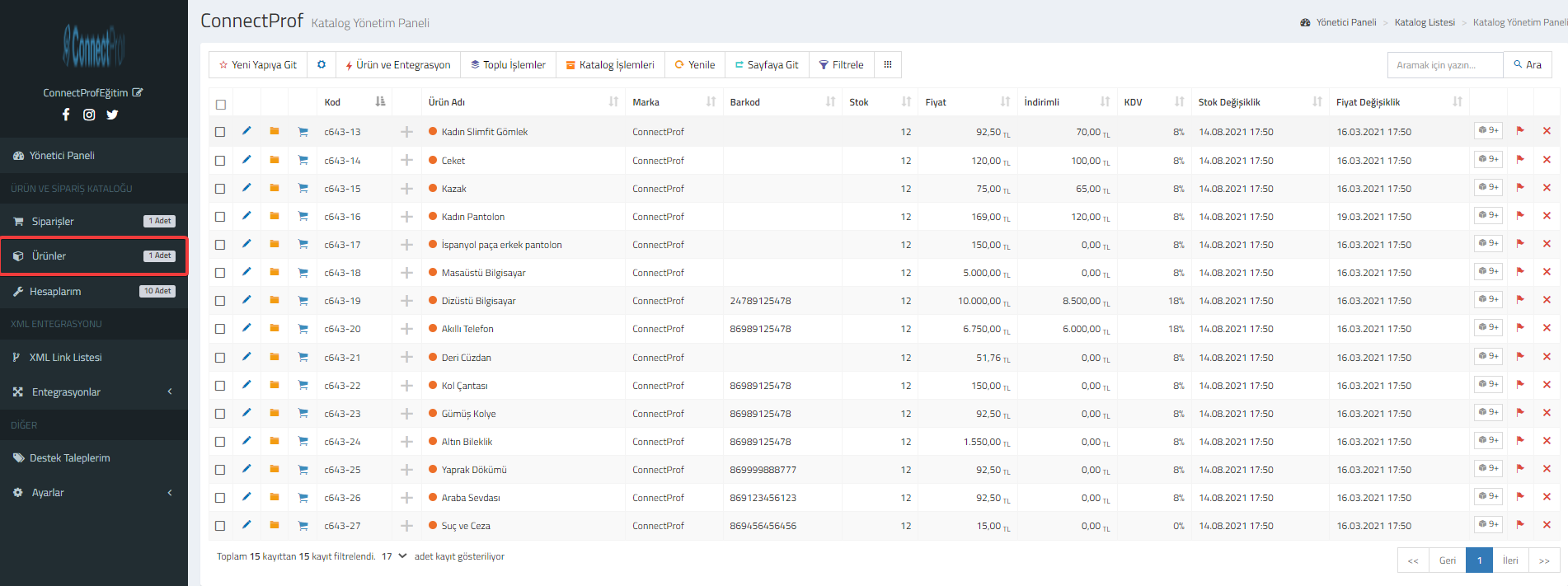
Your products will be listed.
Filter the products you want to print.
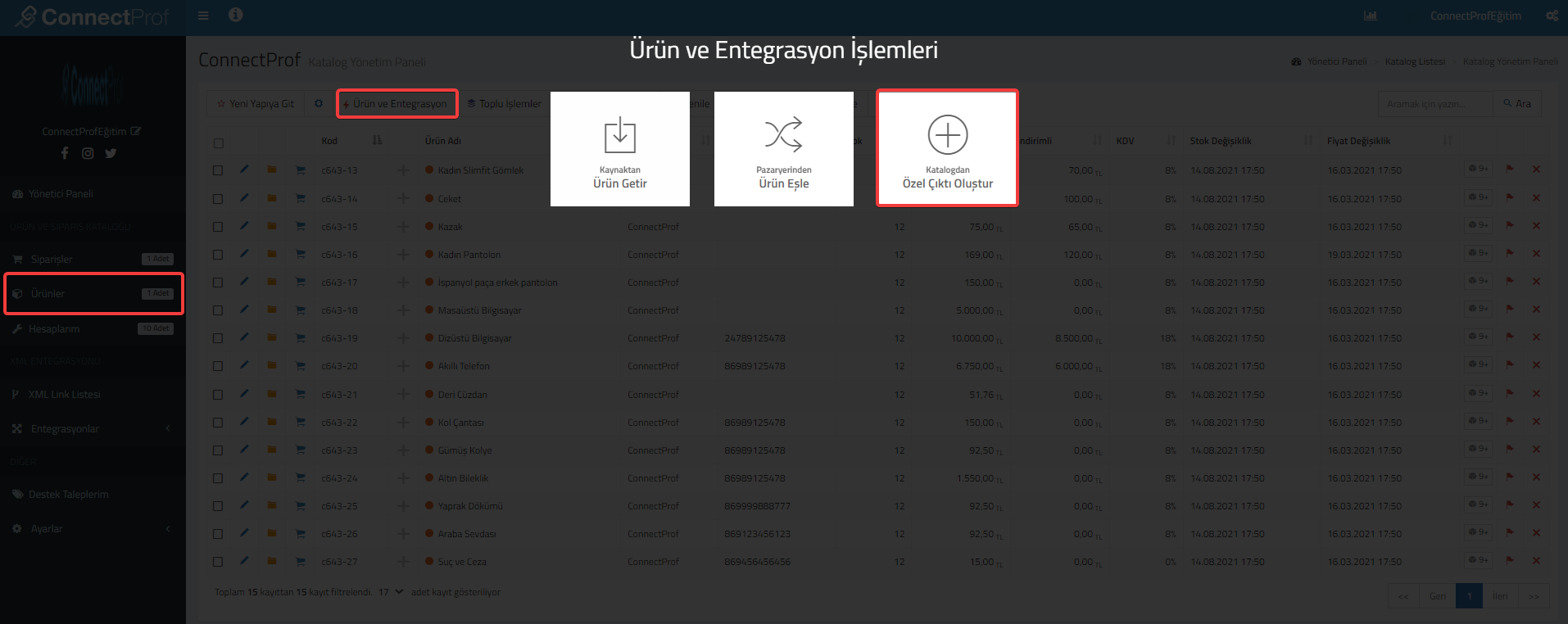
Click on Product and Integration > Create Custom Output from Catalog.
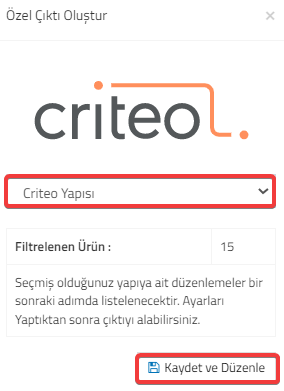
Select "Criteo Structure" for Custom Output. Then click on the "Save and Edit" button.
If you are sure that the warning is correct, click "Continue" and then "OK".
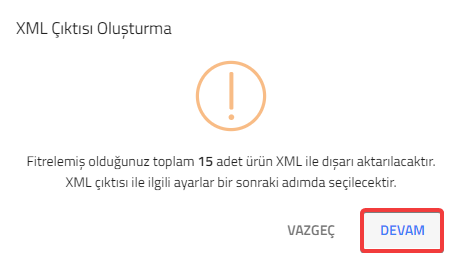
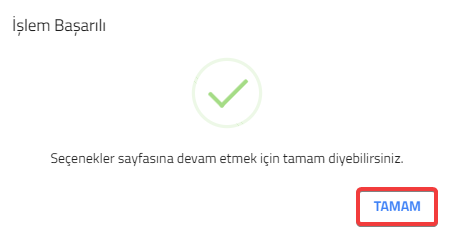
The page where you can adjust the settings for Criteo XML output will open.
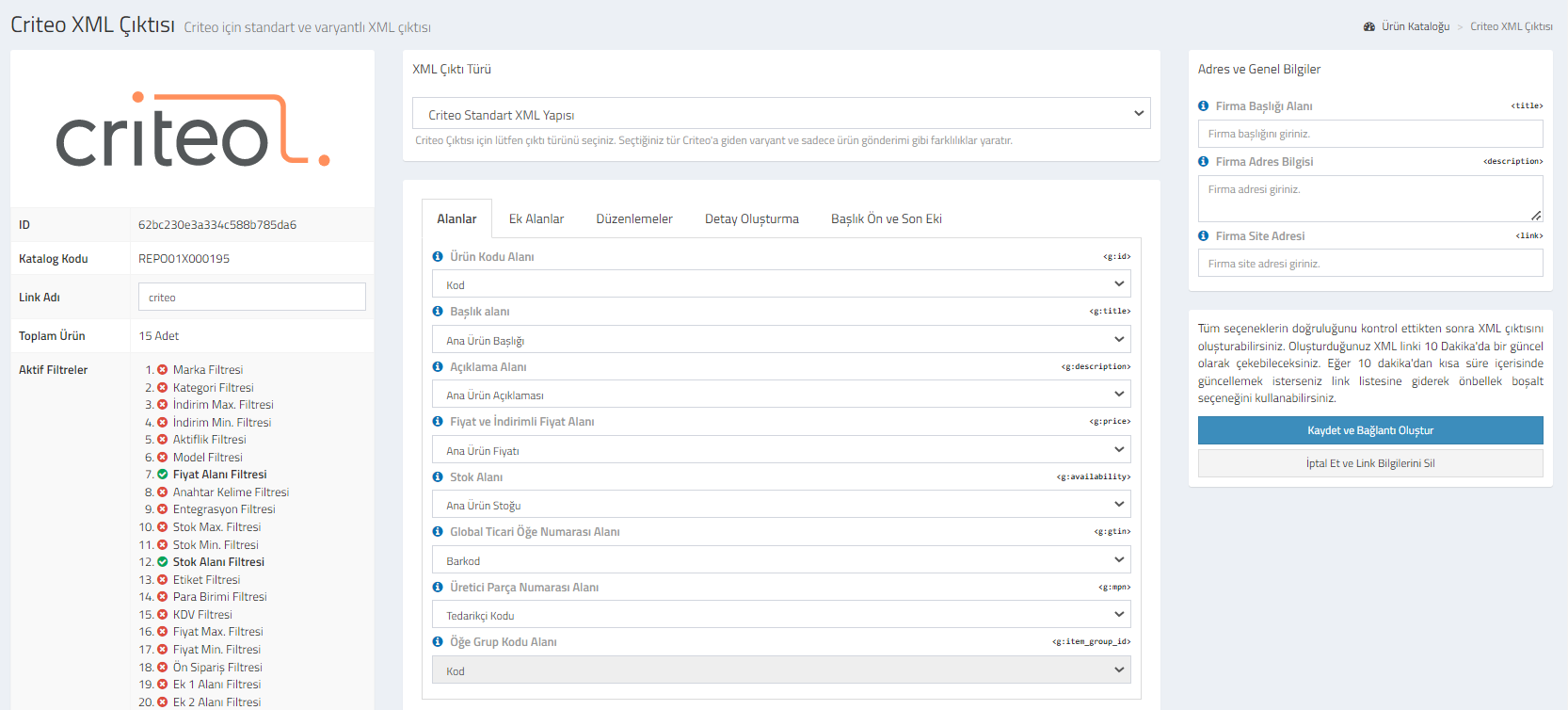
Criteo : You can review your catalog information.Id, catalog code, link name, total product and active filters.You can make changes to the link name.
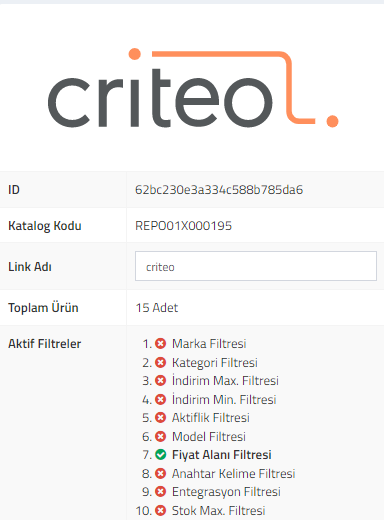
XML Output Type : You can choose between Criteo Standard XML Structure or Criteo Variant XML Structure.

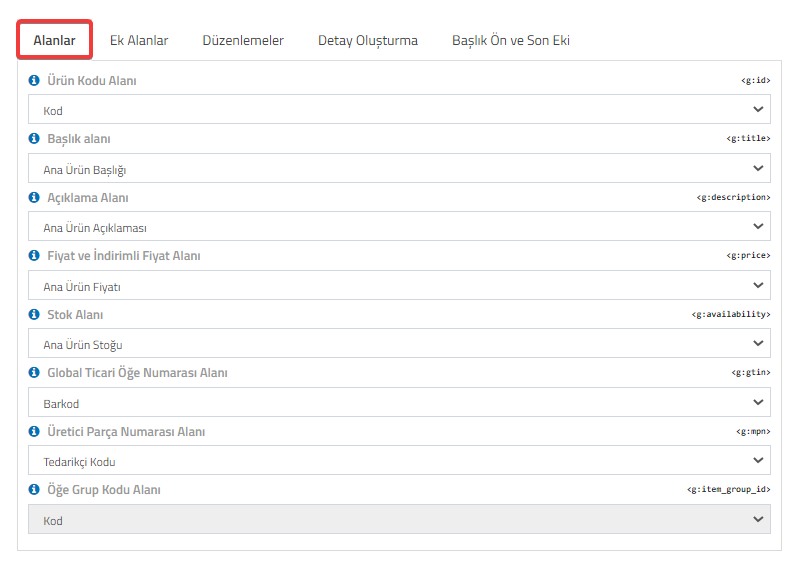
Fields : Product code, title, description, price-discounted price, stock area, barcode and manufacturer part number fields, you can choose which information you want to transfer. No change is made in the code field.
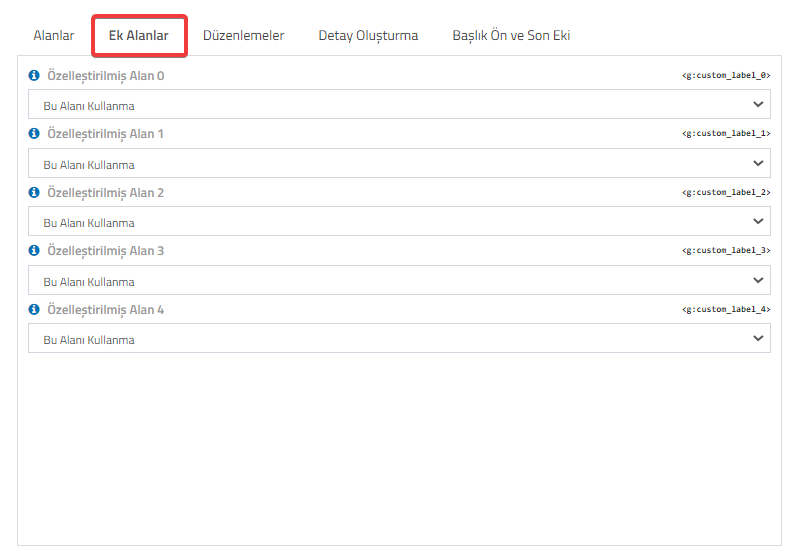
Additional Fields : You can choose between customized fields or select the option to use this field. There are 4 customized fields.
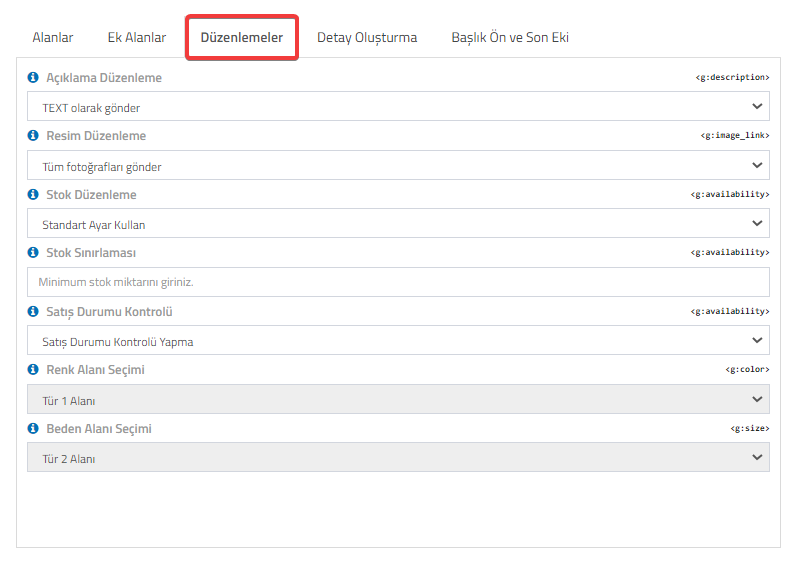
Edits : You can use it to edit the generated XML information. You can edit description, image, stock information, add stock limitations and choose whether or not to check the sales status. No changes are made in the color and size selection fields.
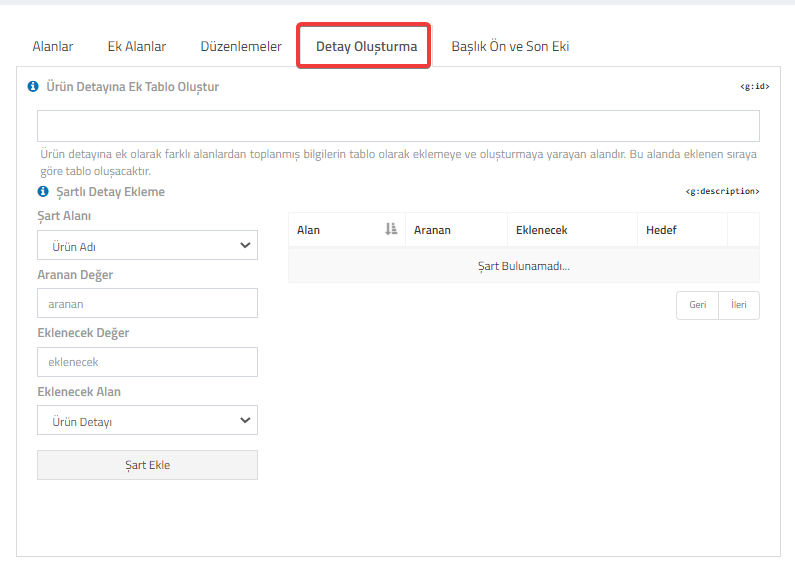
Creating Detail : If you want to create an additional table to the product detail, you can add the information to be added to the table in order. If you wish, you can also add conditional details.
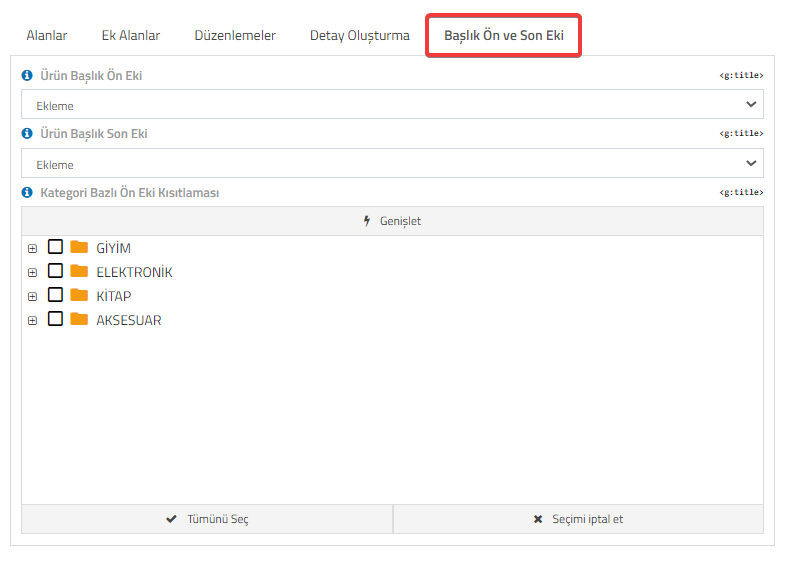
Title Prefix and Suffix : You can add prefix and suffix to the product title. If you wish, you can also add a category-based prefix restriction.
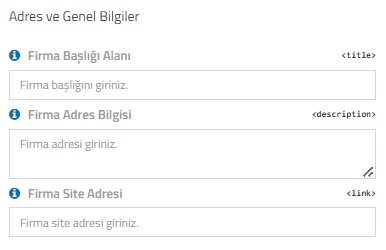
Address and General Information : You can add information about your company. You can add your company title, company address and site address information.
If you want to cancel the selections made, click on the "Cancel and Delete My Link Information" button.
After checking that all options are correct, click on the "Save and Create Link" button to generate the XML output.
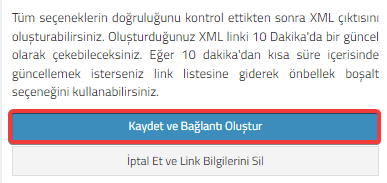
You will be able to pull the XML link you created every 10 minutes. If you want to update it in less than 10 minutes, you can go to the link list and use the empty cache option.
Click the "OK" button for the warning message after clicking.
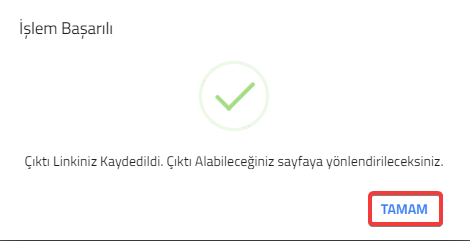
Your link will be created.
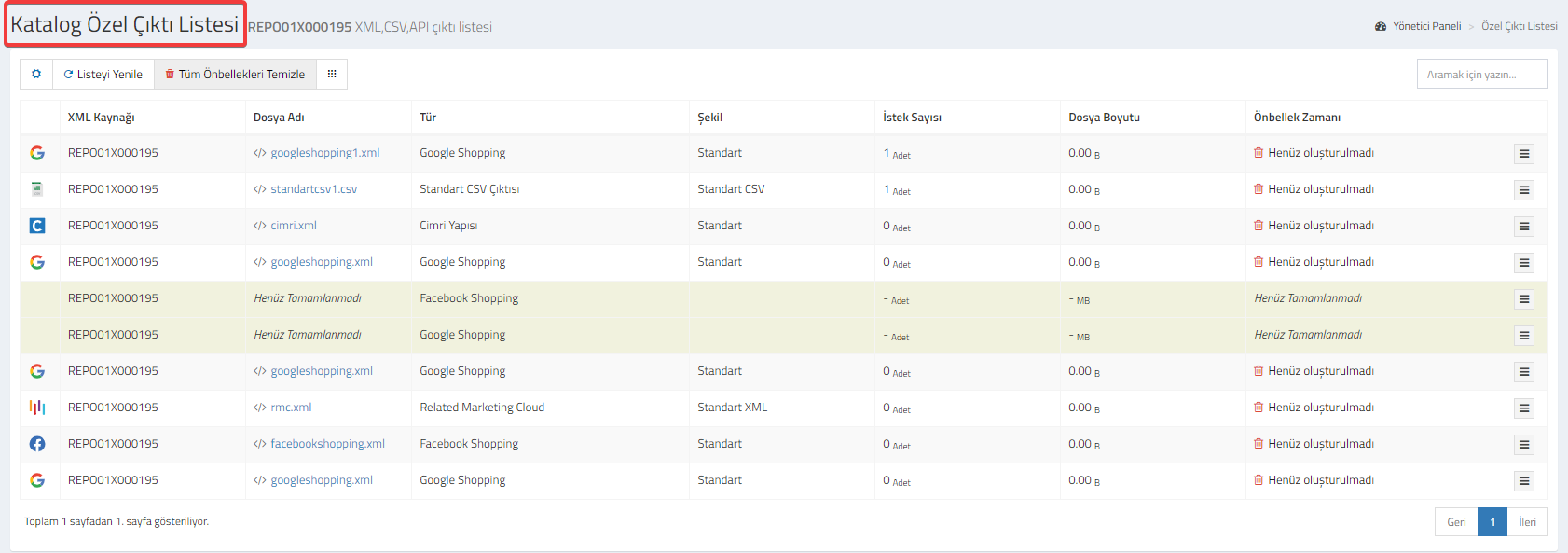
You can check and edit your link and its details from the "Catalog Special Output List" page. Click here for detailed information about Catalog Special Output List.