Export - Exchange Rates
 ChatGPT
 Claude.ai
When transferring products to a marketplace with ConnectProf, you can use different exchange rates or offer your products for sale with your own exchange rate information.
To perform this process, go to the Administrator Panel > Export page.
Your marketplace integrations will be listed on the Export page.
Select the marketplace you want to add exchange rate information for and click on the menu to access the "Currencies" button.
A page will open where you can add your exchange rate information.
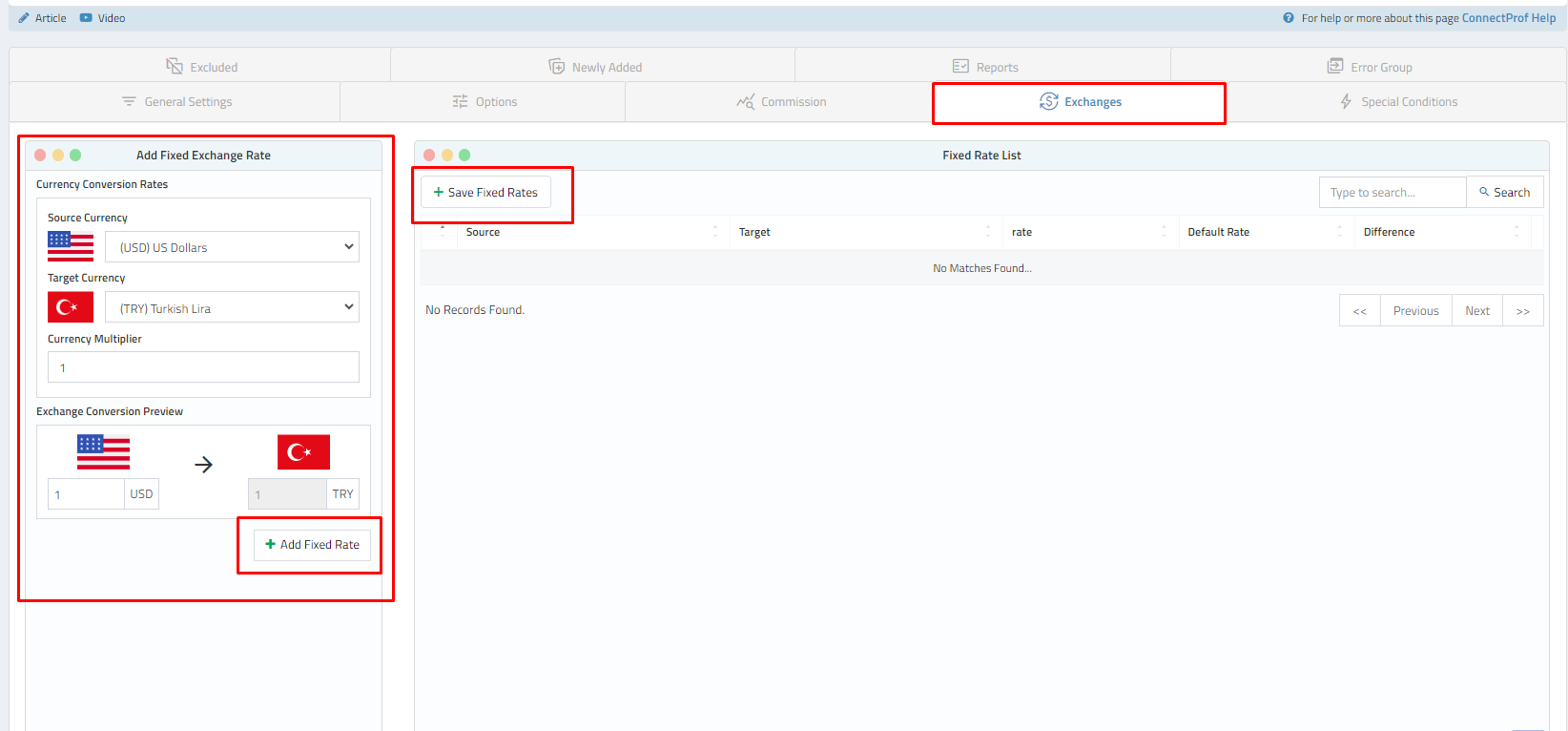
Add Fixed Exchange Rate: You can choose your exchange rates.
Source Currency: Select the currency for each currency on your site and perform transactions from this field.
Target Currency: Choose the currency to which the conversion should be made from the source.
Multiplier Between Currencies: It is the exchange rate difference you want to apply between source and target units.
After completing your information, click the "Add Fixed Rate" button. After this process, the exchange rates you added will be listed in the "Fixed Exchange Rate List" section.
Fixed Exchange Rate List: This section lists all the currency transactions you have made.
If there is a currency for which you have not made an exchange rate conversion, it will be converted based on the rate determined by the central bank by default.
To delete the rate you added, you can click the "x" button in the rate list.
NOTE: After adding your exchange rate information, click the "Save Fixed Rates" button. If you do not click the button, your changes will be discarded.