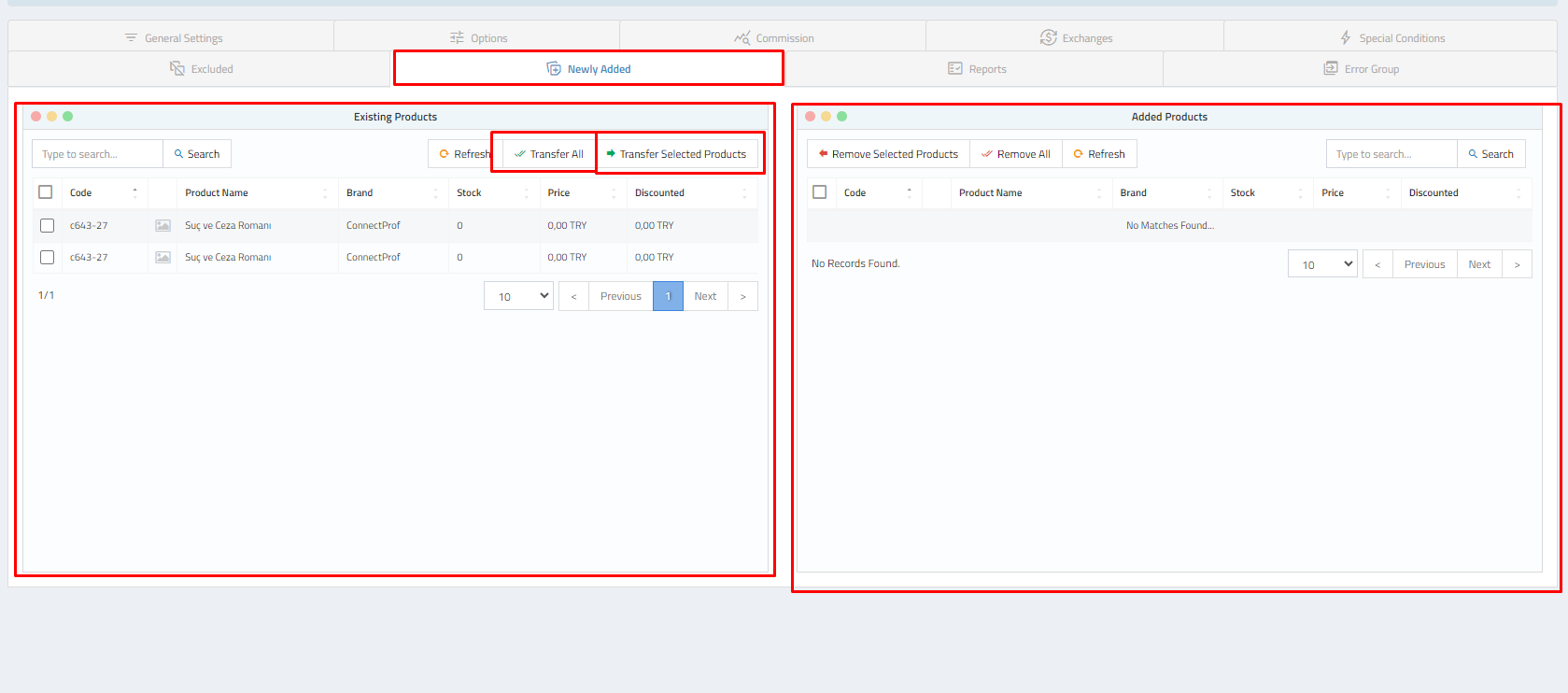
Export - Newly Added
 ChatGPT
 Claude.ai
You can transfer your selected products to the marketplace with ConnectProf.
After completing the necessary steps for transferring products to the marketplace, go to the Administrator Panel > Export page and select the integration you want to use to transfer your products.
Click on the Menu > Newly Added section of the selected export integration.
The Newly Added page will open.
Newly Added Button Functions:
1. Existing Products: Your products in the matched category are listed in the existing products section. You can select the products you want to include in the integration by choosing your selected products or all of them and transfer them to the marketplace.
- Search: Allows you to search among the products in the existing products section.
- Refresh: Refreshes the Existing Products page.
- Transfer All: Transfers all products in the existing products section to the Added Products section. After this process, all products in the added products section will be transferred to the marketplace.
- Transfer Selected Products: Transfers the selected products in the existing products section to the Added Products section. After this process, all products in the added products section will be transferred to the marketplace.
2. Added Products: Your products that you want to transfer to the marketplace are listed in this section. The products in the Added Products section can be transferred to the marketplace along with updates.
- Remove Selected Products: Transfers the selected products in the Added Products section to the existing products section.
- Remove All: Transfers all products in the Added Products section to the existing products section.
- Refresh: Refreshes the Added Products page.
Note: You do not need to save your information as it will be automatically updated when you exit the page, and the changes will be reflected on the marketplace. Therefore, we recommend checking everything again after completing all your operations.
Note: If you want the instant reflection of your action, you can create a request from the "Support Requests" page. Click here for information about support requests.