Google Catalog Structure
 ChatGPT
 Claude.ai
GoogleShopping is an advertising platform used by e-commerce sites that sell online. On this platform, your ads are shown when your potential customers search for the products you sell.
It doesn't matter what your infrastructure is. You can quickly transfer your products to GoogleShopping by moving them to ConnectProf.
With ConnectProf, you can present your products to users at the top of GoogleShopping. It offers many opportunities such as increasing your sales and reaching more users. With ConnectProf's advanced panel, you can intervene in product prices in bulk and apply the filter you want.
NOTE : GoogleShopping works depending on the license. If you have a license, you can create a support request to activate it. If you do not have a license, you can get detailed information from the sales representative on the subject.
To create a GoogleShopping catalog structure, click "Products" from the admin panel.
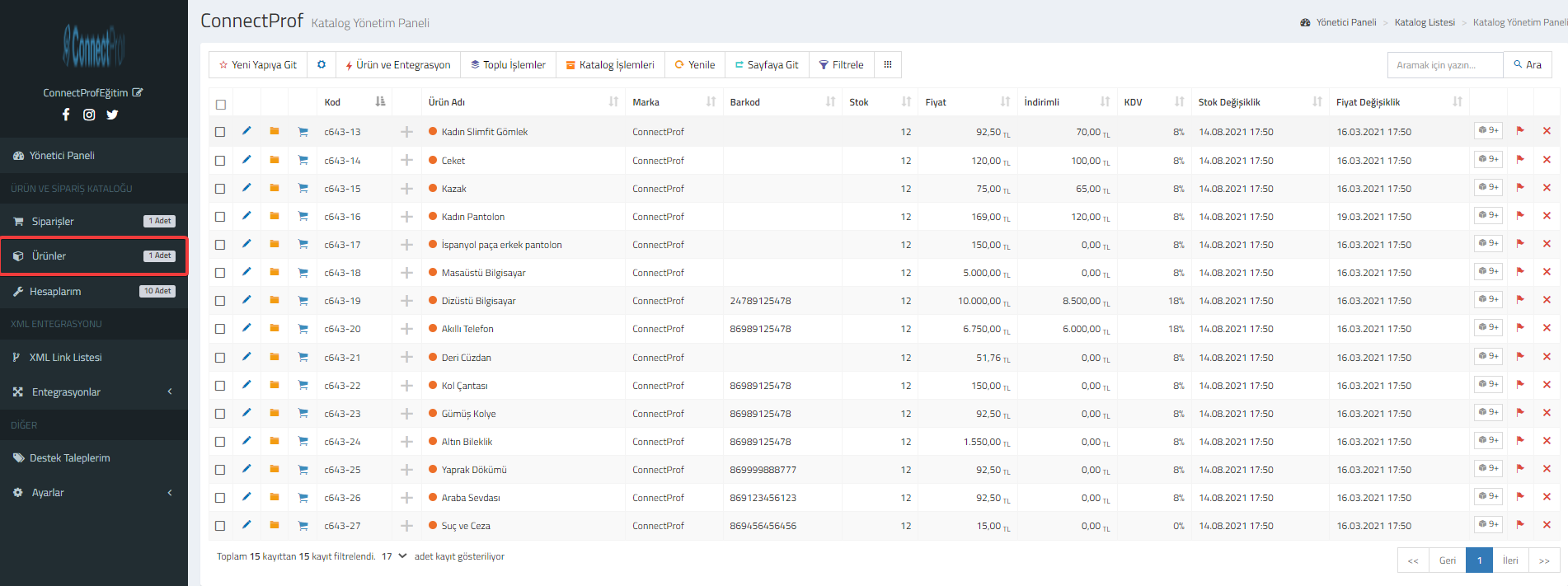
Your products will be listed.
Filter the products you want to print.
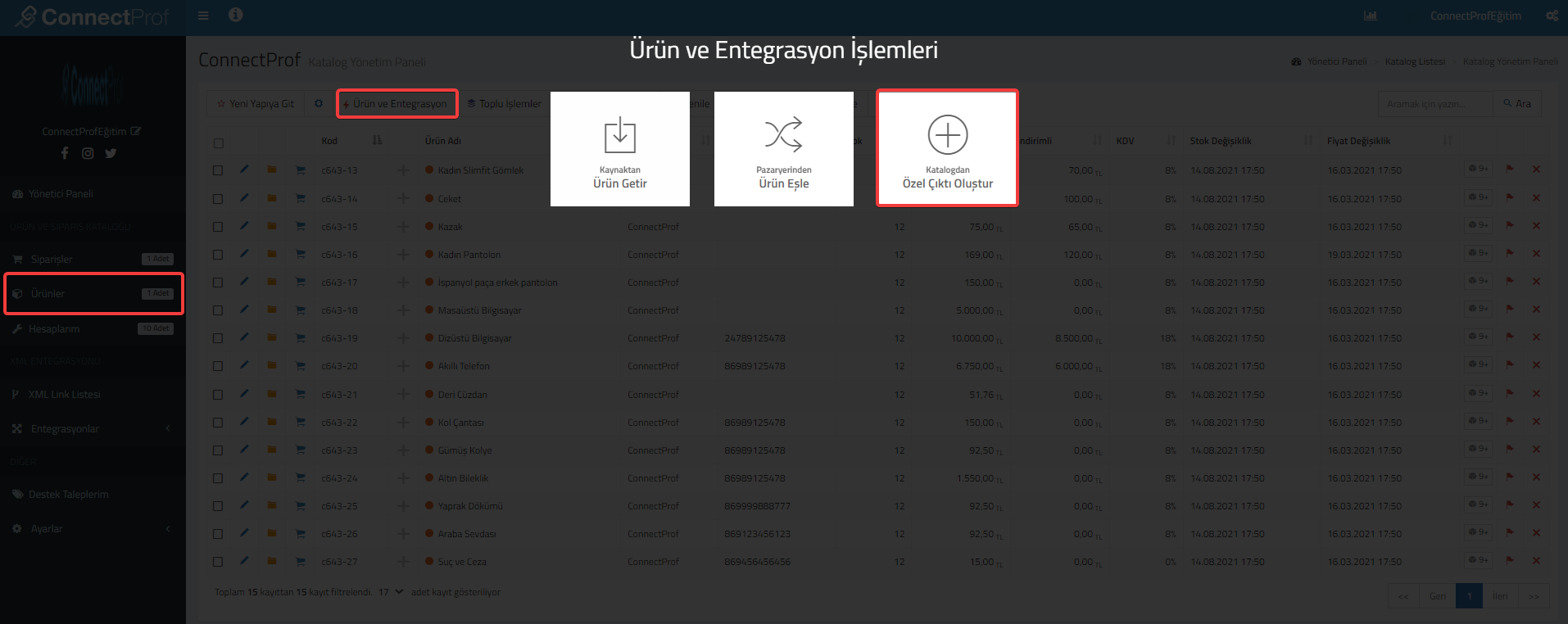
Click on Product and Integration > Create Custom Output from Catalog.
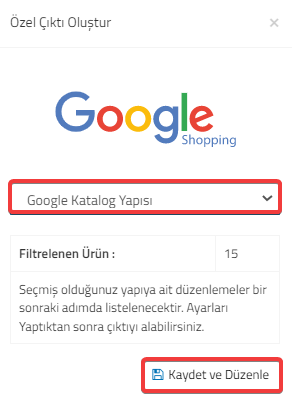
Select "Google Catalog Structure" for Custom Output. Then click on the "Save and Edit" button.
If you are sure that the warning is correct, click "Continue" and then "OK".
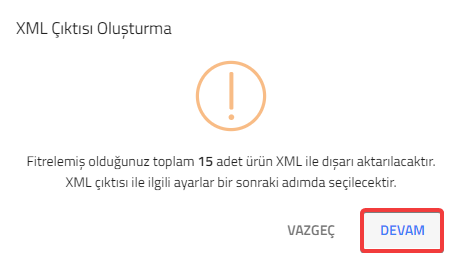
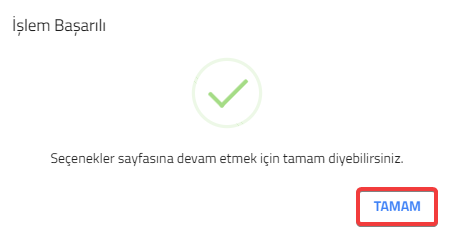
Google will open a page where you can adjust the settings for XML output.
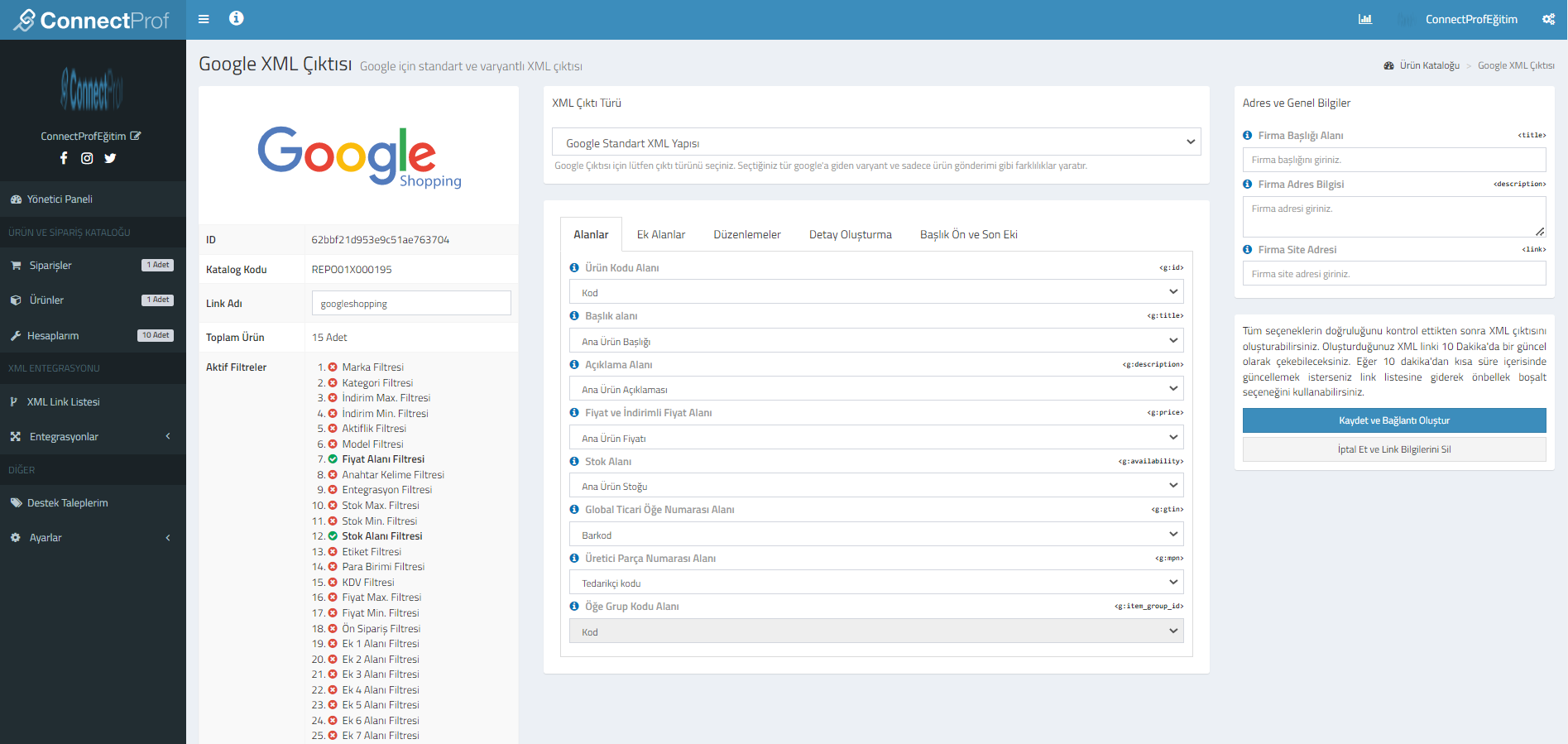
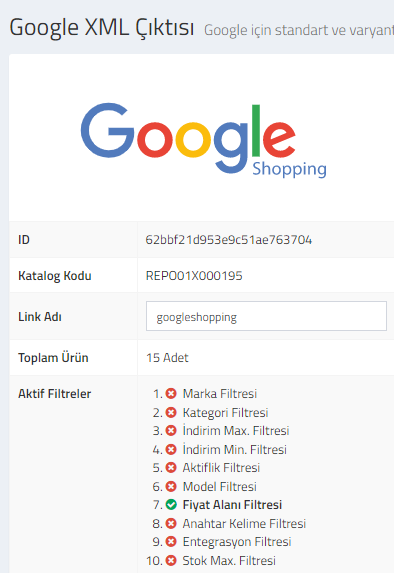
Google Shopping : You can review your catalog information.Id, catalog code, link name, total product and active filters.
XML Output Type : You can choose between Google Standard XML Structure or Google Variant XML Structure.

Fields : Product code, title, description, price-discounted price, stock area, global trade item number and item group code fields, you can choose which information you want to transfer.
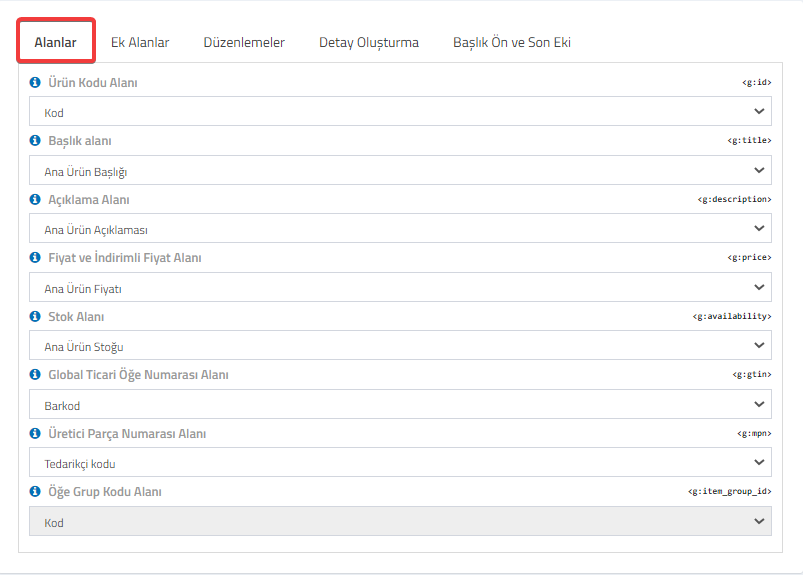
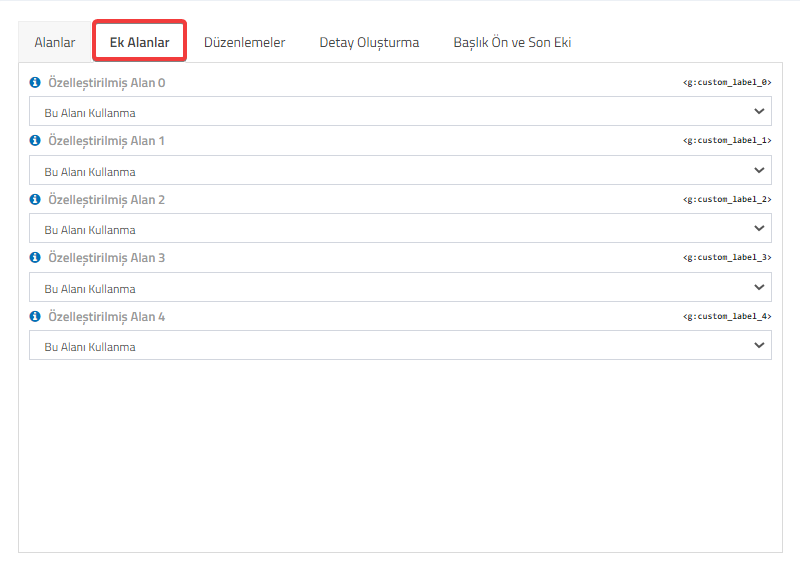
Additional Fields : You can choose between customized fields or select the option to use this field.
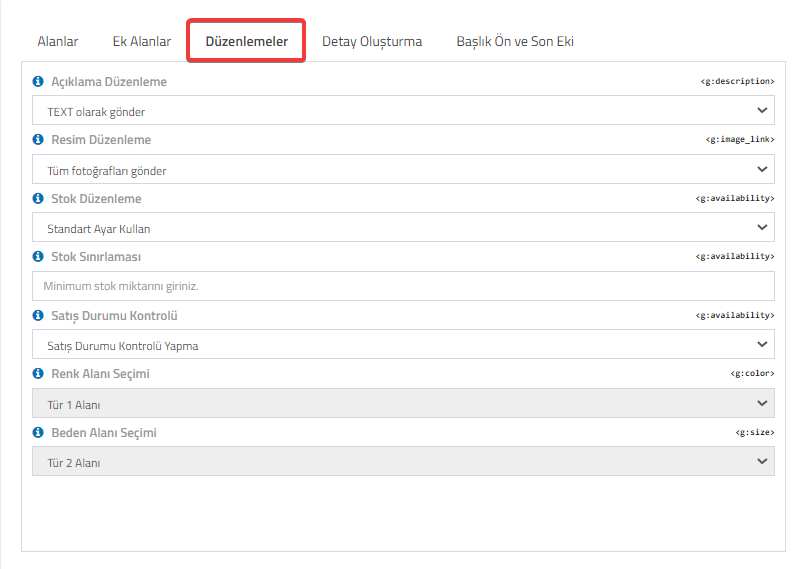
Edits : You can use it to edit the generated XML information. You can edit description, image, stock information, add stock limitations and choose whether to check the sales status.
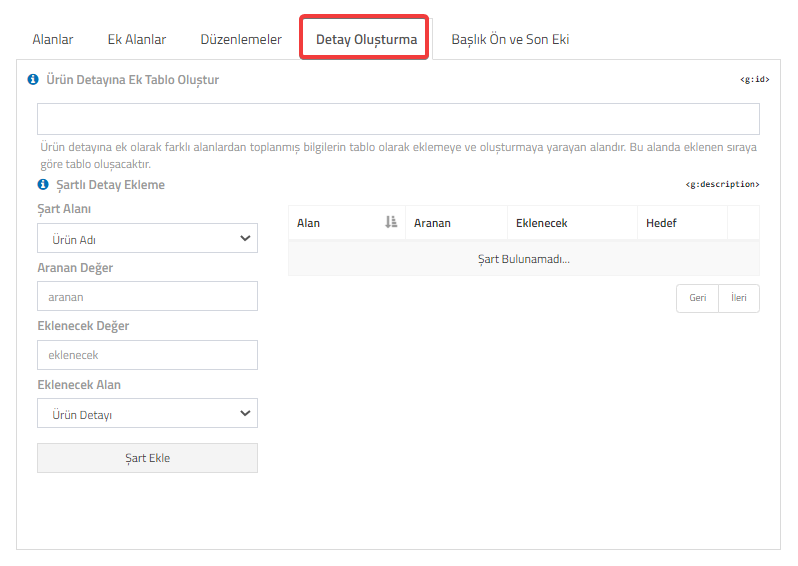
Creating Detail : If you want to create an additional table to the product detail, you can add the information to be added to the table in order. If you wish, you can also add conditional details.
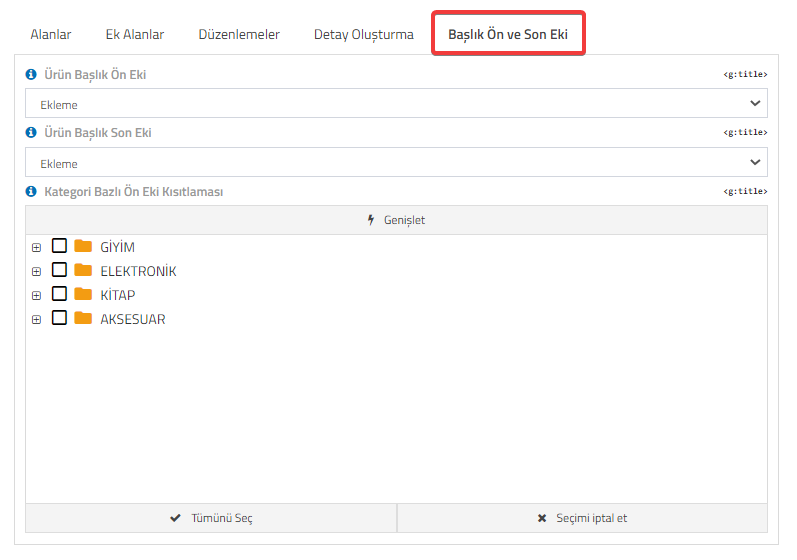
Title Prefix and Suffix : You can add prefix and suffix to the product title. If you wish, you can also add a category-based prefix restriction.
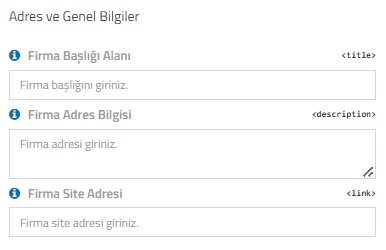
Address and General Information : You can add information about your company. You can add your company title, company address and site address information.
If you want to cancel the selections made, click on the "Cancel and Delete My Link Information" button.
After checking that all options are correct, click on the "Save and Create Link" button to generate the XML output.
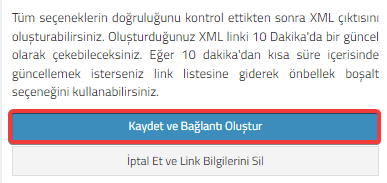
You will be able to pull the XML link you created every 10 minutes. If you want to update it in less than 10 minutes, you can go to the link list and use the empty cache option.
Click the "OK" button for the warning message after clicking.
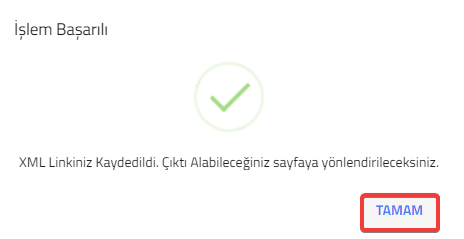
Your link will be created.
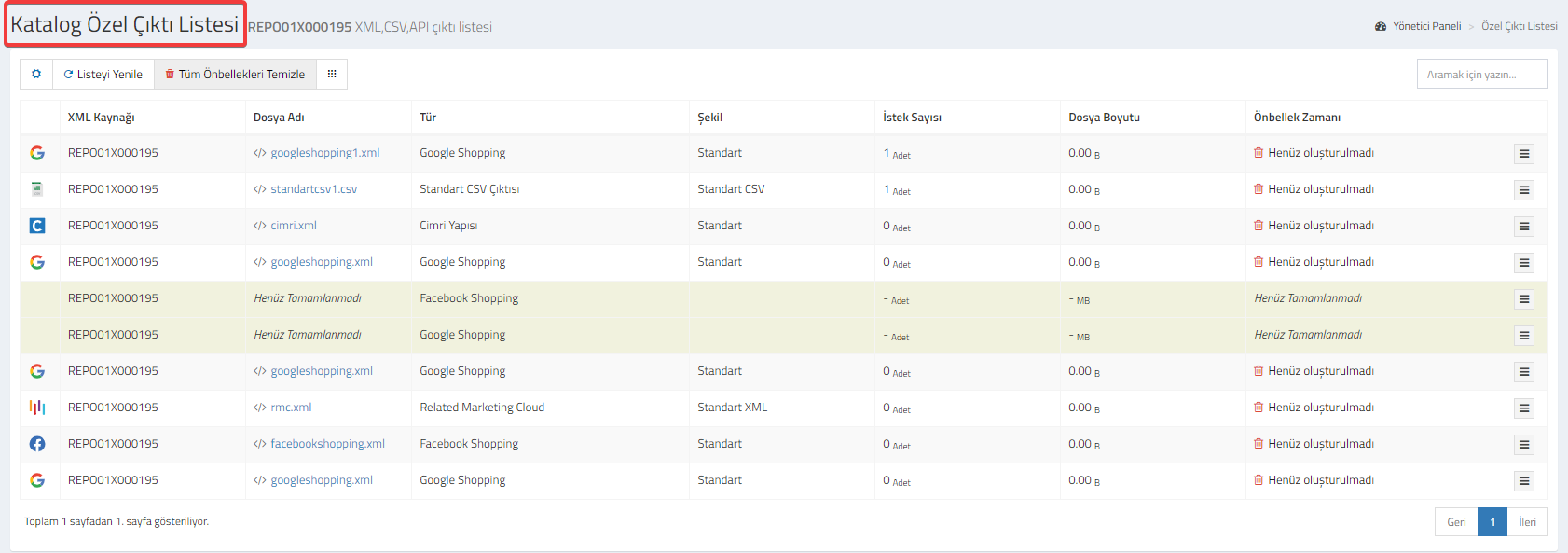
You can check and edit your link and its details from the "Catalog Special Output List" page. Click here for detailed information about Catalog Special Output List.