How to create ConnectProfa product XML in Tsoft Infrastructure?
 ChatGPT
 Claude.ai
You can transfer your products to ConnectProf management panel with XML method.
A dynamic XML link is required for XML integration. You can create this link from your e-commerce site or from different platforms where your products are located.
To find out if the XML link is compatible with ConnectProf, you can request the support team to review it from the ConnectProf administration panel.
CREATING T-SOFT XML ACCESS LINK
You can get the products you add to your site in the form of xml links that you can use in various areas.
When creating an xml link, you can select all active products on your site or only the products, categories, etc. you want.
1. Creating Xml Link with All Active Products
1.1. Before creating the xml link, you must create a membership where the xml link will be defined. You can create the member group of the membership created through your administration panel by selecting "Visitors". Click here to review our Membership article about creating membership.
1.2. Select the member you created on the Members page and click the "Xml Access Link" button.
1.3. Select the product information to be added to the xml link from the window that opens.
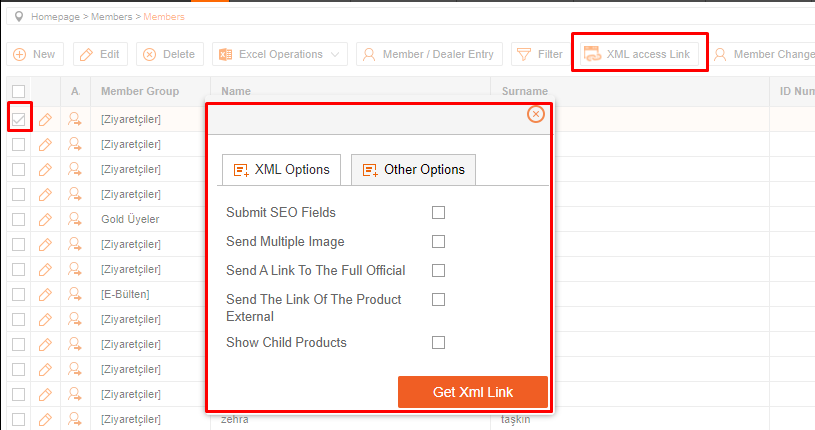
1.4. After selecting the information you want to get, you can access your xml link by clicking the "Get Xml Link" button and clicking the link in the window that opens.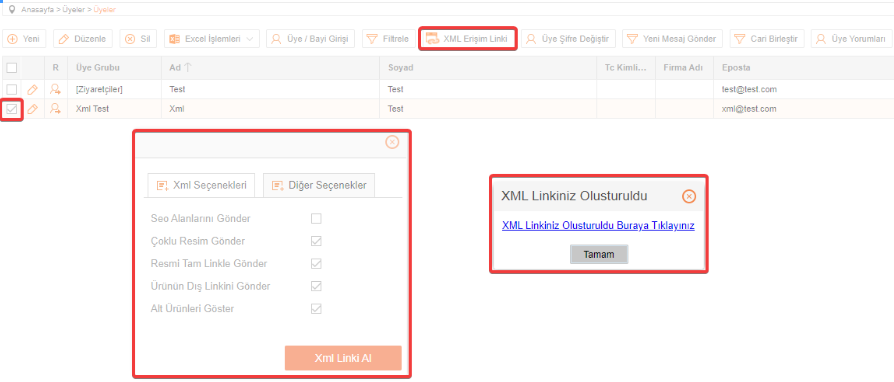
2. Creating an Xml Link with Only Certain Suppliers, Brands, Categories and Products
2.1. In order to create an xml link with only certain products, firstly activate the "Settings > General Settings > Product Display by Member Group in XML" setting.
2.2. Create a member group from the "Members > Member Groups" page. Click to review our Member Groups article.
2.3. From the "Products > Products" page, select the member group created from the "Batch Actions > Show/Hide Group" field and mark all products as "Do Not Show". After removing all the products in the member group, mark only the products you want to be seen as "Show" again from the "Bulk Actions > Group Show/Hide" field. Click here to review our Show/Hide Group article.
2.4. After defining the products that will appear to the member group, clear the cache of your site from the "Settings > Cache > Clear Cache" page.
2.5. Click on "Members > Members" page to create the Xml link.
2.6. You can create a membership with random information by selecting the member group you created from the member group section. Click here to review our Membership article about membership creation.
2.7. Select the member you created on the Members page and click the "Xml Access Link" button.
2.8. Select the product information to be added to the xml link from the window that opens.
2.9. After selecting the information you want to get, you can access your xml link by clicking the "Get Xml Link" button and clicking the link in the window that opens.
The created Xml links are connected to ConnectProf and the products in the Xml link are transferred to ConnectProfa.
NOTE : If you have a T-Soft E-Commerce, API integration is recommended for a two-way integration. With Xml integration, your orders will not be transferred to your E-Commerce site.
If you want to add Xml products, you can review our article "How to add XML products?". Click here to access the article.
Xml product transfer works depending on the licence. If you have a licence, you can contact our support team to activate it. If you do not have a licence, you can contact your sales representative about the subject.
