Order Integration Editing - General
 ChatGPT
 Claude.ai
---
With ConnectProf integration, you can manage orders from multiple marketplaces through a single panel. When configuring order integration, you can adjust all settings related to the communication between your marketplace and e-commerce site through general settings.
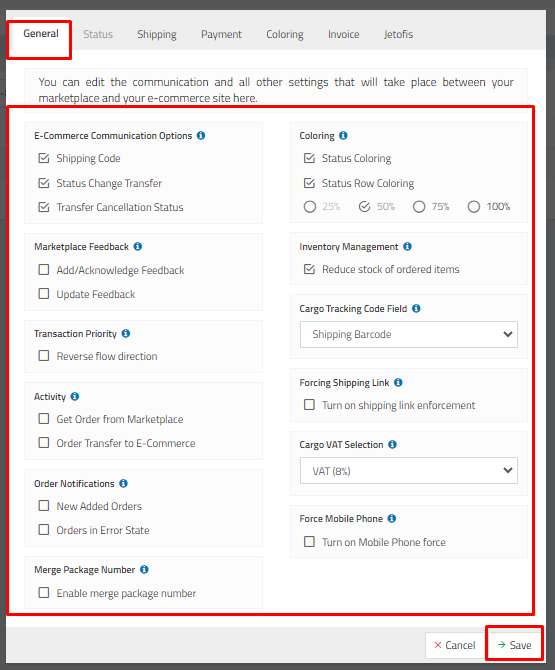
E-commerce communication options include settings for marketplace feedback, transaction priority, activation, order notifications, color-coding, stock management, shipment tracking code field, forcing shipment transfer link, and shipment VAT selection.
To access these settings, go to ConnectProf Admin Panel > Orders > Integration List > General section.
**Communication Options:**
- *Shipment Tracking Code Transfer:* If this setting is active, your tracking code (selected from the Shipment Tracking Code field) will be reflected on your site if you are using your own agreed-upon shipping.
- *Status Change Transfer:* This setting automates the updating of order processes on your e-commerce site when active.
- *Cancellation Status Transfer:* This involves updating the canceled order process on your e-commerce site.


**Marketplace Feedback:**
You can configure your feedback settings for order addition/approval and update feedback. Some marketplaces require informing them when an order is received or updated.
- *Addition/Approval Feedback:* When this setting is activated, orders coming to the marketplace are automatically marked as approved.
- *Update Feedback:* When activated, the shipping statuses of your orders will also be updated on the marketplace.
**Transaction Priority:**
This function is added to decide the order in which communication between the marketplace and e-commerce occurs, addressing potential issues arising from updates on the e-commerce site to the marketplace.
- *Reverse Flow Direction:* This involves updating the status of changes in your e-commerce site on the marketplaces.
*Note:* If you have your own shipping agreement, you can activate settings related to marketplace feedback and transaction priority. If you don't have your own shipping agreement, do not make any transactions related to these settings.
**Activation:**
You can manage the retrieval of orders from the marketplace and the transfer of received orders to your e-commerce site.
- *Retrieve Marketplace Orders:* When this setting is active, orders received from the marketplace will be automatically brought to the ConnectProf panel.
- *Automatic E-commerce Order Transfer:* When this setting is active, your orders will be automatically transferred to your connected e-commerce site.
**Order Notifications:**
You can receive notifications to your email based on order statuses and changes. To enable this, you need to fill in your notification email address in the User Settings section.
- *Newly Added Orders:* When activated, you will receive notifications for orders added to your site.
- *Orders in Error Status:* When activated, you will receive notifications for orders with errors.
**Color Coding:**
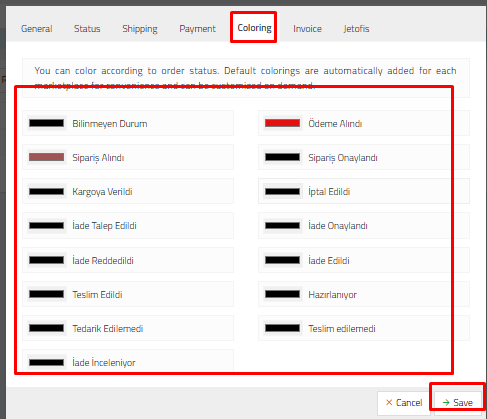
You can select status color coding, status row color coding, and color coding rate.
**Stock Management:**
When the "Decrease stock of ordered products" setting is active, product stocks will automatically decrease when orders arrive. This feature is added for the smooth updating of product stocks if you have manually added products to the ConnectProf panel or if XML product addition has been made.
**Shipment Tracking Code:**
You can choose how you want your shipment tracking code to be transferred. Options include tracking number, shipment barcode, or shipment package number.
**Forcing Shipment Transfer Link:**
This is a field developed for marketplace integration. Since the marketplace integration requires the compulsory presence of the shipment link, this setting needs to be activated to prevent potential issues in the integration.
**Shipment VAT Selection:**
If you apply a special VAT rate to your shipments, you can select the VAT rate from this field.
After entering your information, click the "Save" button.
