Product Creation
 ChatGPT
 Claude.ai
With ConnectProf, you can manually add products to your admin panel.
NOTE : When adding new products, care should be taken not to have the same information as the products coming from XML or API.
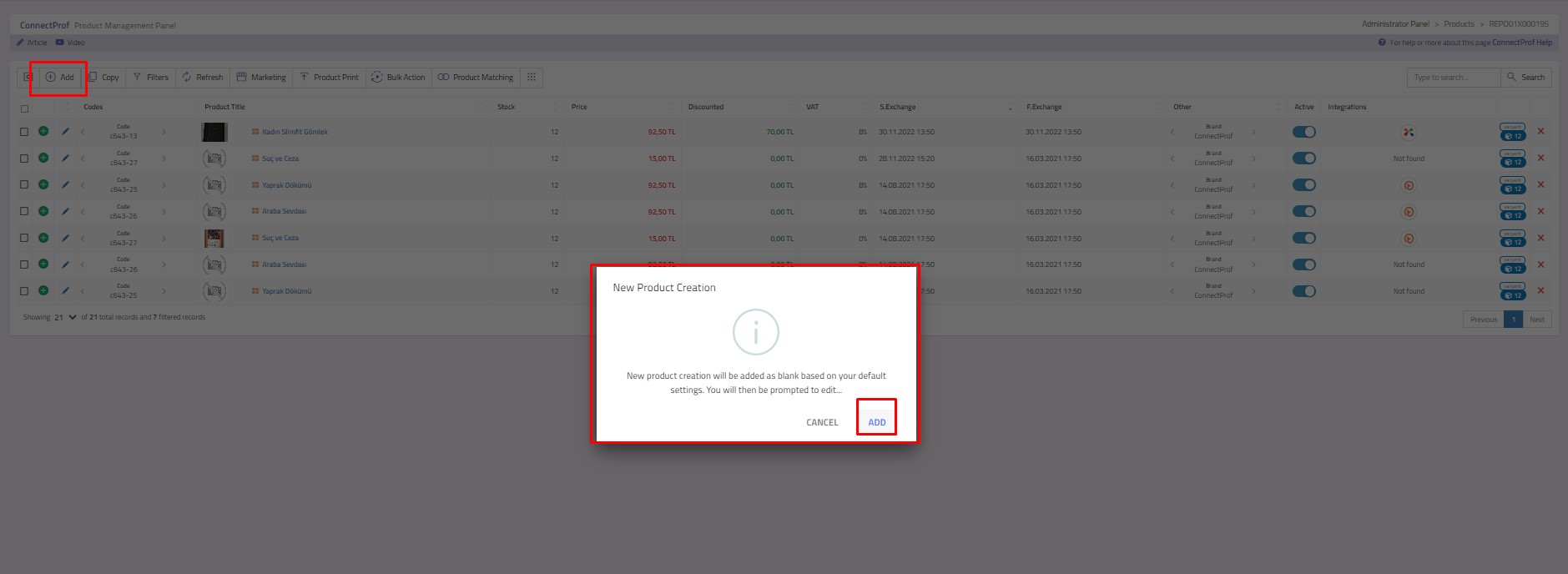
Click on Products > Add button to make manual product addition.
In the window that opens, "New product creation will be added empty according to your default settings. You will be redirected to edit later" warning will appear. If you want to add a product, click the "Add" button.
Click the "Add" button in the window that opens.
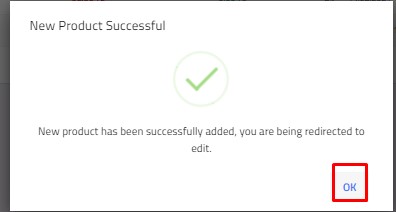
"The new product has been successfully added and you are being redirected to edit" will appear. If you click on the "OK" button, the product editing window will open.
The detail window of the product will open.
The window that opens contains general information about the product, sub-products, description fields, category settings, product photos, filters and labels.
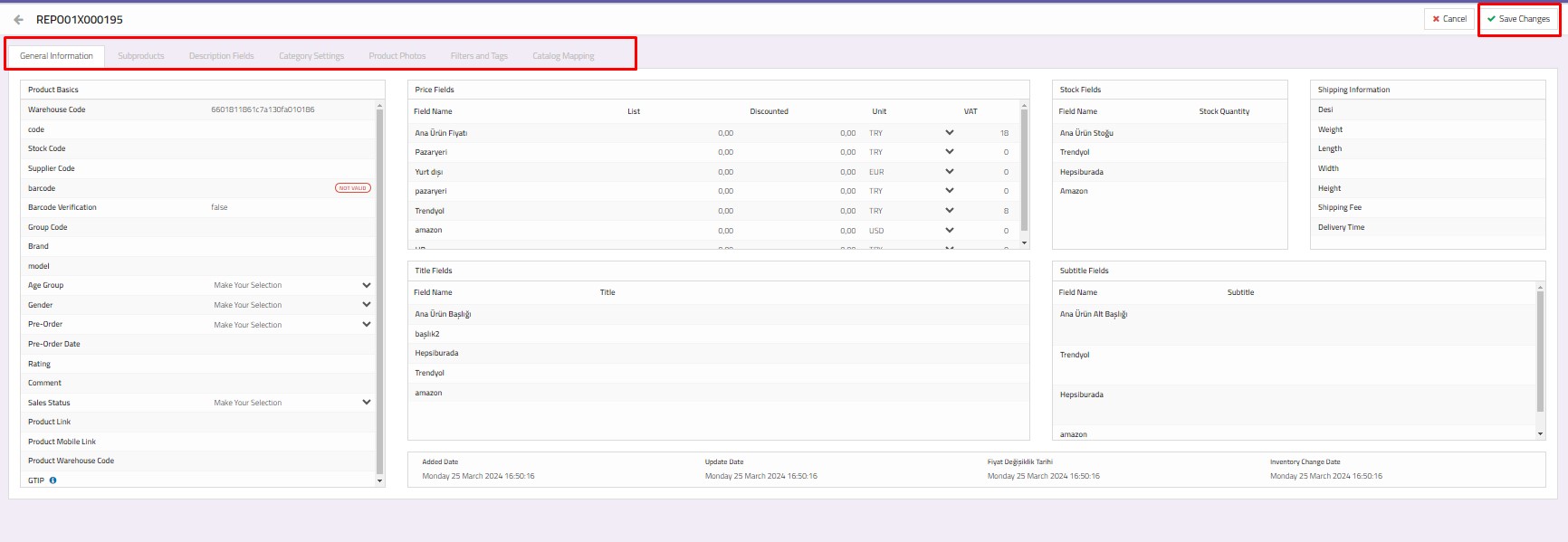
1.General Information
You can specify the basic information of the product, price fields, title fields, stock fields, cargo information, sub-heading fields and you can examine the date information.
1.1. Product Basic Information : There is product information such as warehouse code, code, stock code, supplier code, barcode, group code, brand, model, pre-order status, product link. You can add this information according to product information.
Age group, gender information, pre-order amount and sales status can be selected from the options by clicking on the arrow on the right.
You can reduce or increase the fields such as scoring and comments by clicking on the up / down arrow. You can change other information by clicking on it.
1.2. Price Fields : The price field name, list price, currency and VAT rates of the product are included. If you wish, you can set list and discounted price, add VAT rate and select currency. If you wish, you can also open new price fields and display different prices for each marketplace. For each price field you create, you can add list and discounted price from this field. Click for detailed information.
1.3. Title Fields : You can specify the main product title. If you wish, you can also open new title fields and display different titles to each marketplace. Click for detailed information.
1.4. Stock Fields : You can add main product stock. If you wish, you can also open new stock areas and display different stocks for each marketplace.
2.1. Create New Variant : When you click on the button, the new sub-product creation window will open.
For detailed information about creating a new sub-product, you can review the "Creating a Sub-Product" article. Click here to access the article.
2.2. Sub Products : The sub-products you have added are listed in this field. When you click on it, you can access detailed information about the sub-product.
2.3. Sub Product Basic Information : Code, stock code, supplier code, barcode, type 1 title, type 1, type 1, type 2 title, and activation status. You can make changes on it if you wish.
2.4. Price Fields : The price field name, list price and discounted price of the product are included.
2.5. Stock Fields : It is the sub-product stock. You can determine the sub-product stock amount.
2.6. Photos : The images you have added will be listed in this field.
2.7. Add as File : You can upload the images on your computer from the file using the Add Photo + Upload buttons.
For detailed information, you can review the article "Adding Photos from File to Sub-Product". Click here to access the article.
2.8. Add as Link : You can add images to the product as a link.
For detailed information, you can review the article "Adding a Photo to a Sub-Product with a Link". Click here to access the article.
2.9. Save Changes : After adding your product information, click the "Save Changes" button.
3.Description Fields
3.1. Description Fields :
