Single Product Report Review
 ChatGPT
 Claude.ai
With ConnectProf, you can access the report of your updated products and check your product-based reports.
In order to access the single product report, a single product update is required first.
Click on "Product List" from the admin panel to update the product and review the report.
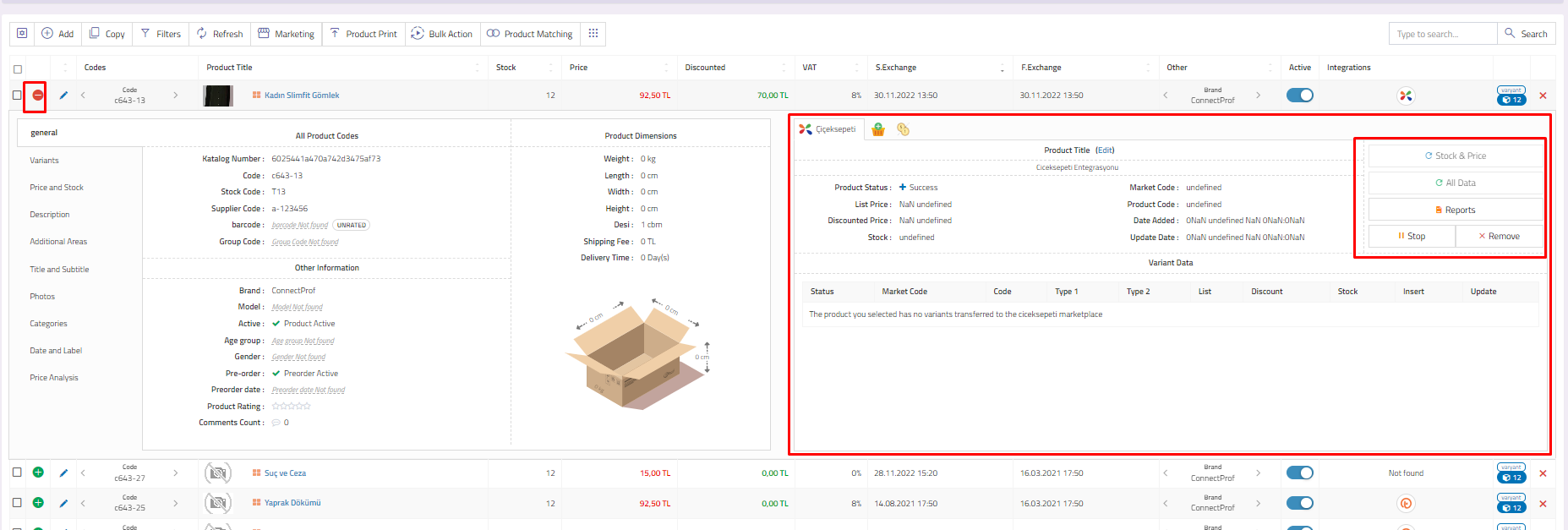
Your products will be listed.
Select a product with an integration and open the detail (+) window.
In the Integrations field, the integrations to which the product is connected will be listed.
Select the marketplace you want to update.
If you want to update only the price and stocks of the product, click on the "Stock & Price" button.
If you want to update all information of the product, click on the "All data" button.
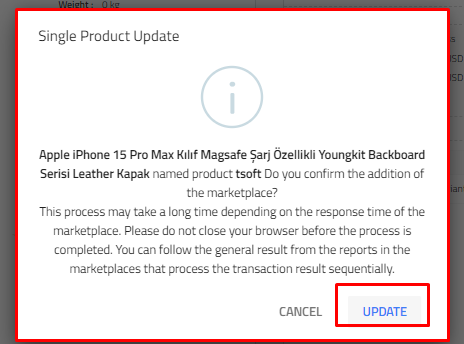
If you select "Update" in the warning message, your product will be updated.
NOTE : Do not close your browser during the update period.
After the update is completed, click on the "Reports" button in the product detail.
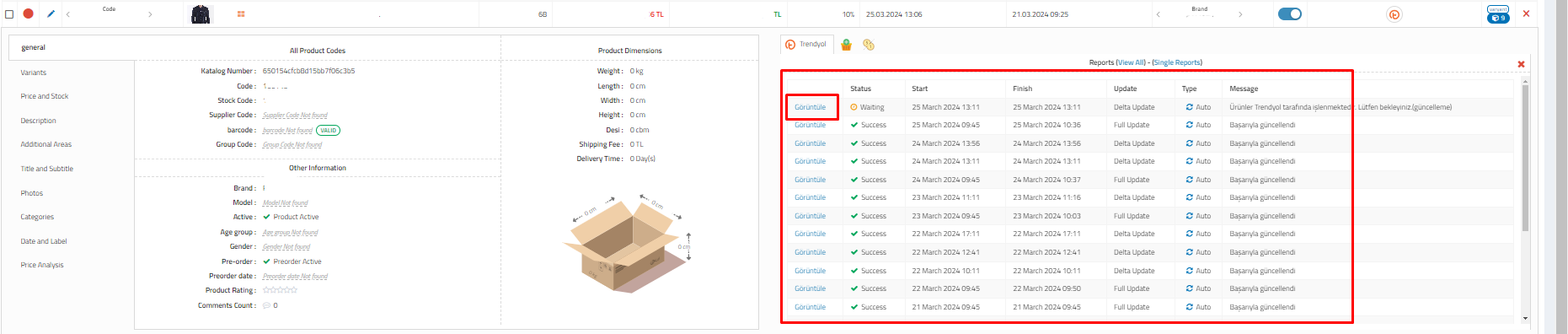
It will redirect to Export > Reports page.
After selecting "Show All" from the Report Group Filters field, click "View" from the update reports field.
Finally, when the "Apply Selected Filters" button is clicked from the Reports field, you can see the product report detail.
You can see the product name and message on the page that opens, and you can make a more detailed examination by clicking the plus (+) button.
For more detailed information about reports, you can review the article "Export - Reports". Click here to reach the article.
