Standard CSV Structure
 ChatGPT
 Claude.ai
With ConnectProf, you can create CSV output of your products.
NOTE : CSV output works depending on the license. If you have a license, you can create a support request to activate it. If you do not have a license, you can get detailed information from the sales representative on the subject.
Click "Products" from the admin panel to create csv.
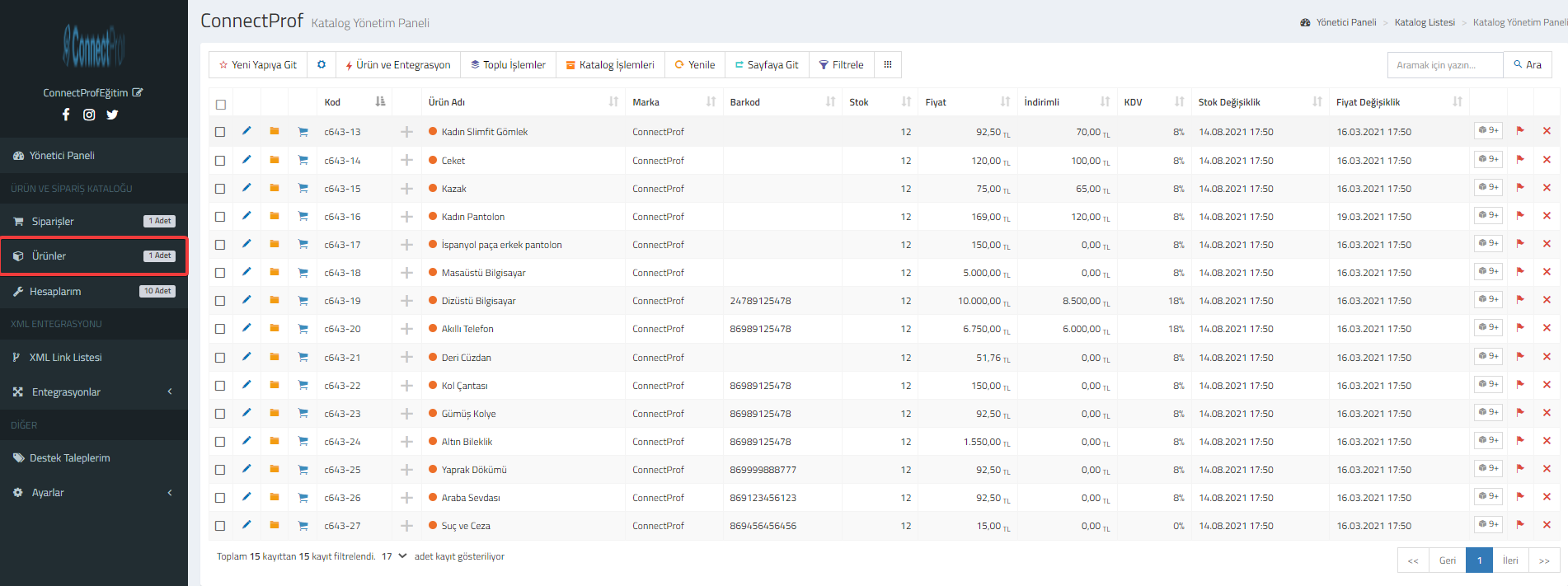
Your products will be listed.
Filter the products you want to print.
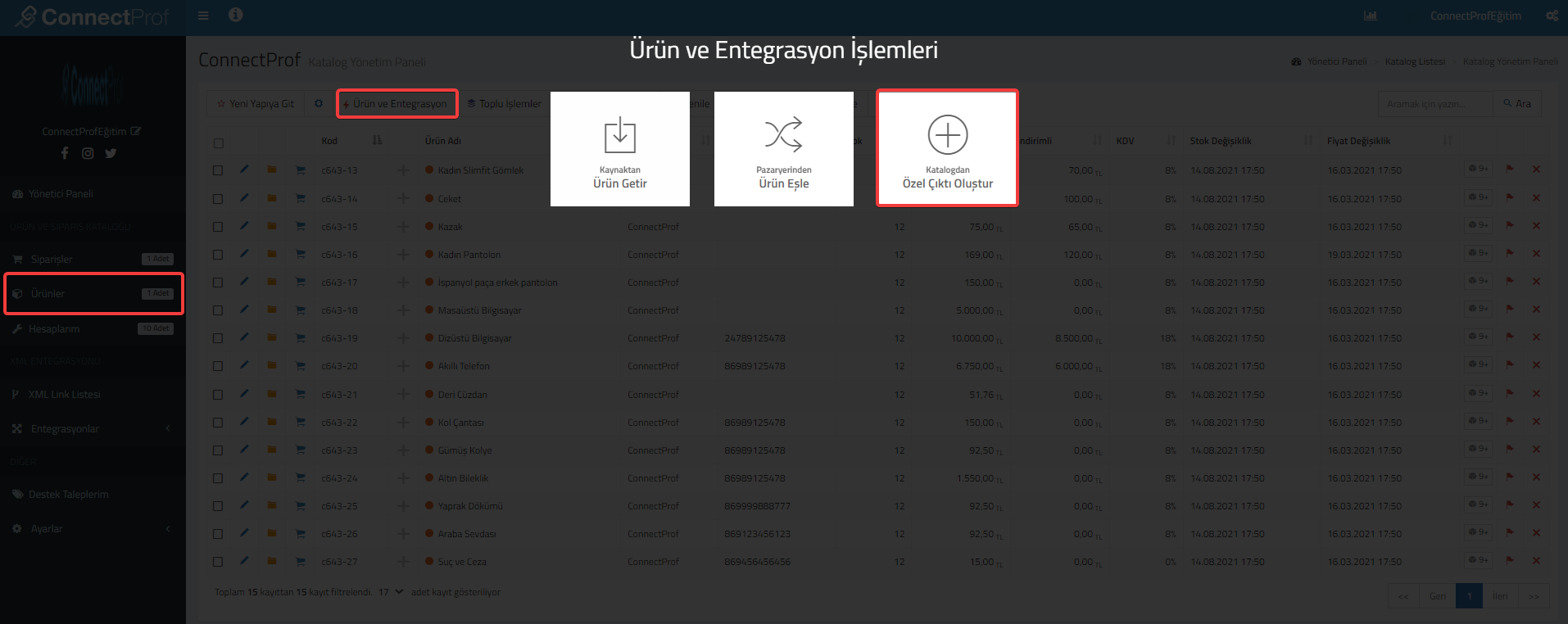
Click on Product and Integration > Create Custom Output from Catalog.
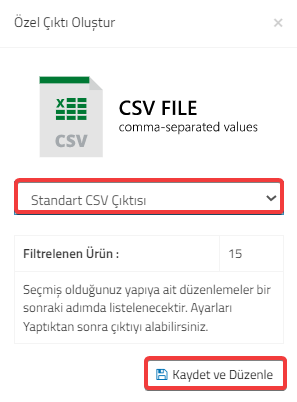
Select "Digitouch Structure" for Custom Output. Then click on the "Save and Edit" button.
If you are sure that the warning is correct, click "Continue" and then "OK".
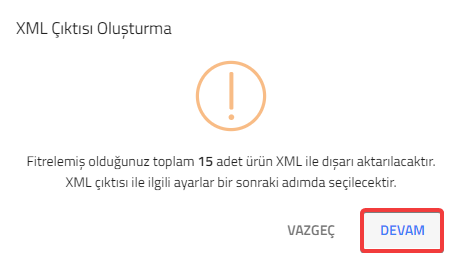
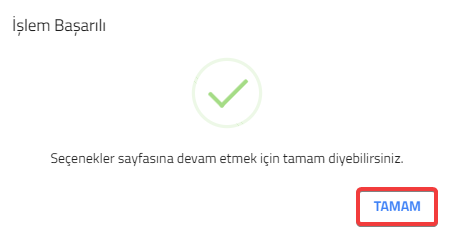
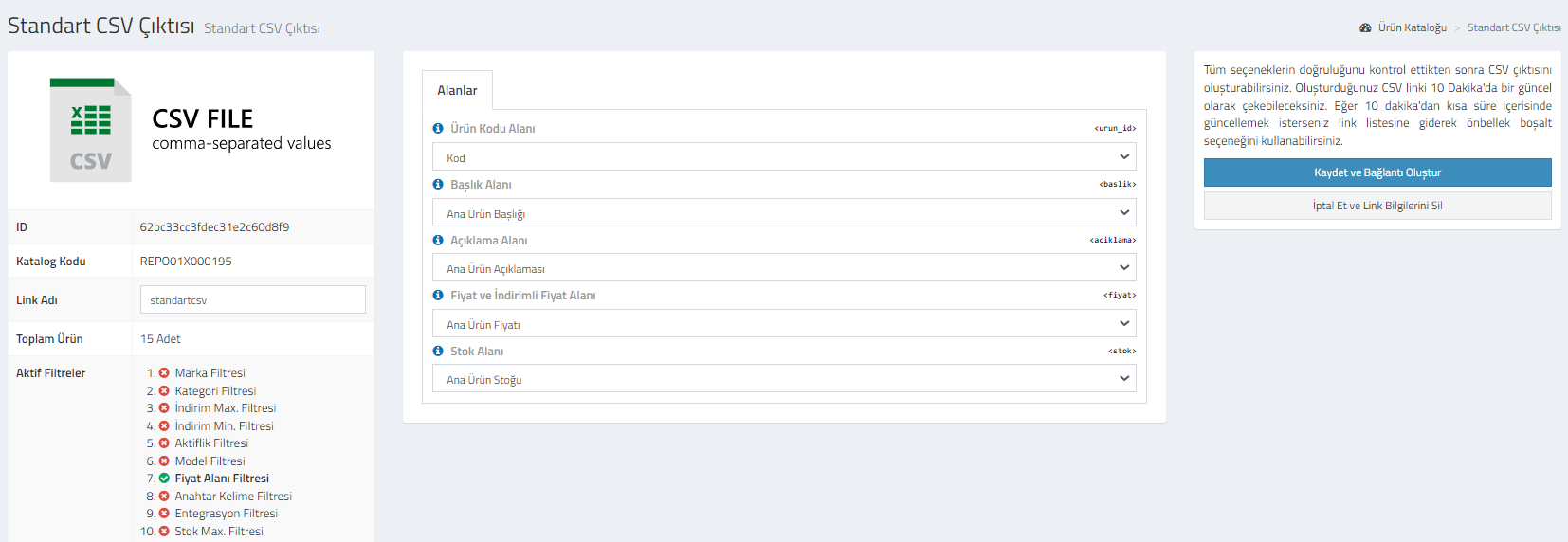
The page where you can adjust the settings for CSV output will open.
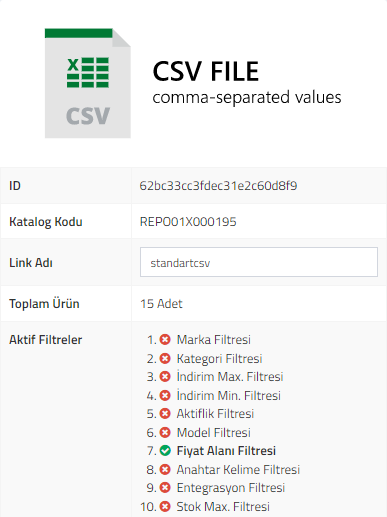
CSV FILE : Your catalog information is included. You can review your id, catalog code, link name, total product and active filters. You can make changes to the link name.
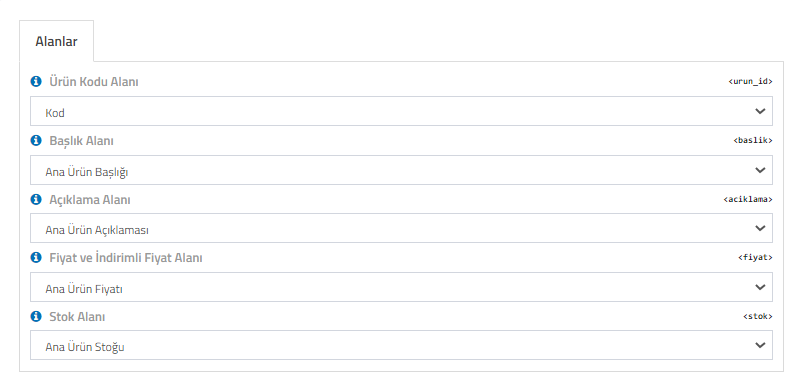
Fields : You can choose which information you want the product code, title, description, price-discounted price and stock fields to be transferred.
If you want to cancel the selections made, click on the "Cancel and Delete My Link Information" button.
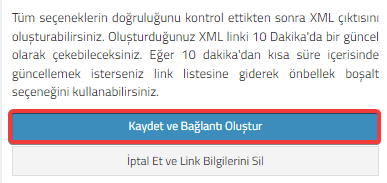
After checking that all options are correct, click on the "Save and Create Link" button to generate the XML output.
Click the "OK" button for the warning message after clicking.
Your link will be created.
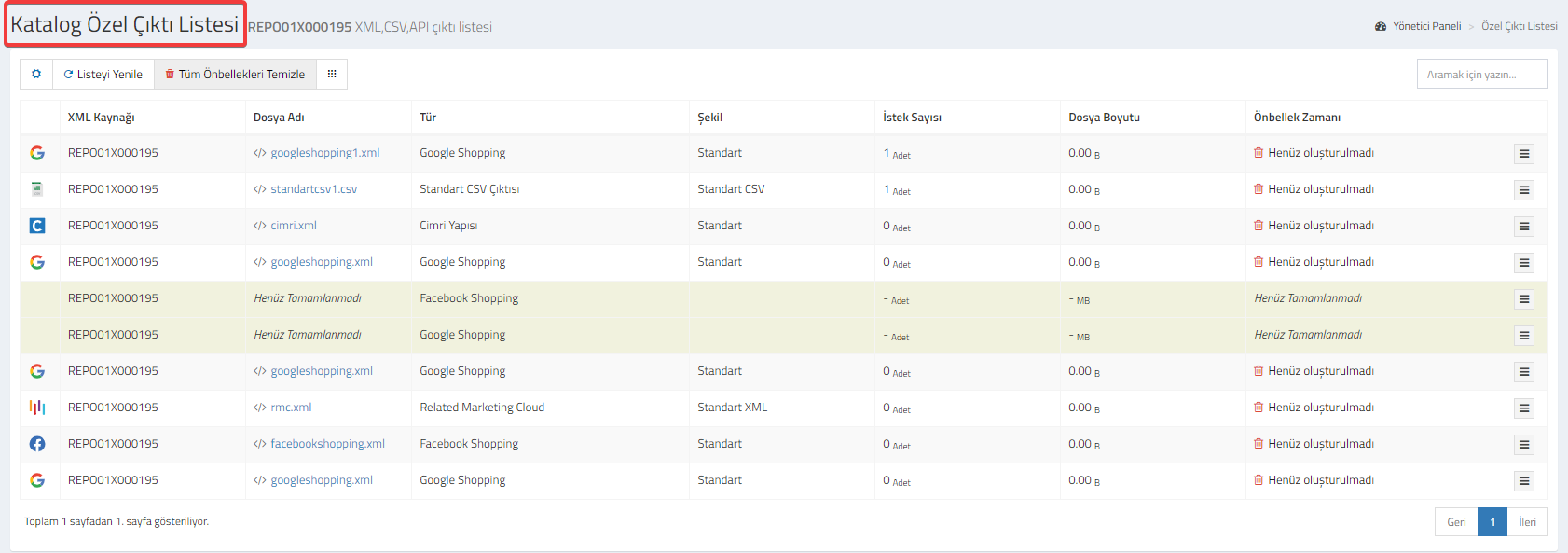
You can check and edit your link and its details from the "Catalog Special Output List" page. Click here for detailed information about Catalog Special Output List.