Standard XML Structure
 ChatGPT
 Claude.ai
With ConnectProf, you can create XML output of your products.
NOTE : XML output works depending on the license. If you have a license, you can create a support request to activate it. If you do not have a license, you can get detailed information from the sales representative on the subject.
To create XML, click "Products" from the admin panel.
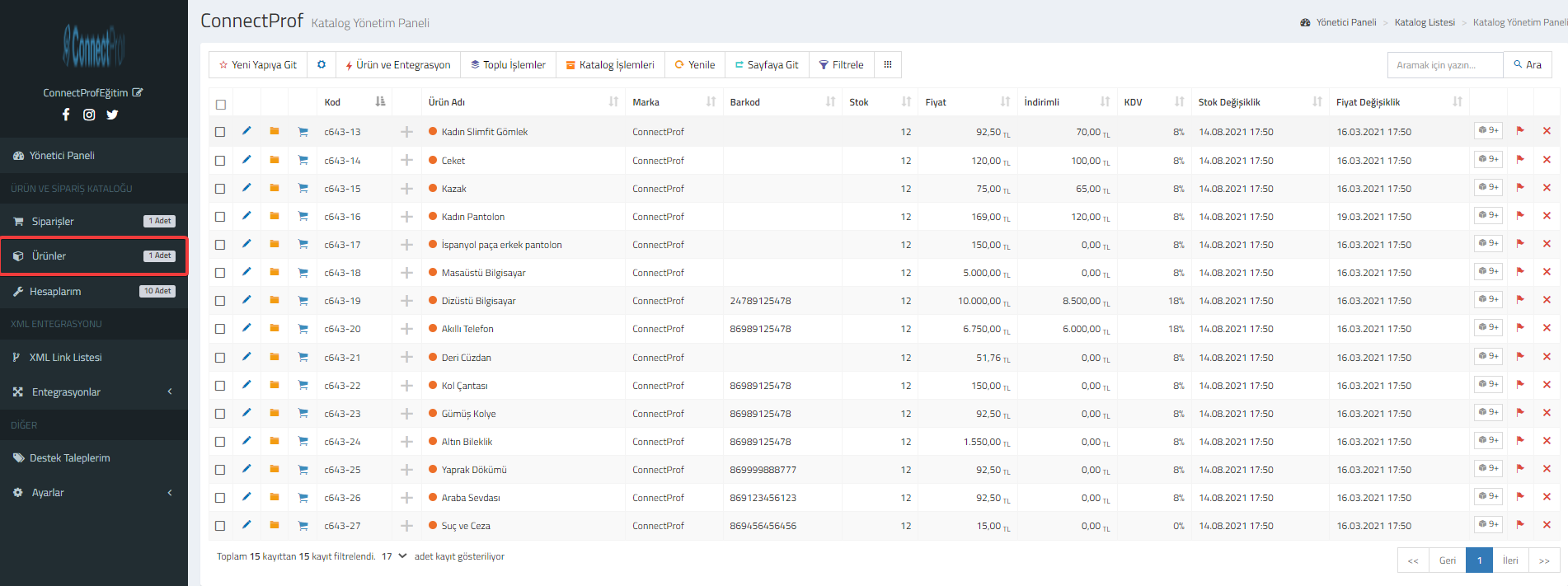
Your products will be listed.
Filter the products you want to print.
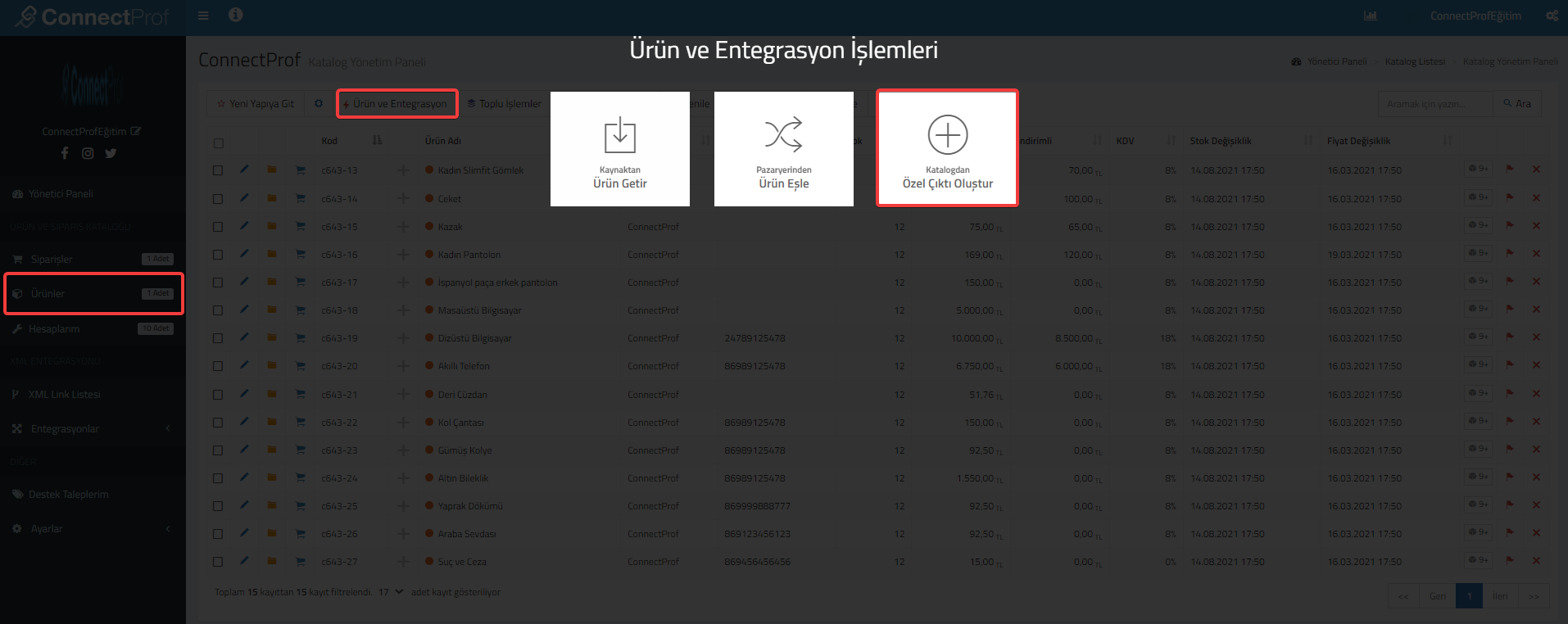
Click on Product and Integration > Create Custom Output from Catalog.
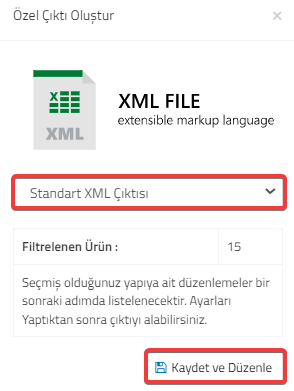
Select "Standard XML Output" for Custom Output. Then click on the "Save and Edit" button.
If you are sure that the warning is correct, click "Continue" and then "OK".
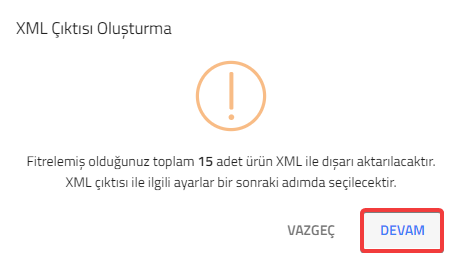
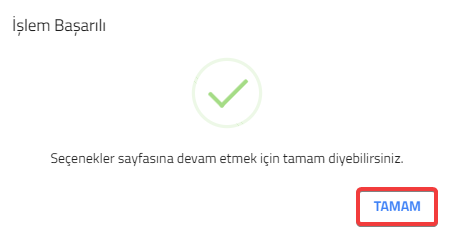
The page where you can set the settings for standard XML output will open.
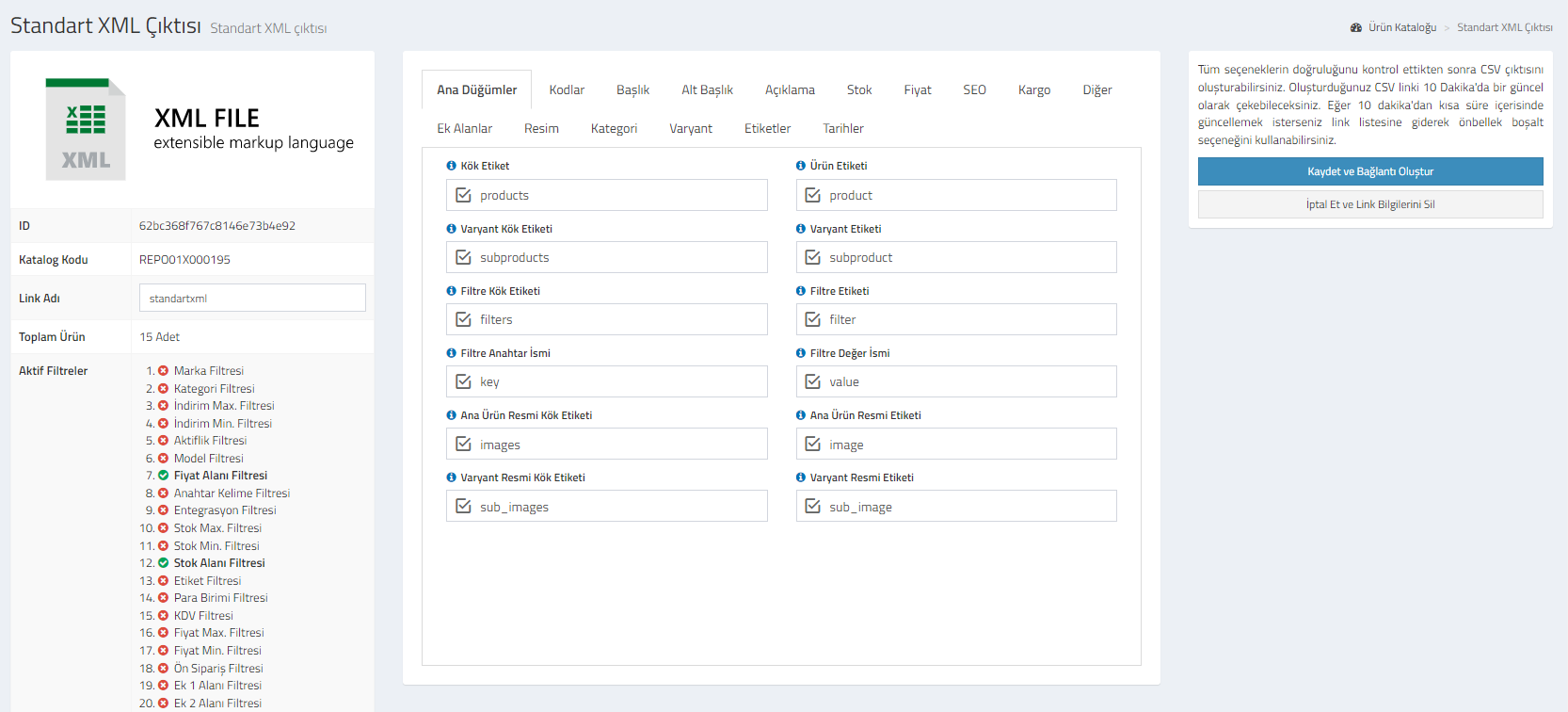
XML FILE : Your catalog information is included. You can review your id, catalog code, link name, total product and active filters. You can make changes to the link name.
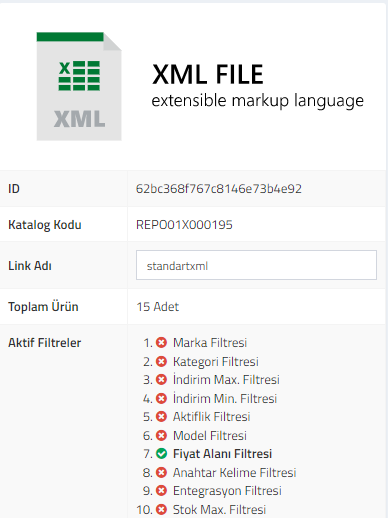
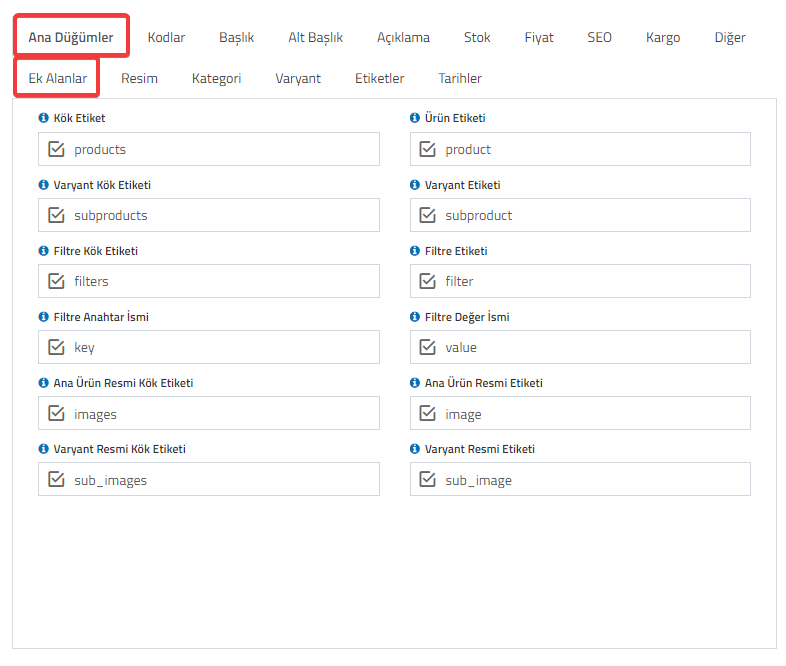
Main Nodes : You can select the fields you want to create XML Output. You can create your own XMl by activating the fields you want to use with the names you want.
- Additional Fields : Additional fields that you can use in the additional fields field will be listed. You can activate the additional fields you want to use. You can also change the start and end names.
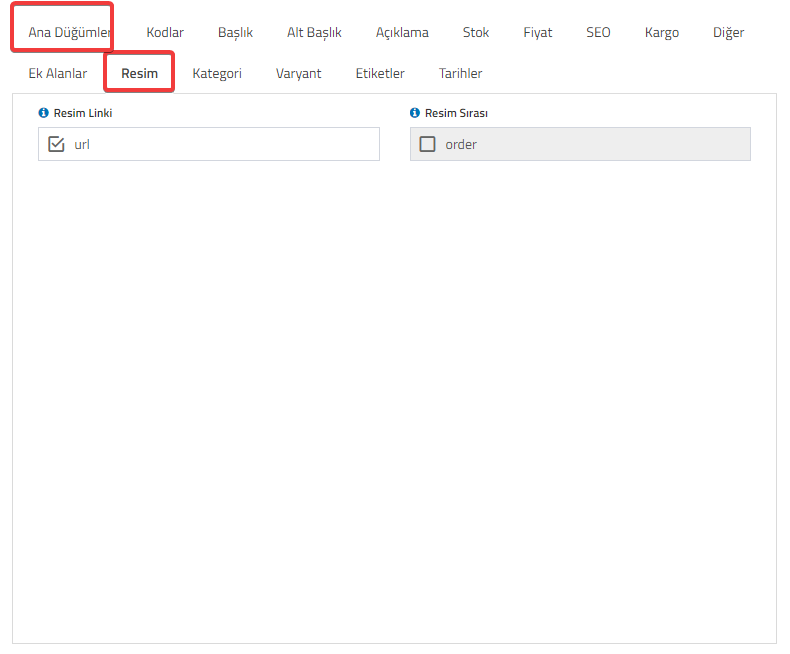
- Resim : Kullanabileceğiniz resim alanları listelenecektir. Kullanmak istediğiniz alanları aktifleştirebilirsiniz. Dilerseniz başlangıç ve bitiş isimlerinide değiştirebilirsiniz.
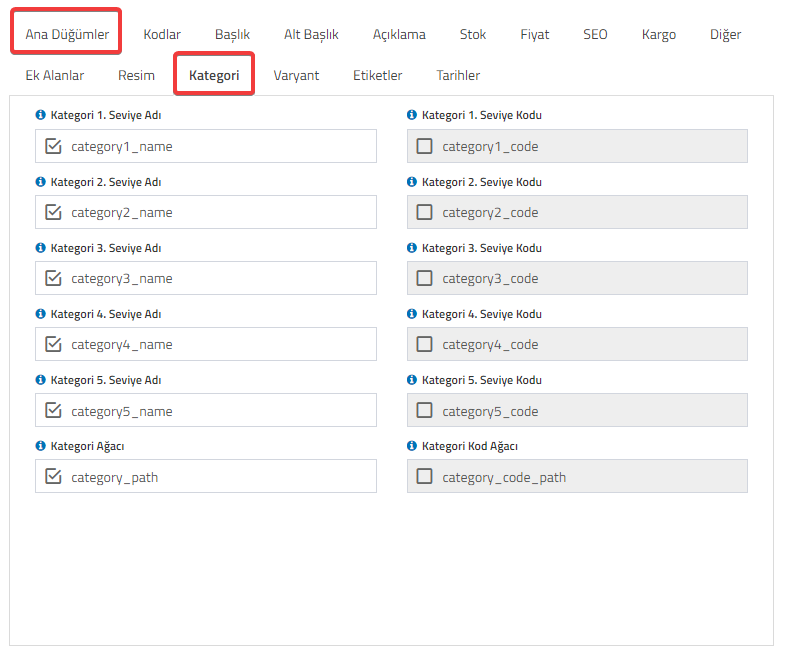
- Category : The category fields you can use will be listed. You can activate the fields you want to use. You can disable the ones you do not want to use by unchecking them. You can also change the start and end names.
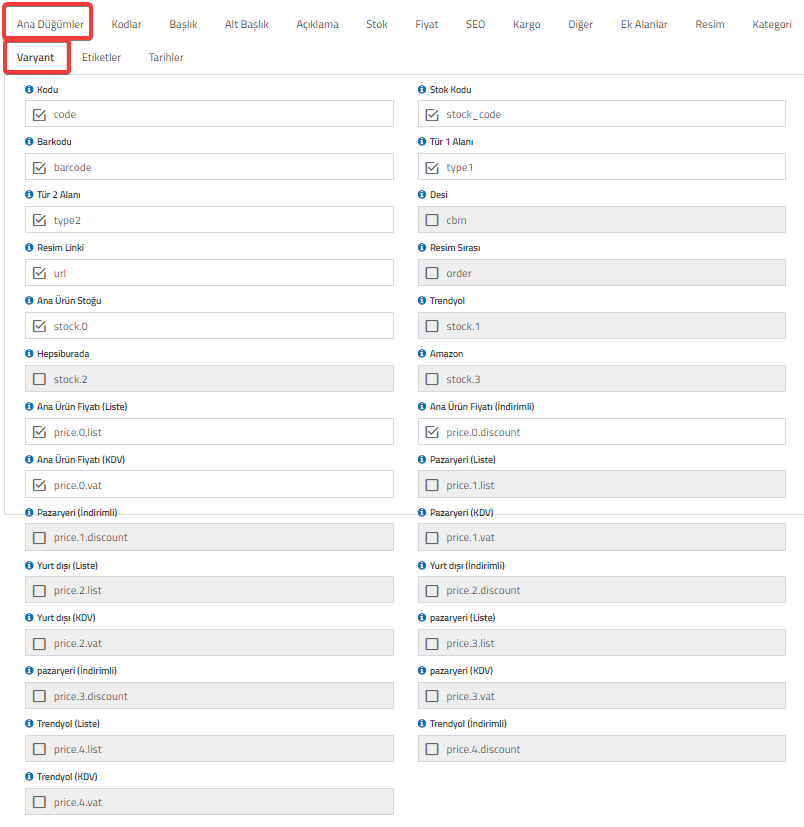
- Variant : The variant fields you can use will be listed. You can activate the fields you want to use. You can disable the ones you do not want to use by unchecking them. You can also change the start and end names.
- Tags : The tag fields you can use will be listed. You can activate the fields you want to use. You can disable the ones you do not want to use by unchecking them. If you wish, you can also change the start and end names
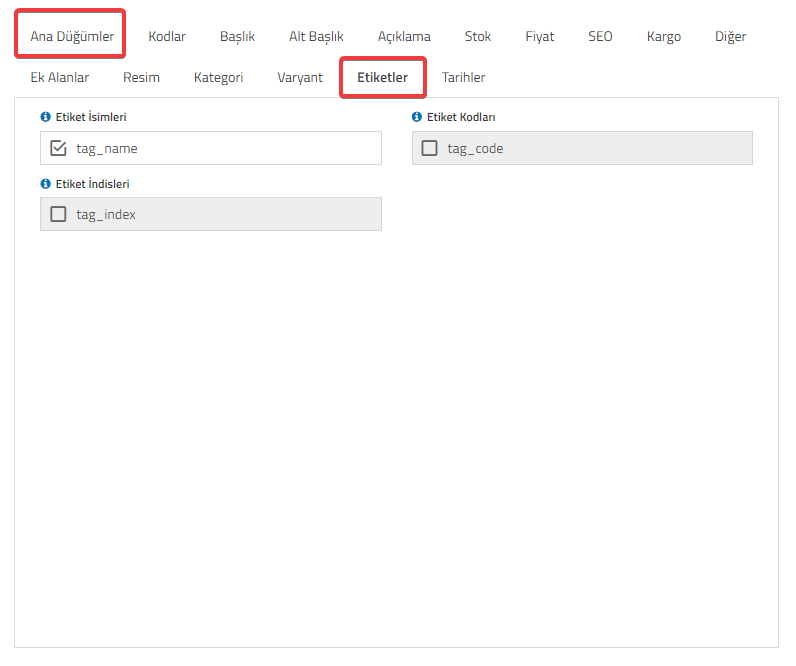
- Dates : Date fields that you can use will be listed. You can activate the fields you want to use. You can disable the ones you do not want to use by unchecking them. You can also change the start and end names.
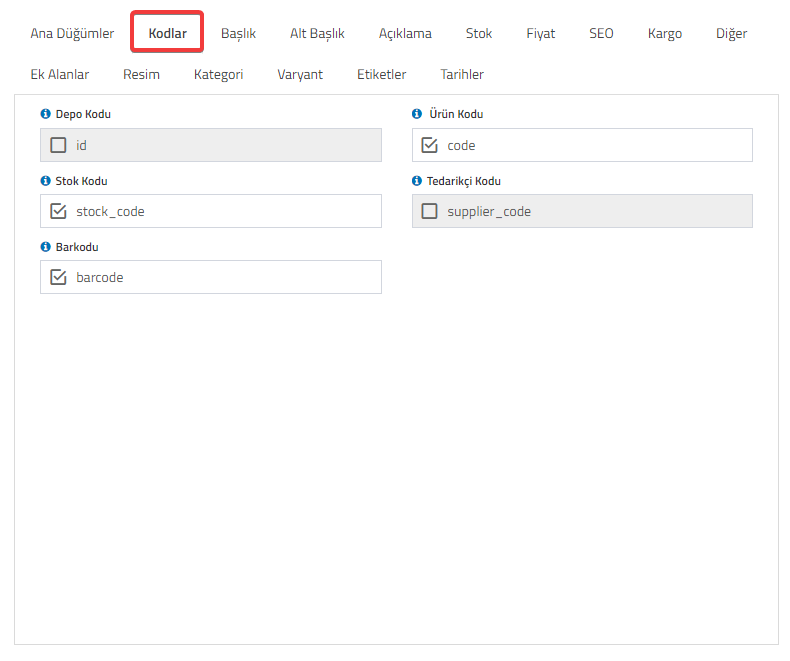
Codes : You can select the fields you want to create XML Output. You can create your own XMl by activating the fields you want to use with the names you want. You can uncheck the fields you do not want to use.
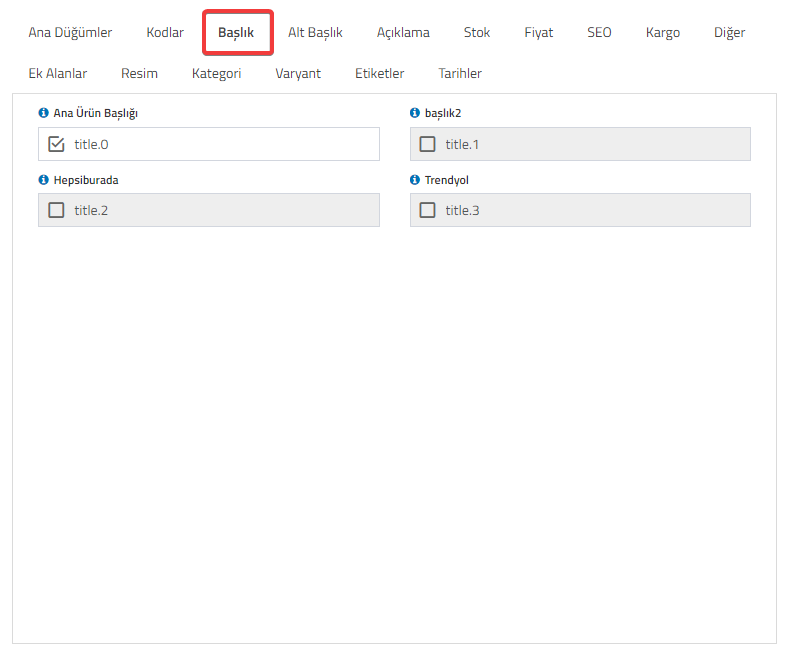
Title : You can select the field you want to create XML Output. Your header fields that you have added to ConnectProf > Catalog Settings > Field Management will be listed in this field. You can select the header fields you want to be extracted in XML and change their names.
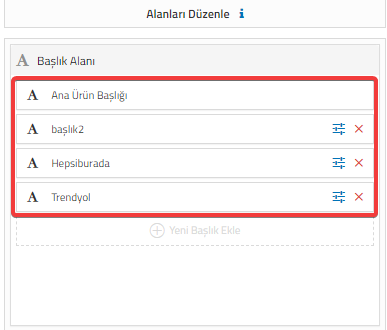
Subheading : You can select the subheading field you want to create XML Output. Your stock fields that you have added to ConnectProf > Catalog Settings > Field Management will be listed in this field. You can select the stock fields you want to be extracted in XML and change their names.
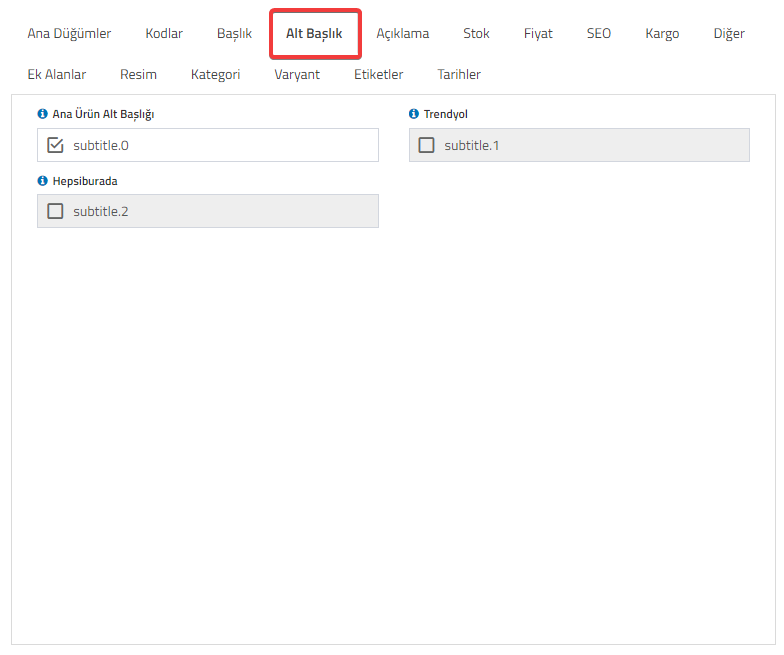
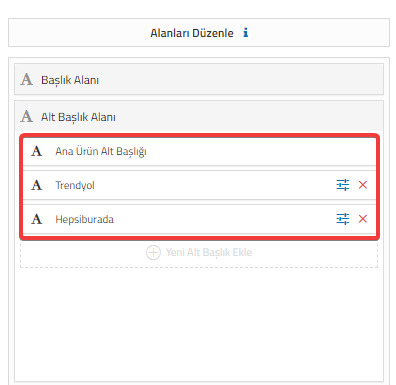
Subheading : You can select the subheading field you want to create XML Output. Your stock fields that you have added to ConnectProf > Catalog Settings > Field Management will be listed in this field. You can select the stock fields you want to be extracted in XML and change their names.
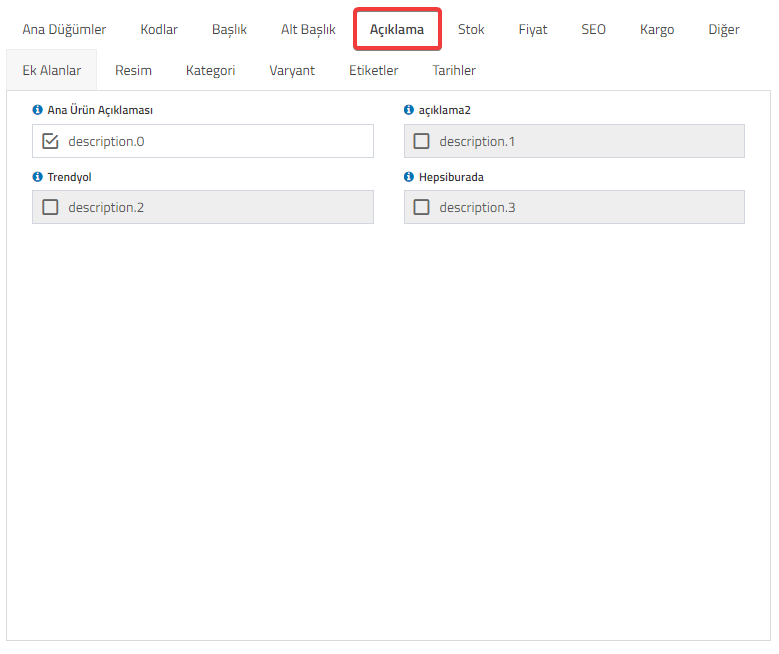
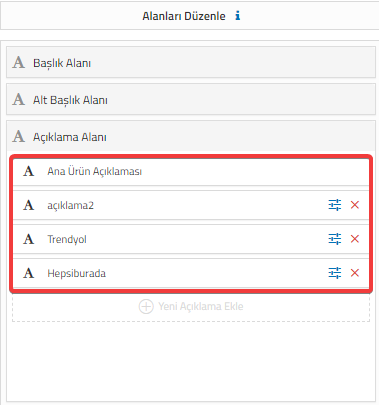
Açıklama : XML Çıktısı oluşturmak istediğiniz açıklama alan seçimleri yapabilirsiniz. ConnectProf > Katalog Ayarları > Alan Yönetimi kısmına eklemiş olduğunuz açıklama alanlarınız bu alanda listelenecektir. XML'de çıkartılmasını istediğiniz açıklama alanlarını seçebilir ve isimlerinde değişiklik sağlayabilirsiniz.
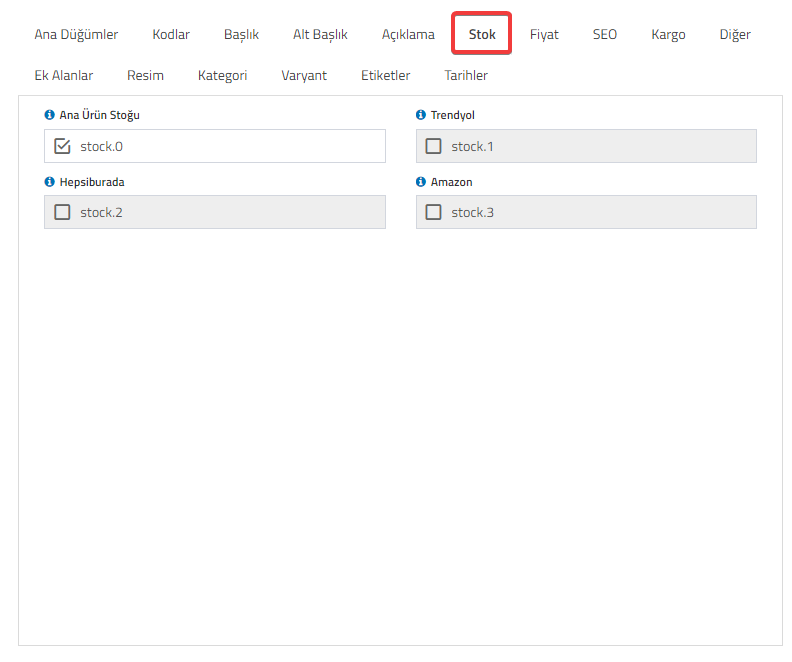
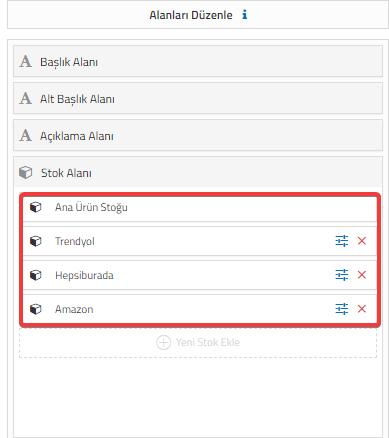
Stock : You can select the stock fields you want to add to the XML output. Your stock fields that you have added to ConnectProf > Catalog Settings > Field Management will be listed in this field. You can select the stock fields you want to be removed in XML and change their names.
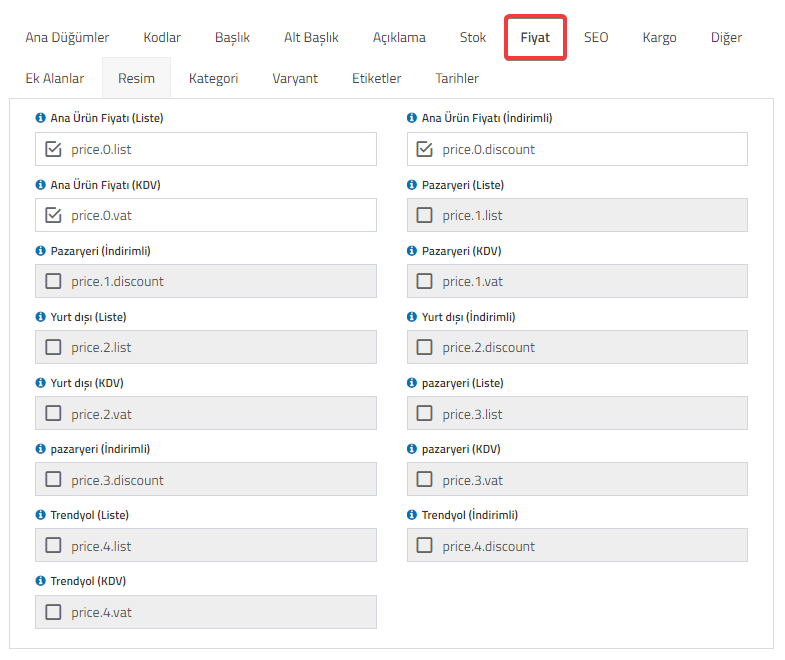
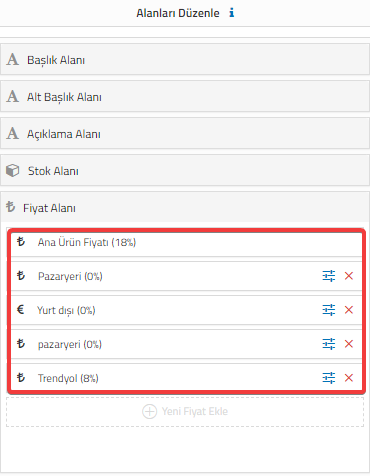
Price : You can select the price fields you want to add to the XML output. Your price fields that you have added to ConnectProf > Catalog Settings > Field Management will be listed in this field. You can select the stock fields you want to be removed in XML and change their names.
SEO : The seo areas you can use will be listed. You can activate the fields you want to use. You can disable the ones you do not want to use by unchecking them. You can also change the start and end names if you wish.
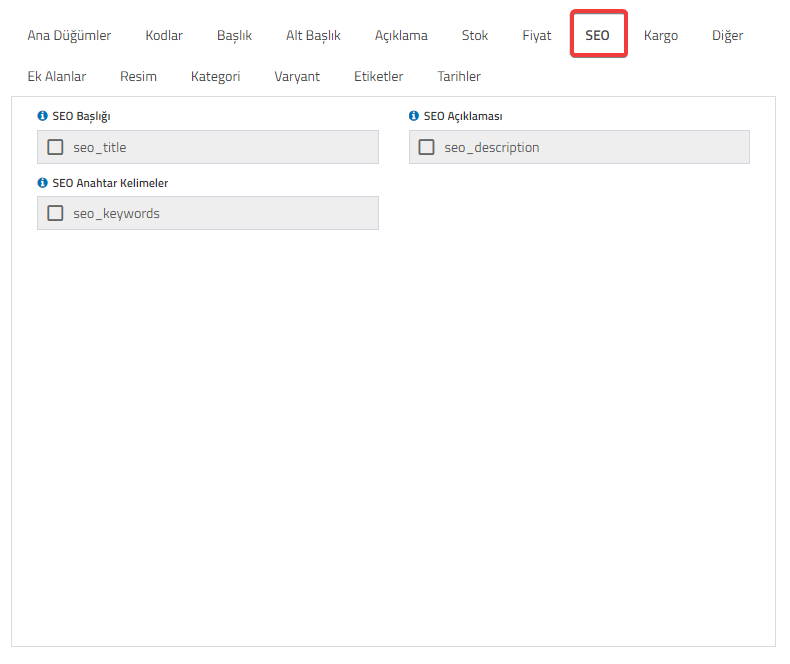
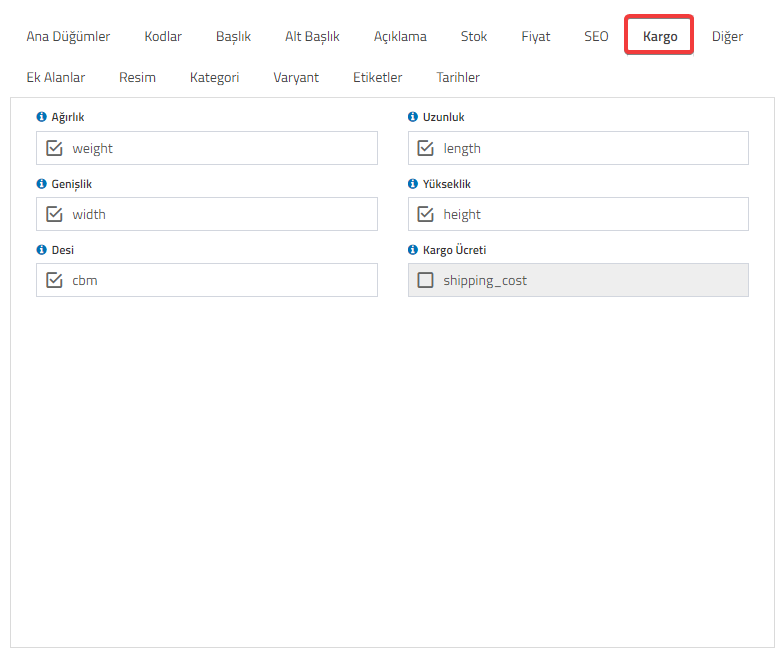
Shipping : The cargo fields you can use will be listed. You can activate the fields you want to use. You can disable the ones you do not want to use by unchecking them. If you wish, you can also change the start and end names.
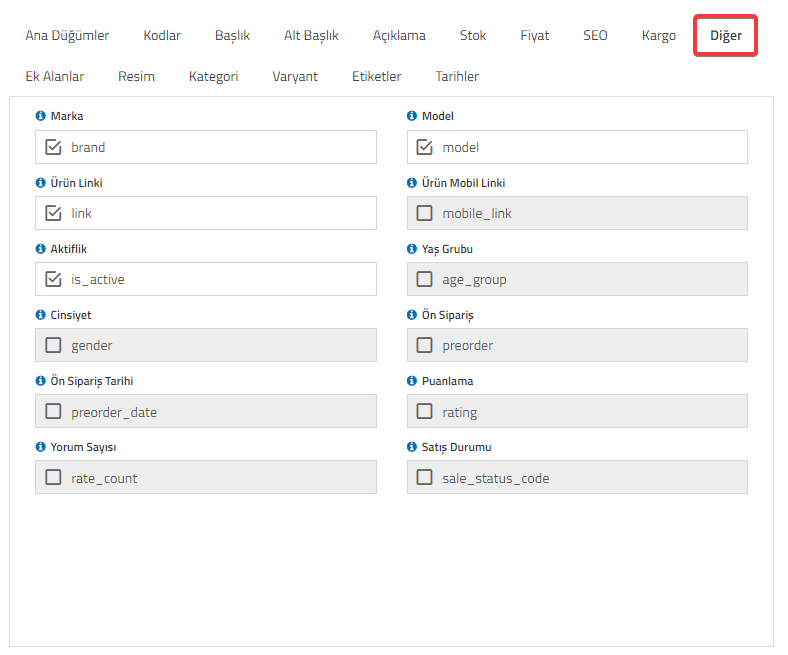
Other : Other fields that you can add to the XML link will be listed. You can uncheck the ones you do not want to use, and you can activate the ones you want to use by marking them. You can name the activated fields according to your own wishes.
If you want to cancel the selections made, click on the "Cancel and Delete My Link Information" button.
After checking that all options are correct, click on the "Save and Create Link" button to generate the XML output.
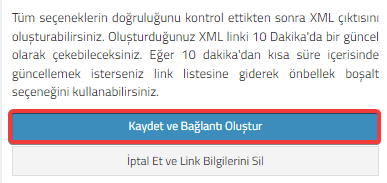
You will be able to pull the XML link you created every 10 minutes. If you want to update it in less than 10 minutes, you can go to the link list and use the empty cache option.
Click the "OK" button for the warning message after clicking.
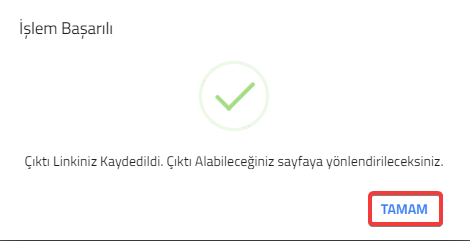
Your link will be created.
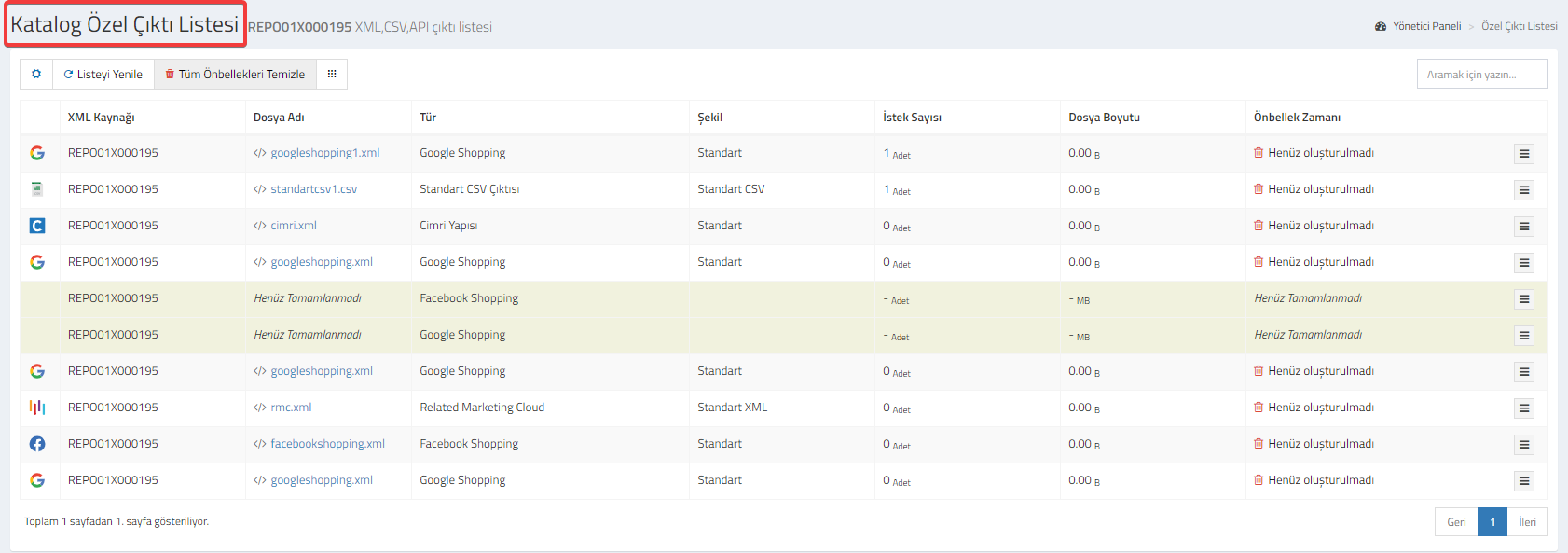
You can check and edit your link and its details from the "Catalog Special Output List" page. Click here for detailed information about the Catalog Special Output List page.