Support Requests
 ChatGPT
 Claude.ai
When using ConnectProf, you can get support from our expert friends at the points you want to get help. You can provide solutions or get information by contacting our support team in every area you are stuck in.
You can do many operations such as creating a support request, reviewing previous requests, responding, filtering from the "My Support Requests" page.
Since the transactions made through the support requests page will take a certain amount of time, you can easily manage your transactions with two-way communication instead of waiting for a call.
If a support request will be created for the first time, you can first review the article "Creating a Support Request for the First Time with ConnectProf". Click here to access the article.
My Support Requests Page Button Functions
You can create a new support request from the My Support Requests page or review the content and status of created requests.
To access my support requests, click Administration Panel > My Support Requests page.
My Support Requests page will open.
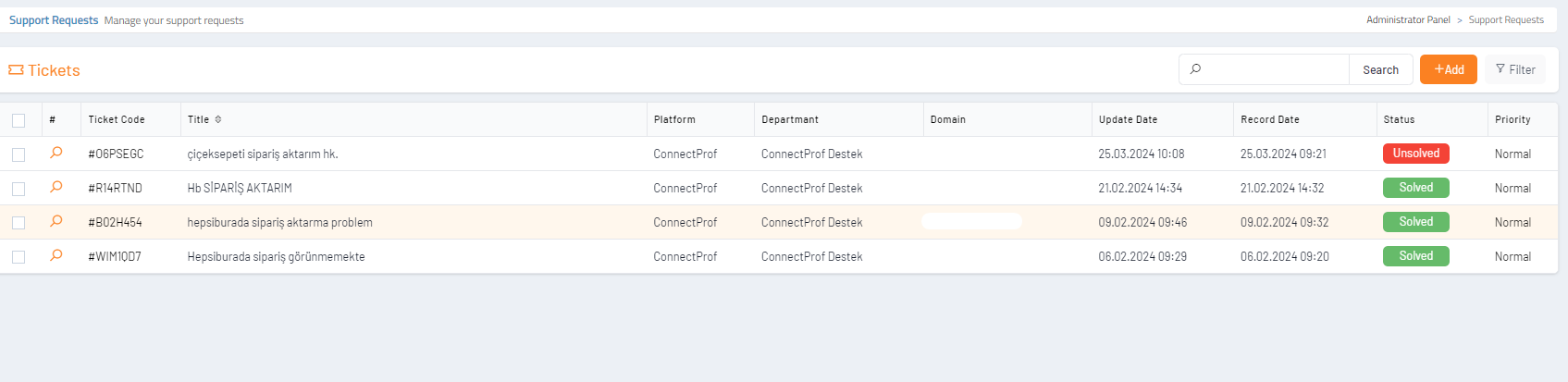
Add : You can use it to create a new request. When clicked, the New Request creation window will open

Department : You can select the department to which the request will be forwarded. When the department selection is made correctly, the returns will be fast as the first person sees the request before it is forwarded to another department.
Title : It is the title to be added about the subject of the request.
Content : It is the field where the subject of the request is written.
Save : You must click on the "Save" button to create the request. When clicked, your request will be listed in the request list. You can examine the details by clicking on it.
Filter : When you click, the filter window will open. You can filter by selecting demand account, demand status, importance status or department.

Responding to Incoming Support Request
To respond to the incoming support request, click on the lens mark on the edge of the request to be answered.
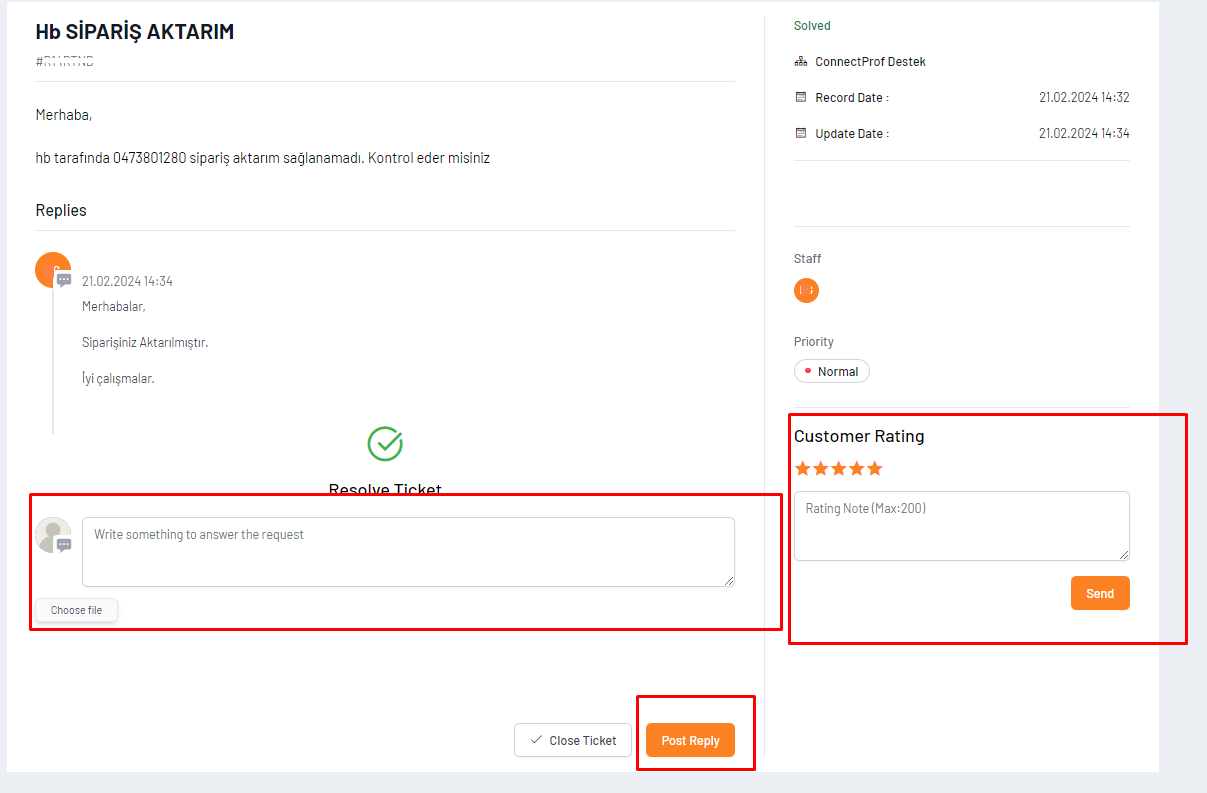
The request detail will open on the right.
You can write your response in the "Write something to answer the request" field.
After writing the response, click on the "Send button.
You will have responded to your request.