Wish Integration Marketplace
 ChatGPT
 Claude.ai
Wish Integration Marketplace represents a commerce model where multiple vendors can offer their products or services under the same roof, often conducting transactions through online platforms. It hosts a large virtual shopping demand with millions of daily customer visits and clicks.
Through marketplaces, you can reach and sell your products to a larger audience, thereby increasing brand awareness, acquiring loyal customers, and driving traffic to your e-commerce site.
ConnectProf allows you to transfer your products to various marketplaces by pulling them with API or XML. ConnectProf serves as an integration platform assisting e-commerce businesses in managing and synchronizing data for Beymen stores. With Beymen integration, businesses can automatically synchronize store inventories and product information through ConnectProf, ensuring they keep their stock up-to-date and provide accurate and current information to customers.
Orders coming from Wish can be easily managed through ConnectProf. Orders are automatically synchronized, providing businesses with quick visibility, making processes more efficient.
ConnectProf API services enable businesses to present their products and services across different platforms and websites, allowing their customer base to reach wider and diverse platforms.
If you want to set up Wish integration with ConnectProf, here are the steps:
- **Create a Wish Seller Account:**
- You need to have a seller account on Wish. Click here (insert_wish_seller_account_creation_link) to create an account.

2. **Account Connections:**
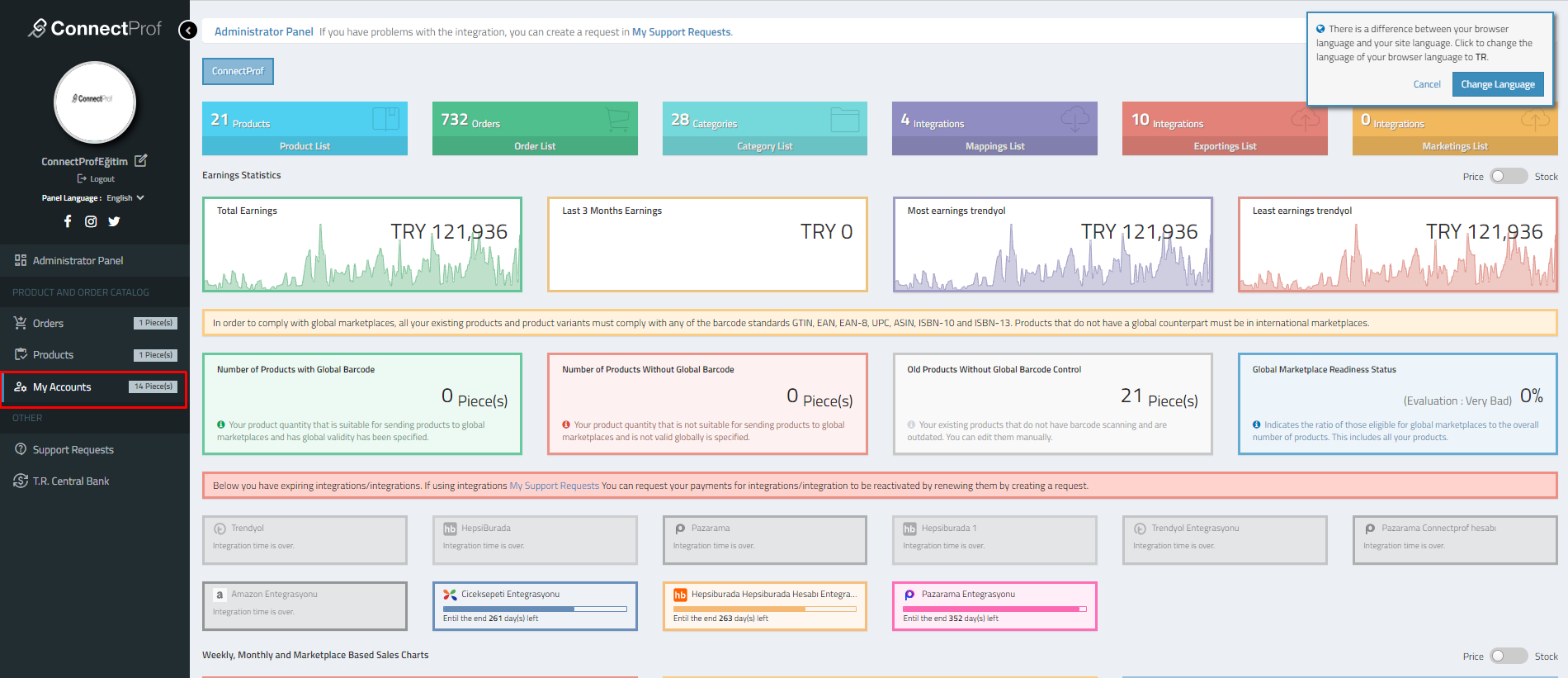
- In ConnectProf, go to the "My Accounts" page.
- Click on the "Add New Account (+)" button, select the account type as "Wish," and click "Continue."
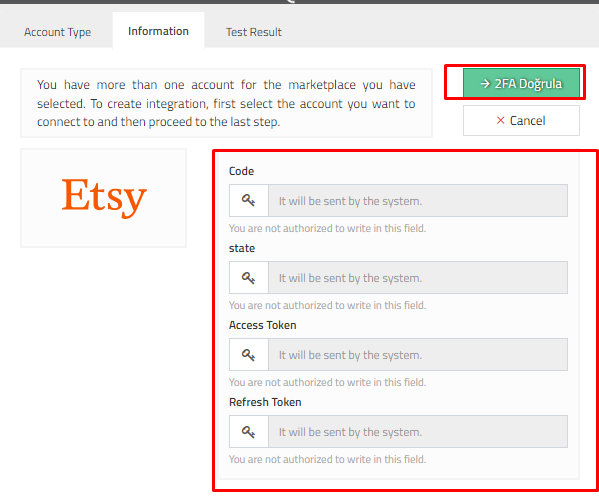
- Add your Wish 2FA information in the details field and click "Continue."
- It will lead to a test result.


3. **Account Linking:**
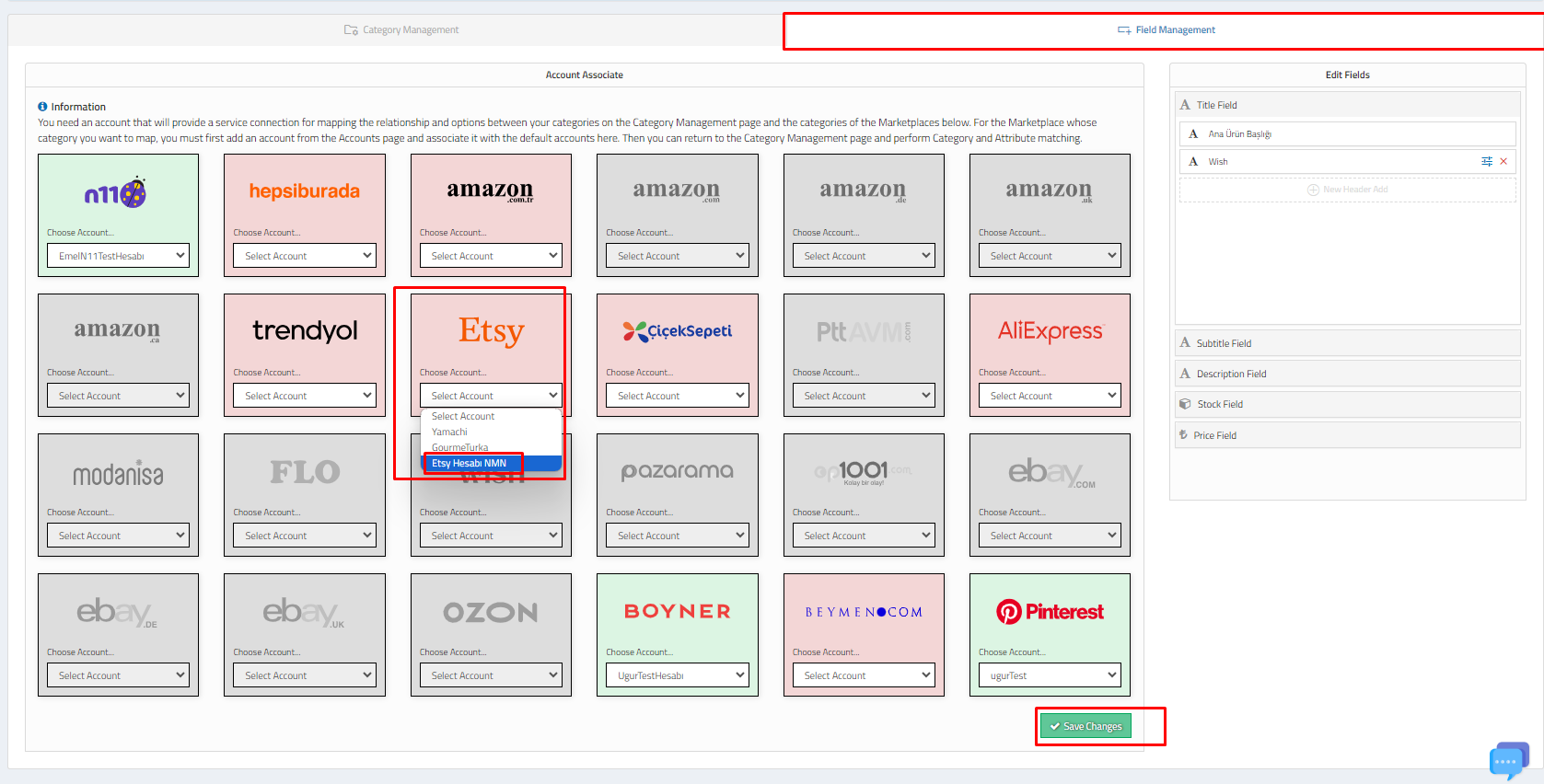
- After successful Wish 2FA verification, link Wish with ConnectProf in the Admin Panel under Category List > Field Management > Account Linking. Select your added Wish account and click "Save Changes."
4. **Category Mapping:**
- Once account connections are complete, perform category mapping.
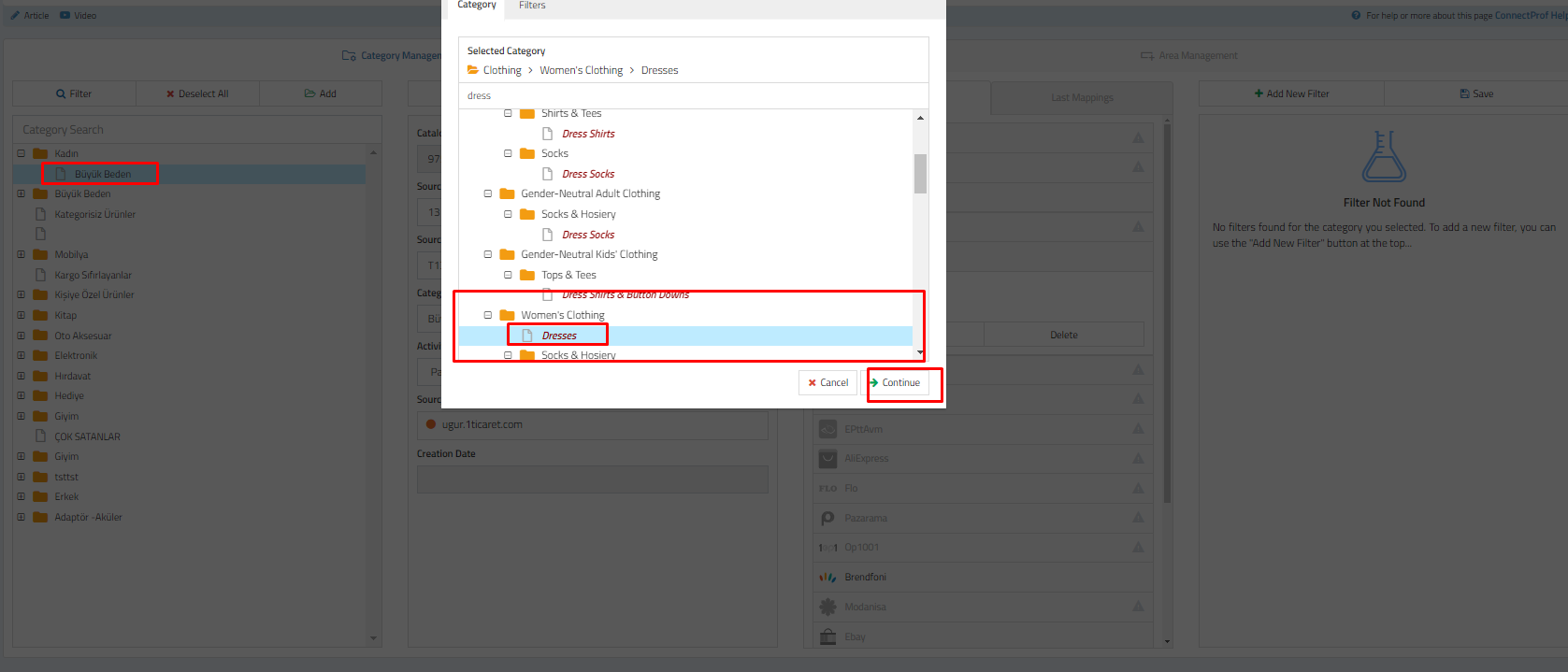
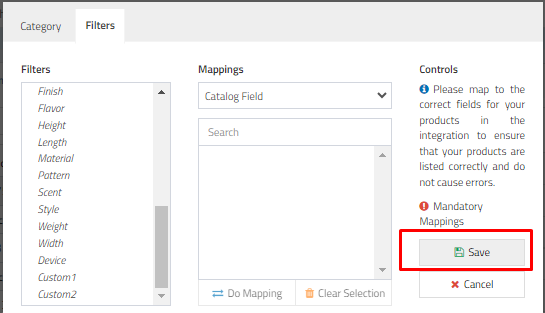
- In ConnectProf, choose the category under which you want your products to be listed on Wish.
- After selecting the category, click "Map" under the "Mappings" section, and choose the Wish platform.
- Select the Wish category you want to map and click "Map."
- Proceed through the prompts and add necessary information.

5. **Export Integration Setup:**
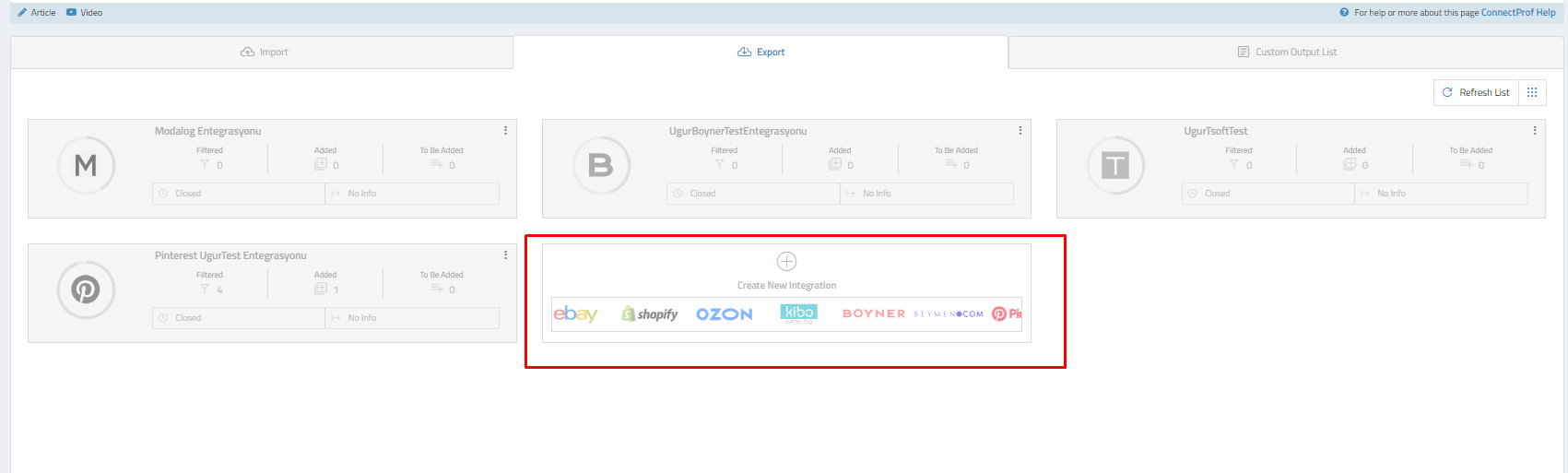
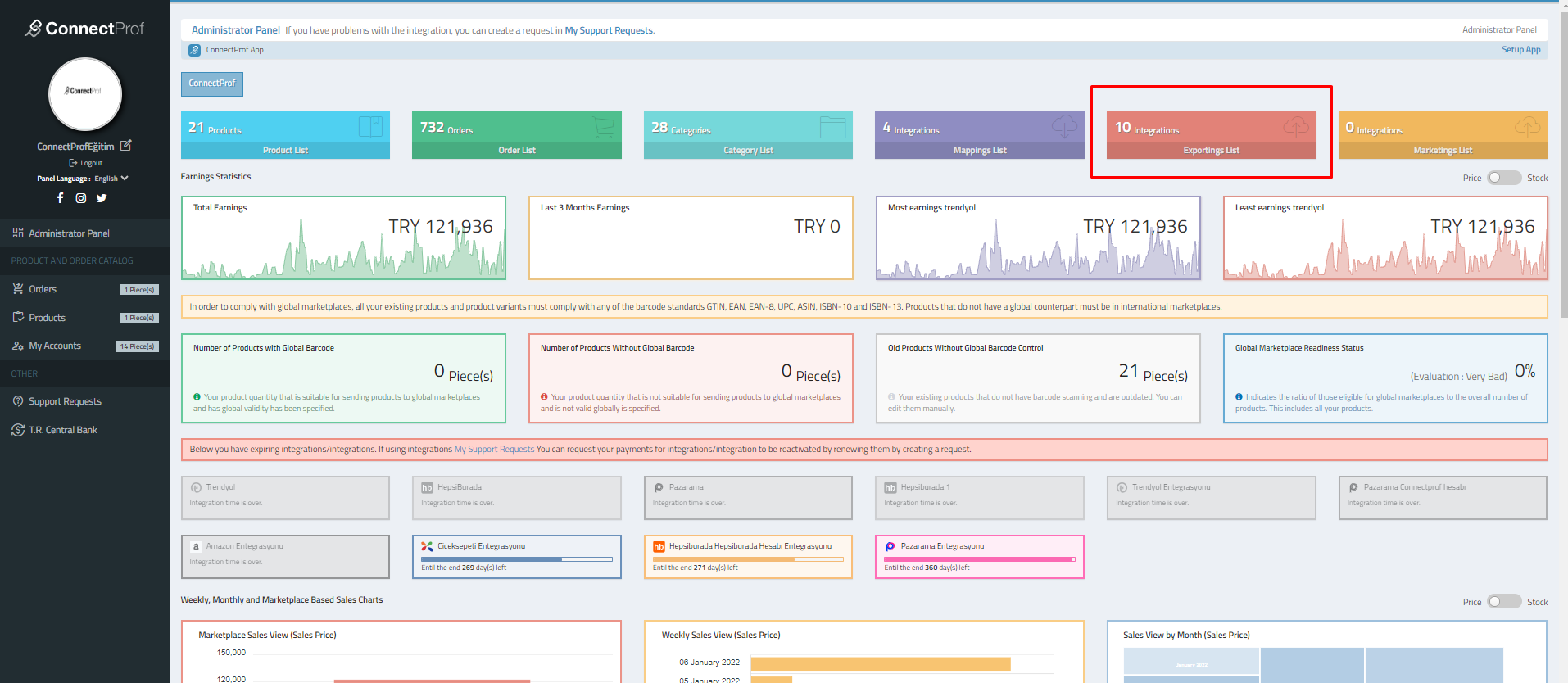
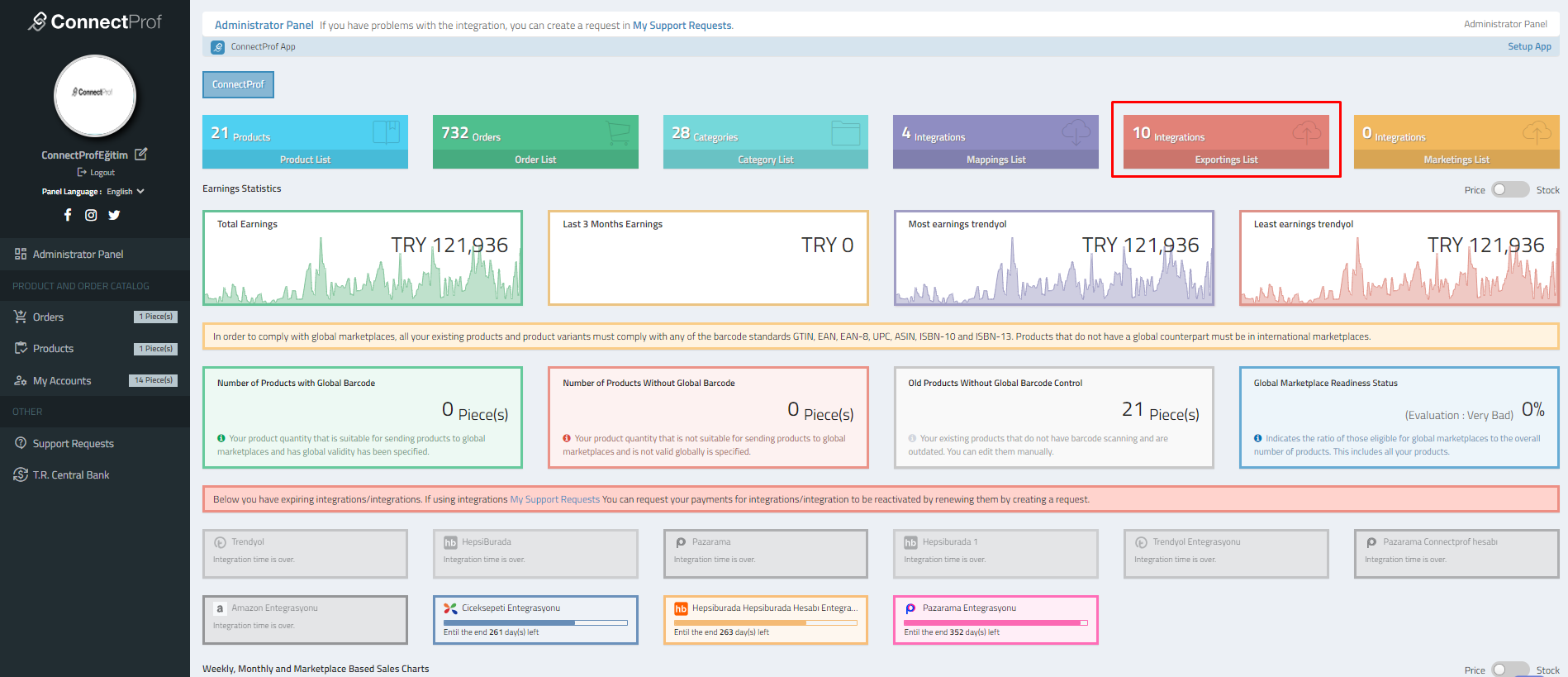
- To export products to various marketplaces through API or XML, go to the "Export List" in the admin panel.
- For integration setup, click "Create New Integration."
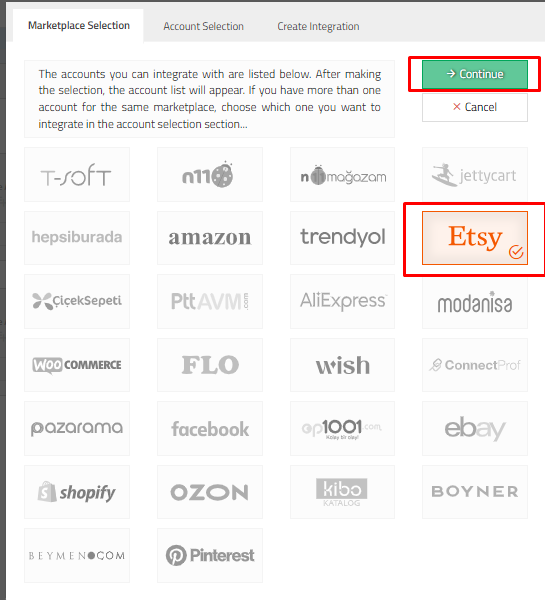
- Choose "Wish" in the Marketplace Selection window.
- In the Account Selection field, click "Continue" to be directed to the integration creation window.
- Click "Create Integration" to set up the export integration.
- After setup, additional settings for export integration need to be added in subsequent steps.
Please note that the provided instructions are a general summary and might require specific details from the platform interfaces you are using.